
GoPro is a popular small-sized camera used mainly for adventure photography. GoPro camera is widely used for its versatility and can be mounted anywhere. If you have a bunch of GoPro footage on your camera which you want to view, edit and share it with your friends, you need to first transfer it to the computer. However, the computer may fail to detect the camera when you connect the GoPro via USB.
GoPro camera is not recognized when plugged into USB Port
When you connect your camera to a computer using a USB cable, the system may fail to recognize it and display an error message. Even if your computer recognizes the camera, it may not show the files you want to import. Fortunately, a few troubleshooting steps might help you fix the problem.
The following solutions might help to resolve the issue
- Check the cable connection
- Run the troubleshooter for Hardware and Devices
- Replace USB cable
- Connect the camera to a different USB port
- Reinstall drivers for USB controllers
- Change the USB Root Hub Properties
- Check the compatibility of the SD card with the computer
In this article, we step you through all the solutions that might help you to fix the issue.
1] Check the cable connection
If your system fails to recognize the camera when plugged in with a USB cable, the first thing to do is check for a loose connection. Reinsert the USB cable into the computer and camera such that both USB ends are securely inserted. To ensure a proper connection, make sure your camera is powered on and displays the USB symbol on the GoPro’s LCD screen. If the problem persists, restart the system and reconnect the USB cable into a camera and computer. If reinserting the USB cable doesn’t resolve the issue, keep reading further as the problem could be something else.
2] Run the troubleshooter for Hardware and Devices
Connect your GoPro camera to the computer. Navigate to Settings and select Update and Security.
Select Troubleshoot and Navigate to Hardware and Devices from the menu.
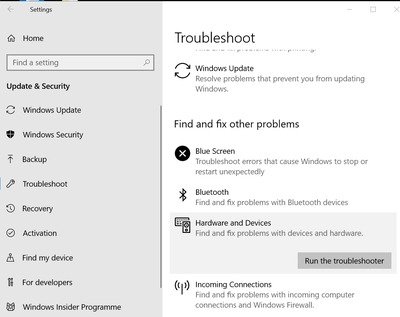
Click Run the troubleshooter button.
If the system detects problems, Click Apply this Fix to resolve the issue.
3] Replace the USB cable
When you connect your camera to the computer using a GoPro USB cable, make sure you see a USB logo on the camera’s front display. If you don’t see a USB logo, try connecting your GoPro to the computer with a different USB cable.
4] Connect the camera to a different USB port
If you don’t see GoPro files in the GoPro app of your computer, try connecting your camera’s USB cable to another USB port. Sometimes its quite possible that your system won’t recognize the USB port if there is a hardware problem associated with that USB port. If plugging the camera to an alternative USB port recognizes your camera then it should be the problem with your system’s USB slot.
5] Reinstall the drivers for USB controllers
- Open Control Panel and navigate to Device Manager
- Select and expand Universal Serial Bus controllers
- Right-click each USB controller and select Uninstall Device.
Once done, restart Windows to reinstall all the drivers’ controllers
6] Change USB Root Hub Properties
Open Control Panel and navigate to Device Manager.
Expand Universal Serial Bus Controllers
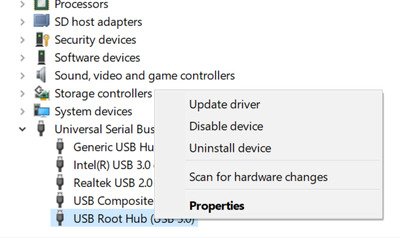
Right-click on USB Root Hub and select Properties from the drop-down menu.
In the USB Root Hub Properties window, Navigate to Power Management
Uncheck the option Allow the computer to turn off this device to save power.
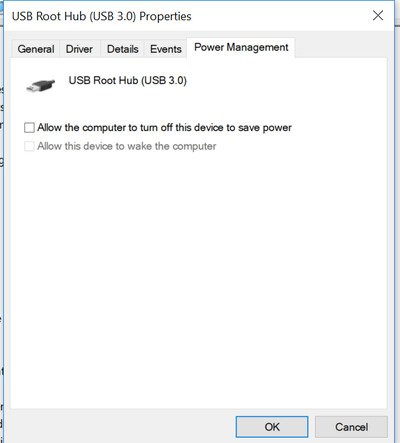
Click OK to apply the changes and restart the computer.
7] Check the compatibility of SD card with the computer
When you connect your camera to the computer via a USB cable, make sure you have an SD card inserted in the camera so the computer can recognize the connection. If the above solutions don’t resolve the problem, the issue may be SD card compatibility with the computer. Try using a different SD card reader or a separate SD card slot to connect with the computer. If this doesn’t help, back up all your files from the reader and reformat the SD card to see if your computer recognizes the camera.
If none of the above solutions work, the camera may be faulty.
Related read: Camera is not recognized on GoPro’s Quik app for desktop.
