
GoPro cameras are widely used for action photography. It is a popular pocket-sized camera device used by adventurers, surfers, athletes, travelers, and bloggers as a daily camera and can be mounted anywhere. They are great for rugged use and are ideal for capturing videos when you are on a beach, mountain, or snow, diving into the water, or going skydiving.
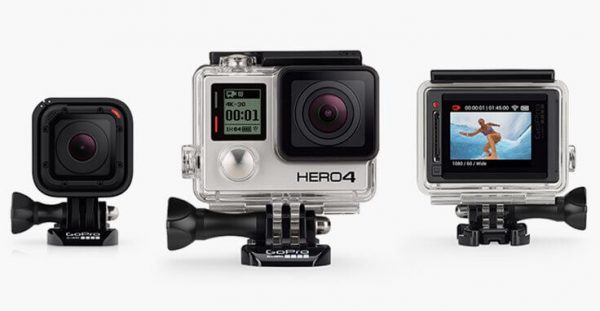
Nowadays, GoPro usage is increased beyond just action photography. Bloggers and travelers use it as a production camera and film everything around them. The camera is versatile enough to capture everything when you are outside. Ever wondered how you can use a camera when you are off on an adventure?
There is a lot of buzz on using a GoPro as a webcam for streaming. There is absolutely no dearth of things that you can try with GoPro. If you are wondering whether to use a GoPro as a webcam, the answer is yes. You can squeeze in extra use of your GoPro when you are not using it for photography. Its wide-angle lens, Ultrawide settings, and HD camera make it suitable to use as a webcam when you’re not using it for outdoor activities.
GoPro cameras can be replaced with your traditional webcams and used for video calling platforms like Teams, Google Meet, and others. To get a professional appearance with a GoPro web camera, all one has to do is properly set up your GoPro to use it as a webcam. In this article, we will guide you through the process of using GoPro as a webcam for your Windows computer.
Use GoPro as a Webcam Without a Capture Card
To use GoPro as a webcam, you will need the following components:
- GoPro Camera
- Regular HDMI Cable or a micro HDMI cable
- HDMI Dongle USB device. This converts an HDMI signal to a webcam signal
Setup Connections
- Connect the HDMI Dongle USB device to your Windows computer.
- Connect your GoPro camera to the HDMI cable, then connect the other end to the USB dongle.
Setup GoPro and use it as a Webcam on PC
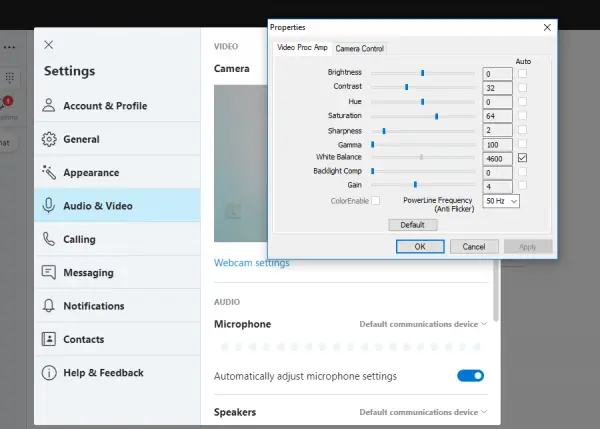
- Turn on your GoPro camera.
- Launch the video calling applications like Skype.
- Open the camera settings and choose your USB or HDMI output as a webcam. If you are using Skype, go to Tools. Navigate to video settings. Choose your camera to a suitable device that is displayed on the menu.
Now that everything is set up, you can start recording with the GoPro as a webcam on Windows 11/10.
Use GoPro as a Webcam with a Capture Card
To use GoPro as a webcam, you will need the following components:
- GoPro Camera
- Regular HDMI Cable or a micro HDMI cable
- Mini USB Cable
- A video capture card converts GoPro video signals into a digital format that can be used to stream video from the camera to the computer.
- Open Broadcaster Software (Free)
How do I connect my GoPro to my laptop?
- Connect your GoPro’s USB cable to your computer
- Connect HDMI cable to GoPro. Connect the other open end to the HDMI port of the capture device.
- Connect the USB cable from the Capture device to your computer’s USB port.
Setup OBS Studio
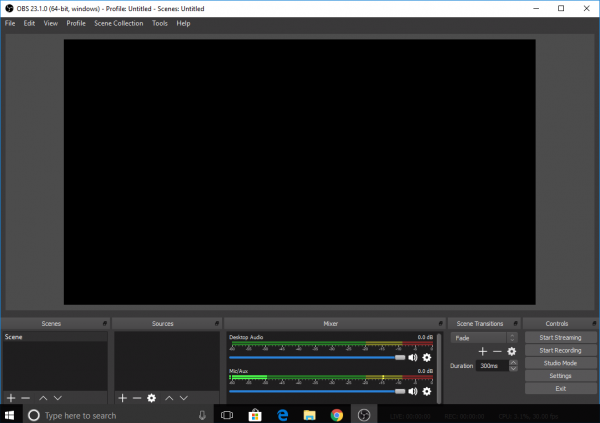
Download and install OBS Studio.
Navigate to sources and add a Video Capture Device.
Set up GoPro and use it as a Webcam
- Turn on your GoPro camera.
- Launch the video calling applications like Skype.
Open the camera settings and choose your video capture card as a webcam.
Now that everything is done, you can start recording using GoPro as a webcam.
Why won’t my GoPro videos play on my computer?
There can be two reasons why GoPro videos cannot play on Windows PC. First, the files are corrupted due to unexpected shutdowns. Second, the player on your PC doesn’t support HEVC. You can either install the HEVC codec on a Windows PC or use other media players such as VLC or 5K Player, or any video editor from Adobe, to play the video.
How to Convert GoPro Videos?
Many video converters support GoPro Video format, but if you are looking for a free video converter, you can use the Handbreak. You can install the video optimizer and then convert all the videos to MP4, which a player and editor can use.
Read: How to connect GoPro to a laptop
How to fix or recover Corrupted GoPro Videos?
GoPro cameras offer SOS repair icons that highlight corrupted files. Ensure the SD card is inside the camera, and once it detects the corrupted videos, tap on the repair icon, and it will fix. If the header is corrupted, it can be easily fixed. You can then export and use it on your PC.
That’s all.
