
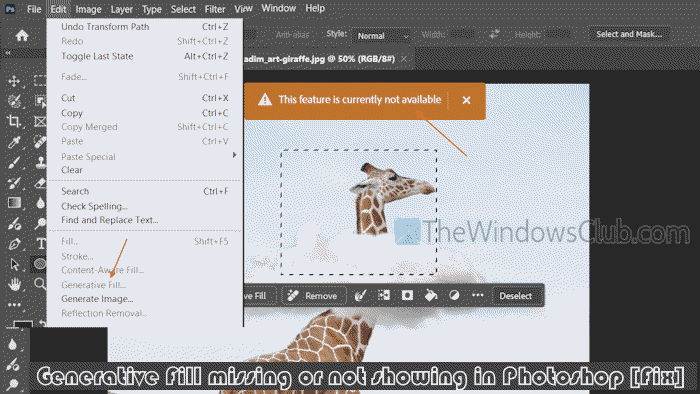
Generative Fill is an AI tool (powered by Firefly) in Adobe Photoshop to generate content, replace backgrounds, change existing content, remove elements, and much more. Though the feature works well, some users have complained that Generative Fill is missing, not showing, or not working in Photoshop. Users find that clicking the Generative fill option displays a “This feature is currently not available“ message. Other users have noticed that the Generative Fill option is greyed out or disabled. For those who face this problem, this post includes some working solutions.
Why is my Generative Fill not showing up in Photoshop?
The Generative Fill option won’t appear, or it will appear as disabled (under the Edit menu) in Photoshop unless you use the selection tool. Generative Fill will also not show if the Contextual Task Bar is turned off. Additionally, an outdated Photoshop version, region-based restrictions, and unsupported file types and layers can be reasons Generative Fill is not showing up or is missing in Photoshop.
Generative Fill missing or not showing in Photoshop
If the Generative Fill option is missing, not showing, or not working in Photoshop, use these solutions:
- Check your internet connection
- Check your account and generative credits
- Region-based restrictions
- Re-open Adobe Photoshop
- Update Photoshop
- Check your file type
- Check the layer type
- Enable Contextual Task Bar
- Check your prompt
- Reset Photoshop Preferences.
Let’s check these options.
1] Check your internet connection
This fix has helped some users who encounter the This feature is currently not available error message in Adobe Photoshop when using the Generative Fill option, as visible in the image above. AI tools like Generative Fill require a stable and active internet connection to work properly. So, check your internet connection. If there’s no internet or limited connectivity, and you click on the Generative Fill option, you will receive the same error.
2] Check your account and generative credits
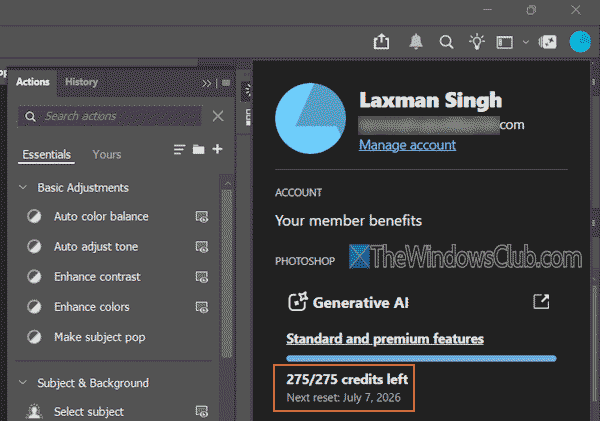
To use Generative Fill and other AI features in Photoshop, you must have a valid and active membership or a free trial with sufficient generative credits. Most standard generative AI features use 1 credit per use (or generation), and premium features require more credits (say, 100 credits per second for 1080p video at 24 FPS). If any of these conditions are not met, you won’t be able to use Generative Fill. So, check your account and generative credits to make sure you meet the criteria.
Do note that generative credits do not roll over to the next month; they are reset to the allocated amount each month. Click on the Account icon in the top-right corner of Photoshop to check the number of generative credits left.
3] Region-based restrictions
Region-based restrictions can also be the reason that Generative Fill is missing or not showing in Photoshop. For example, Adobe’s generative AI features aren’t available in China, North Korea, Cuba, Russia, etc. So, if you are using a VPN or proxy and your region is set to any of the restricted countries, you won’t be able to use this feature.
Related: Adobe Photoshop not opening on Windows PC
4] Re-open Adobe Photoshop
This fix worked for a few users. Close Photoshop completely (end or stop Photoshop’s background processes via Task Manager), and re-open it. This should help. You should also log out and back in to your Adobe Photoshop account, which can help refresh your credentials.
5] Update Photoshop
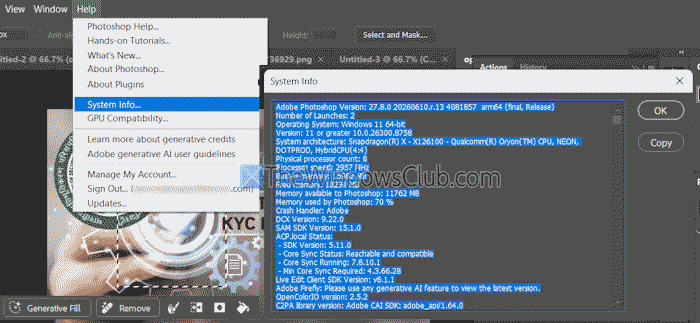
To access and use Generative Fill, you must be running Photoshop version 25.0 or higher. If you aren’t using m.2181 build or higher, you may find that Generative Fill is missing, not showing, or working in your Photoshop account.
To check the Photoshop version and other details, click Help menu > System Info.
To update Photoshop, go to Help > Updates.
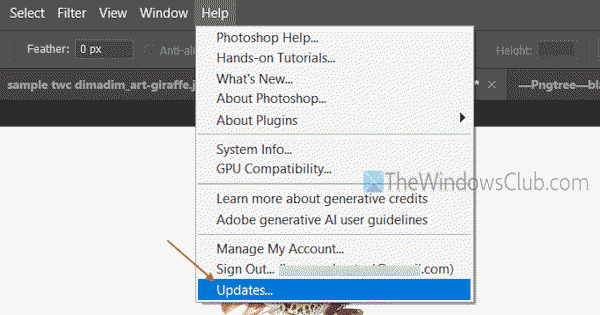
Alternatively, you can access the Apps section in Creative Cloud Desktop and check for updates for Photoshop.
6] Check your file type
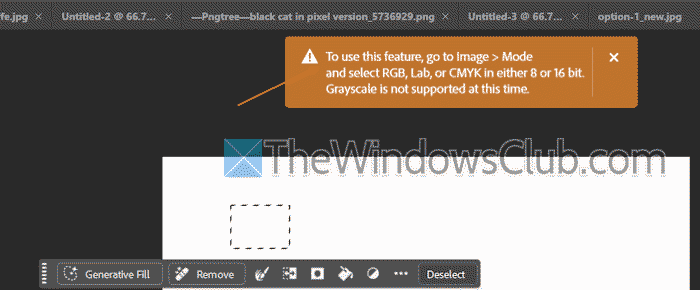
Generative Fill in Photoshop doesn’t work with grayscale image mode and 32-bit channel file types. It supports Lab, RGB, and CMYK color modes in either 8-bit or 16-bit channels. So, you should check that your file type is supported, as unsupported or raw-format files can’t be used with Generative Fill.
You can check the file type on the title bar of the File tab. Next to the file name and zoom percentage, you will see the file type, such as RGB/16, RGB/8, CMYK/8, etc.
7] Check the layer type
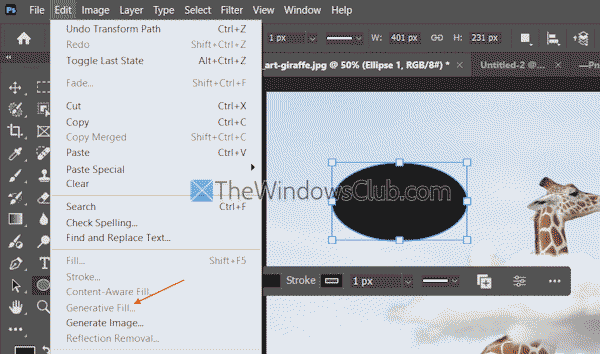
Generative Fill will be disabled or greyed out (as highlighted in the image above) if you try to use it on an unsupported layer type. For example, if a layer is locked, you’re using text layers, smart objects (unless rasterized), or working on vector shapes, Generative Fill will be missing there. So, you must be using an unlocked layer or select a raster layer to use Generative Fill.
8] Enable Contextual Task Bar
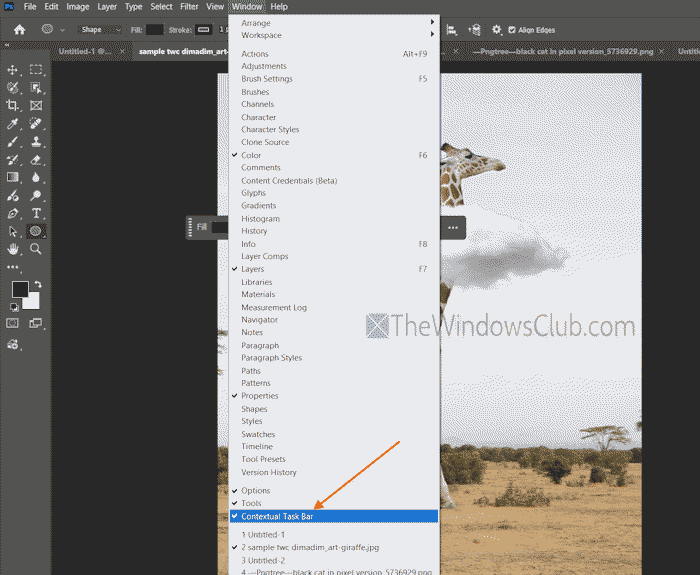
When we select an area in a file, Generative Fill appears on the Contextual Task Bar (at the bottom part of the selection). However, if Contextual Task Bar is turned off or disabled, you won’t see any option (including Generative Fill). In this case, you need to enable the Contextual Task Bar. Click the Window menu and select the Contextual Task Bar option to enable it.
Alternatively, click Edit menu > Generative Fill to open it.
Read: Fix Toolbar not showing or is missing in Photoshop on Windows
9] Check your prompt
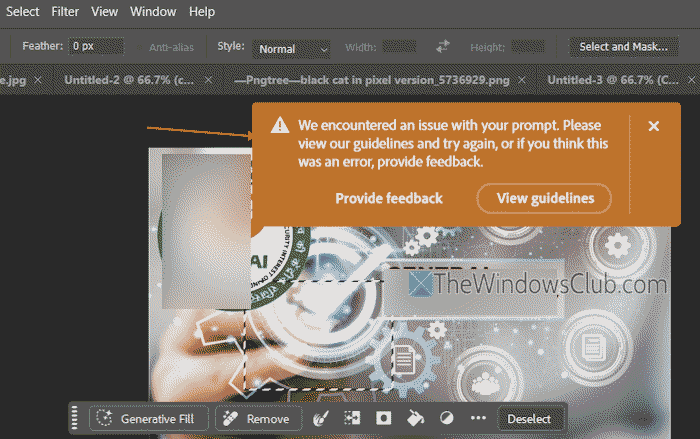
You can’t use generative AI features like Adobe’s Generative Fill that violate laws or don’t follow guidelines. For example, it shouldn’t be used to promote violence, extremism, self-harm, or violate the privacy rights of others, etc. If you try to use such a prompt in Generative Fill, you will receive the following error:
We encountered an issue with your prompt. Please view our guidelines and try again, or if you think this was an error, provide feedback.
This could be why Generative Fill is not working on your Photoshop account. In such a case, you should check your prompt carefully.
Also read: Keyboard Shortcuts not working in Photoshop
10] Reset Photoshop Preferences
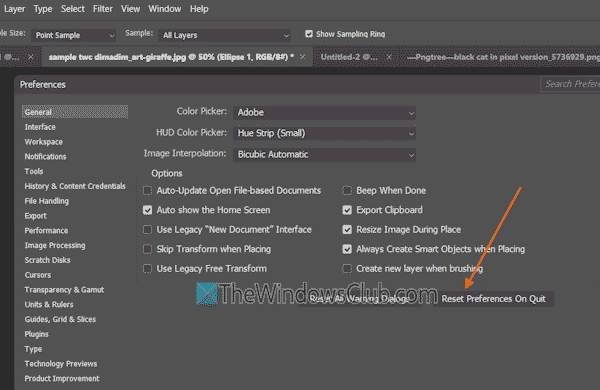
If the above options don’t help, you should reset your Photoshop preferences. For this, go to Edit menu > Preferences > General. You can also press Ctrl+K hotkey to open its preferences. In the General section, select the Reset Preferences On Quit option, and press OK. Close Photoshop and open it again. The problem should be gone now.
If nothing works, you should uninstall Adobe Creative Cloud or Adobe Photoshop from your desktop and reinstall it.
That’s all.
Now read: Can’t save as JPEG or JPG in Photoshop
Why is generative fill not working in Photoshop 2026?
If you are using the latest version of Adobe Photoshop and Generative Fill is not working, it can be caused by a layer issue or an unsupported file type. Apart from that, if you aren’t signed in with a valid Adobe ID or using an enterprise or educational account with restricted generative AI access, this can also be the reason that Generative Fill is not working in Photoshop Elements 2026 or the latest version.
Read next: GPU Not Supported Photoshop error.
