
The speed of your computer’s fan depends on the task that you are doing. So, if you are doing an intensive task and the system load is high, your computer increases the fan RPM to dissipate the excessive heat generated. But what if there is a way for you to decide how slow or fast your fan’s speed will be? In this article, we will see some of the best free Fan Speed Controller software for Windows computers that will let you take control of your laptop.
Free Fan Speed Controller software for Windows PC
The following are the best free Fan Speed Controller software for Windows 11/10 PC. The list is in no particular order, as every app here has some unique ability.
- SpeedFan
- HWiNFO
- MSI Afterburner
- Argus Monitor
- Fan Control
- Zotac Firestorm
- Asus AI Suite
- MSI Dragon Center
- Easy Tune 5
- Corsair Link
- FanCtrl.
Let us talk about them in detail.
1] SpeedFan
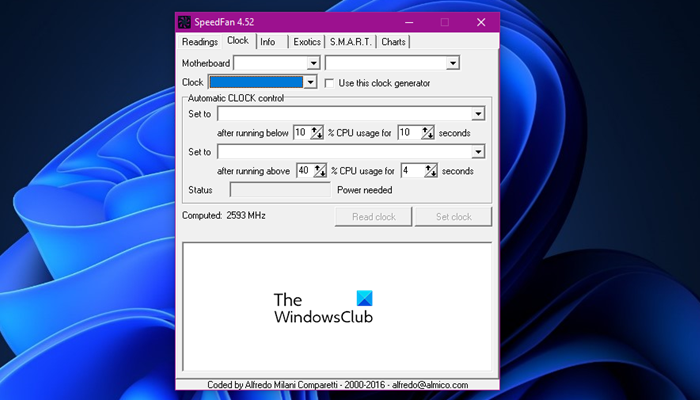
Let us start with a one-stop shop for all your CPU Fan speed queries. SpeedFan is not just a speed controller but an all-in-one utility that allows you to see voltage, temperature, run CPU diagnostics, etc.
When you download and install the app, it will perform a quick scan of your system to gather all the relevant information, also called S.M.A.R.T. info. Then just open the application and you will see tabs designated for their respective tasks. Now, to change the clock speed, go to the Clock tab and complete the task. To download this app, go to almico.com.
2] HWiNFO
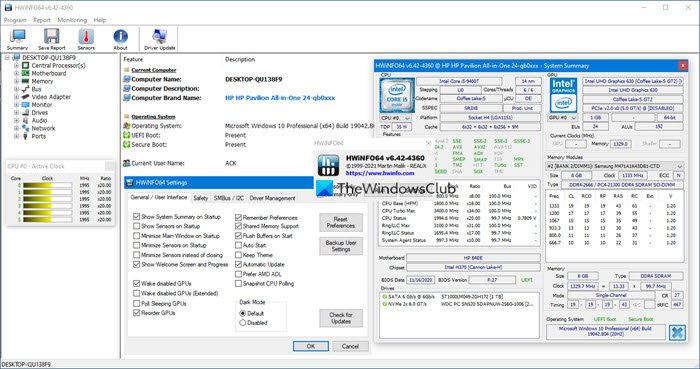
HWiNFO is a free fan speed controller software for Windows. Not just for managing the speed, it has many other features embedded in the software. Monitoring CPU, motherboard, HDD temperature, CPU & GPU usage, CPU package power, GPU power, Core clock, RAM usage through HWiNFO is a simple task.
You can get stats for sensor info, BIOS info, CPU turbo frequency, and many more. As mentioned above, HWiNFO is accessible on Windows 11/10.
3] MSI Afterburner
Getting the best fan speed controller software at literally zero price is possible with MSI Afterburner. It’s super easy to handle fan speed, along with many more features. In this, you can also keep an eye on memory usage, CPU/GPU temperature, etc.
It has plenty of tools, such as real-time FPS, GPU voltage, and frequency. MSI Afterburner works fine with every graphics driver, AMD, NVIDIA.
There can be a maximum of 5 fan speed profiles and you can also create your own fan curve. Go to msi.com to get the app.
4] Argus monitor
The next fan speed controller software is Argus Monitor. It is a simple piece of software that can run on all Windows versions.
You’ll have no problem getting acquainted with its UI. It has a plethora of tools and features. Some of them are HDD and SSD benchmarks, along with GPU and CPU temperature information. All in all, it gives you control over the fan’s RPM.
Download the app from arusmonitor.com.
5] Fan Control
Fan control is exactly the software you were looking for, free and thus budget-friendly. It has a user-friendly interface, organized icons, and many more.
Controlling a fan’s speed is a lot easier with Fan Control, especially in case fans. However, the fans’ RGB color isn’t in your hands. Its installation can make you go crazy, but you can always search for video instructions from the developer. To get this all-in-one tool, you need to visit github.com.
Read: How to check your PC’s total power consumption.
6] Zotac Firestorm
Another free software for controlling fan speed on the list is Zotac Firestorm. The software has a straightforward interface, no complicated steps, or features.
You can control the fan’s speed, even the RBM’s color, as long as they are connected to Zotac. And to do so, you have to simply set any one of the options, Manual, Advance, and Auto. Auto is the default one.
Windows 11/10 users can access Zotac Firestorm from zotac.com.
7] Asus AI site

If you have an ASUS motherboard, then this is a perfect tool for you. All the fans’ speed on your motherboard can be managed. It uses Fan Expert 4 to do the job.
Just like MSI afterburner, you’ll be getting frequency, voltage, CPU/GPU temperature monitor. Overclocking for Ryzen processors is also available. However, it is not recommended to overclock via this software. If you want to download the Asus AI Suite, go to asus.com. Usually, it comes pre-installed with Asus computers.
Read: Best practices to keep your computer cool.
8] MSI Dragon Center
MSI Dragon Center is almost identical to MSI Afterburner in features. Just like Afterburner, you can get info and manage frequency, CPU/GPU temperature, voltage, and, not to forget, control the fan.
The freeware provides you with three reset modes: Acoustic, Performance, and Battery Life. And cooler booster mode will be added if you are working on a laptop. MSI users should consider this freeware if they want a GPU and CPU fan controller. Go to msi.com to get the app.
Read: Do more CPU cores mean better performance?
9] Easy Tune 5
Easy Tune 5 is created by Gigabyte to manage the system settings to its core. It has a simple UI that lets you check and manage everything from fan speed to voltage; it has you covered. The app has a cooling mechanism that can stop your speed from getting too high. So, if you have a Gigabyte motherboard, get Easy Tune 5 from gigabyte.com.
10] Corsair Link
Finally, we have Corsair Link. It is a great program with excellent support and an easy-to-use interface. It can help you manage your CPU in many ways. First, you can check the CPU & GPU temperature, voltage, load, DRAM frequency, then manage FAN speed, add notifications for overheating, and all the other stuff that you need to maintain your system. If you like the software and want to download it, go to corsair.com.
11] FanCtrl
FanCtrl is another free software that allows you to automatically control the fan speed on your PC. It is available on Github.com.
Important Note: Sometimes a game can fail when run alongside overclocking software. If your game crashes abruptly, try disabling the Fan Speed Controller and retry opening the game.
Read: How to make your old PC perform like new again
Can you control Fan speed from Windows?
Yes, you can control the speed of your fan without using an app, from the BIOS or from the Control Panel. As for the latter, the option is absent on Windows 11, so that won’t work for us. And entering the BIOS of a machine is a lot of work. That is why we recommend downloading a third-party utility and using it to control your Fan Speed.
What is the maximum safe CPU temperature?
There is no fixed answer to this question. However, if the CPU temperature exceeds 80 degrees Celsius, it is considered too high. Computers are programmed to manage high CPU temperatures. When the temperature of a CPU rises, the cooling fan speed increases automatically. But if your CPU temperature remains high for a long time, it can damage it. You can use free software to monitor your CPU temperature.
Also read: Best free CPU Temperature Monitor and Checker software.
