
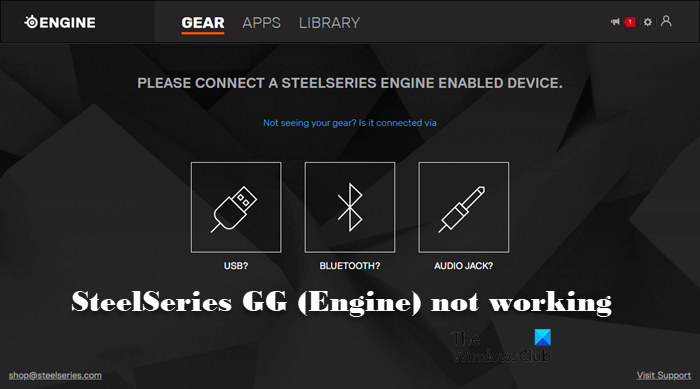
Many users have reported that SteelSeries GG (Engine) is not working on Windows 11/10 computers. SteelSeries Engine as you may know is updated to SteelSeries GG. Users have reported that the app was working fine, but after the app, it either stuttered or crashed. In this article, we will discuss this problem in detail and explore what you can do to resolve it.
Why is my SteelSeries not working?
SteelSeries GG may not work on your computer for multiple reasons. First and foremost, you need to check if there is a glitch that’s haunting your application. These glitches can directly or indirectly affect your game, so we also need to check if there is a glitch in the app and in the Windows OS. Not only that, SteelSeries may not launch on your system due to insufficient permissions. The app needs permission to access your computer entirely, so you have to grant it that access.
Finally, we need to check if there are any corrupted files. These files can be from the application itself or from the platform on which it is trying to run, aka your Operating System.
SteelSeries GG (Engine) not working on Windows PC
Before starting to read the troubleshooting guide, you need to update Windows.Updating the system can get rid of the issue if it is caused because of a bug in the OS. Also, it will update the driver, so, it is a win-win for you.
If SteelSeries GG (Engine) is not working on your computer, check out the following solutions. Go through the solutions one by one, as they are in a particular order.
- Restart SteelSeries and/or Windows
- Ope SteelSeries GG as an administrator
- Troubleshoot in Clean Boot
- Update SteelSeries GG
- Reinstall SteelSeries GG
Let us talk about them in detail.
1] Restart SteelSeries and/or Windows
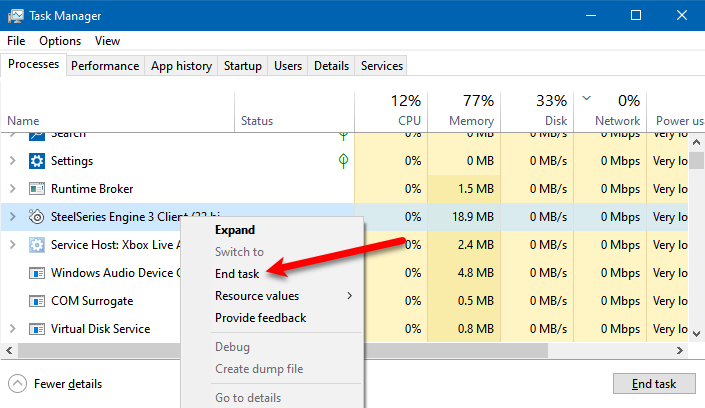
As mentioned earlier, the issue may be due to a glitch. As vague as it may sound, this is the best-case scenario. If it is a glitch, then it should be easily resolved by restarting the app and the OS.
So, close the app, go to Task Manager, and check whether there is a task associated with SteelSeries. If there are related processes, right-click the process and click End Task. Then reopen the app and see if it works.
If that doesn’t work, restart your computer and check again. Hopefully, this solution resolves the issue.
2] Open SteelSeries GG as an administrator
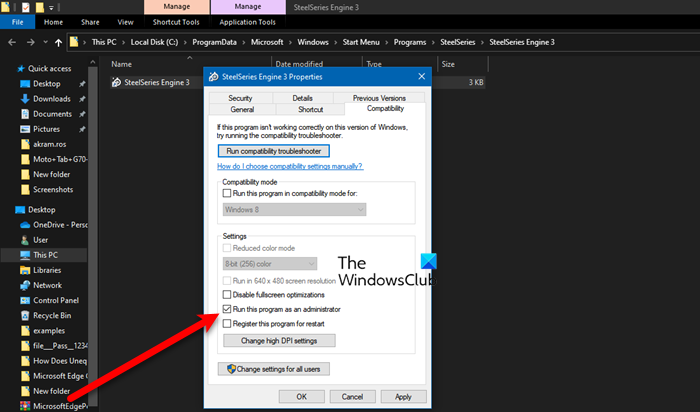
SteelSeries GG needs administrative privilege, maybe sometimes. What you have to do is right-click on SteelSeries GG and select Run as administrator. That will work, but there is a way to configure the app so you don’t always have to right-click it before launching it. Follow the given steps to do the same.
- Right-click on SteelSeries GG and click Properties. If you can’t find the app, search “SteelSeries GG”, click Open File Location, there you will find the app.
- Go to the Compatibility tab.
- Tick Run this program as an administrator and click Apply > Ok.
Hopefully, this will resolve the issue for you.
3] Troubleshoot in Clean Boot
There are many third-party applications that can cause the issue. They interfere with your program, preventing some of its functions from working. So, we need to perform Clean Boot and see which application installed on your computer is the culprit. Then, you can uninstall it and hopefully, your issue will be resolved.
4] Update SteelSeries GG
SteelSeries GG may not work on you because of a bug. So, what we would recommend is to go to steelseries.com and download the latest version of the app. Then open the app with administrative privileges and see if the issue persists.
5] Reinstall SteelSeries GG
If nothing works, then maybe your app files are corrupted. To fix it, we have to reinstall SteelSeries GG. So, go ahead and uninstall the app, then download a fresh copy from the official website, install it on your computer and hopefully, the issue will be resolved.
That’s it
How do I uninstall and reinstall SteelSeries drivers?
In the process of reinstalling the driver, we first need to uninstall it through Device Manager and the same utility will be used to get it back. The following are the steps to reinstall SteelSeries drivers.
- Open Device Manager.
- Expand Sound, video and game controllers in case of a headset and Human Interface Devices for other devices.
- Right-click on SteelSeries driver and click Uninstall device.
- Right-click on the Sound, video and game controllers or Human Interface Devices and select Scan for hardware changes.
This should reinstall the driver for you. If that doesn’t work, try restarting your computer and see if that works.
Also Check:
