
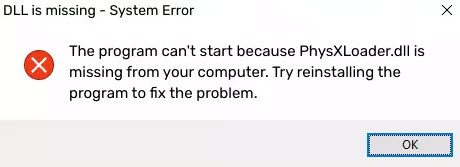
If you encounter the error PhysXLoader.dll is missing from your computer on Windows 11/10, then this article may help you. There have been reports of Windows users getting this error when trying to launch the game on their system. This problem occurs for many reasons, but a missing NVIDIA PhysX is the most common reason behind the missing Physxloader.dll error.

The errors you could see are:
- This application failed to start because physxloader.dll was not found, Re-installing the application may fix this problem
- The program can’t start because physxloader.dll is missing from your computer
- Cannot proceed because Physxloader DLL was not found
What is physxloader.dll?
Physxloader.dll is a legitimate file belonging to the Physxloader Dynamic Link Library, an essential component of NVIDIA PhysX. Now that you know what NVIDIA PhysX is, let us explain how it works. NVIDIA PhysX is a real-time physics engine middleware essential for gaming. It enhances your gaming experience by using a graphics card. In other words, NVIDIA PhysX makes gaming more enjoyable by incorporating it into your graphics card.
Here are a few more examples of how this error can appear:
- The file physxloader.dll is missing.
- Cannot find [PATH]\physxloader.dll
- Physxloader.dll Not Found
- This program can’t continue because physxloader.dll is missing from your computer
- This application failed to start because physxloader.dll was not found. Re-installing the application may fix this problem.
- Cannot start [APPLICATION]. A required component is missing: physxloader.dll. Please install [APPLICATION] again.
Fix PhysXLoader.dll is missing or not found error in Windows 11/10
NVIDIA PhysX includes the physxloader.dll file, which is associated with the PhysXloader Dynamic Link Library. This powerful physics engine provides real-time physics to leading-edge PC games. If you’re experiencing the issue where PhysXLoader.dll is missing from your computer, you can use the following suggestions to fix this issue:
- Run the PhysX software
- Download and Install Nvidia PhysX Software
- Update your video driver
Let’s now see them in detail:
1] Run the PhysX software
This solution requires you to run the PhysX software manually and see if it resolves the issue. In order to do this, you must follow the below steps:
- Press the Windows key + E to launch File Explorer.
- Once it opens, navigate to the following path:
C:\Program Files (x86)\Steam\SteamApps\common\Dragon Age Ultimate Edition\redist
- Locate the PhysX software executable file and double-click on it.
- Run your game again and see if the issue has been resolved
2] Download and Install NVIDIA PhysX Software
If running PhysX software manually does not resolve the error, you have a corrupted or missing physxloader.dll file.
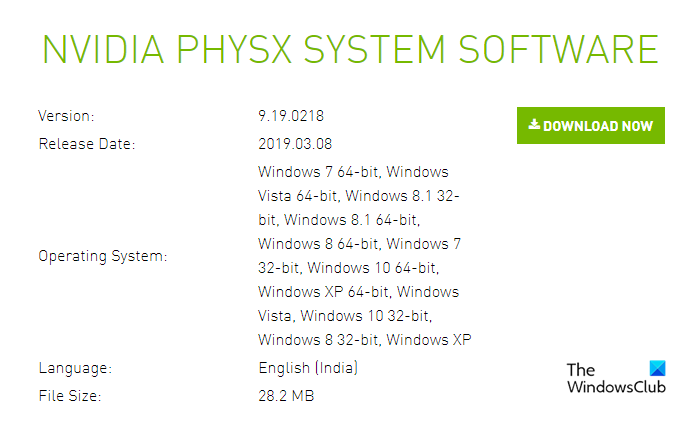
In such a case, you will have to download the latest version of PhysX System Software from the official NVIDIA PHYSX website and then install it on your computer. After reinstalling the software, check whether it works again when running PhysX.
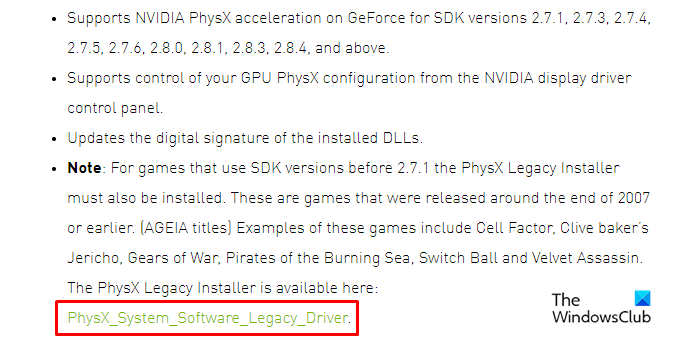
It’s possible that your issue persists even after upgrading to the latest version of NVIDIA PhysX. If that happens, you can download the legacy version from the same download site shown above.
After restarting your computer, just open the game again and you’ll see the game is now working. If this method does not work, then continue with the next one.
3] Update your video driver
This type of error commonly occurs when users don’t update their graphic drivers and continue to play games. In case your graphic card drivers are not updated, your PhysX file is also likely to be outdated. To resolve this problem, we recommend you update your video drivers to the latest versions and see if it works.
What causes this PhysXLoader.dll is missing or not found error?
There are many reasons this error can occur, but it most often appears when something is wrong with the DLL file required for Windows to run a game. PhysX is an open-source real-time physics engine that is essential for playing games. The technology is part of NVIDIA GameWorks software. Therefore, if physxloader.dll cannot be found or is damaged, the game will be unable to run and Windows will display an error message.
How do I fix missing DLL files in Windows?
If you are experiencing any problems with missing DLL files in Windows, you should run the System File Checker Tool. This program will replace any corrupted or missing operating system files. You should run it from a Command Prompt with administrator rights. In addition, the tool will also show you the list of replaced DLL files.
Related: Fix Iusb3mon.dll is missing from your Windows computer error.
