
Some users have noticed in the Task Manager that a process called MRT.exe or Microsoft Windows Malicious Removal Tool is taking a lot of their resources – it’s consuming their Disk & CPU, leaving very little for the other task to use. If you are experiencing MRT.exe High Disk & CPU usage on your Windows 11/10 computer, then this post is for you. We are going to see why this is happening and provide a list of solutions to resolve the error.
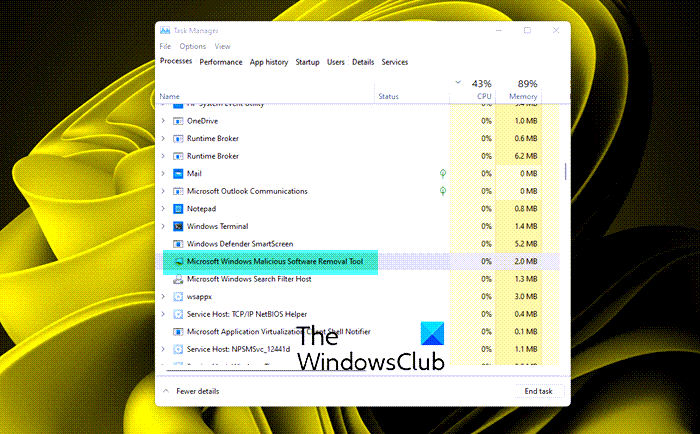
What is MRT.exe?
MRT is an abbreviation of Malicious Removal Tool and as the name would suggest, it’s there to keep a tab on the virus and malware situation of your system. Hence, it will run in the background and continue scanning to protect your computer. Microsoft develops it and is a legitimate process.
This tool was introduced in 2005 and has been serving users since then. It is updated automatically with the Windows Update. Many misidentify this tool as a virus, which is ironic, as the app is there to remove them from your system. However, sometimes, a virus masquerades as MRT.exe and can cause high CPU usage; we will discuss this further hereinafter.
Fix MRT.exe High Disk & CPU usage on Windows 11/10
If you are facing MRT.exe high disk and CPU usage on your computer, first try restarting your computer. Restarting the PC will stop all the processes that could have triggered the issue. Also, try checking for updates and downloading the update, if available. This way, MRT will also be updated and hopefully, your issue can be resolved.
If the issue persists, use the following solutions.
- Check MRT for virus
- Run antivirus
- Kill MRT Process
- Use Windows Update to repair your PC
Let us talk about them in detail.
1] Check MRT for virus
First of all, you should check if MRT that’s running on your computer is a virus or not. To do that, open Task Manager and right-click on MRT.exe, and select Open File Location. You should be redirected to the following location.
C:\Windows\System32
If you see any other location, the process running on your computer is malicious. If the service is malicious, run an antivirus scan to resolve the issue.
2] Run antivirus
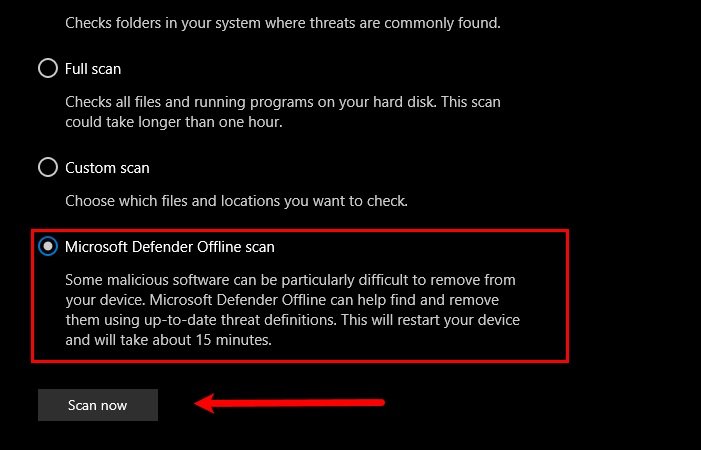
If you have a third-party antivirus then you can run it and get rid of the virus. You can also, try running the Microsoft antivirus by following the prescribed steps.
- Hit Win + S and search out “Windows Security”.
- Go to Virus & threat protection > Scan options.
- Select Microsoft Defender Offline scan and click Scan now.
Wait for the process to complete and hopefully, your issue will be resolved.
3] Kill MRT Process
Even though MRT is a genuine and important process, it should be allowed to work. However, if they are taking a lot of resources, then the only option you have is to kill the MRT.exe or Microsoft Windows Malicious Removal Tool process. So, here’s what you need to do.
Open Task Manager, right-click on MRT.exe or Microsoft Windows Malicious Removal Tool, and select End Task.
4] Use Windows Update to repair your PC
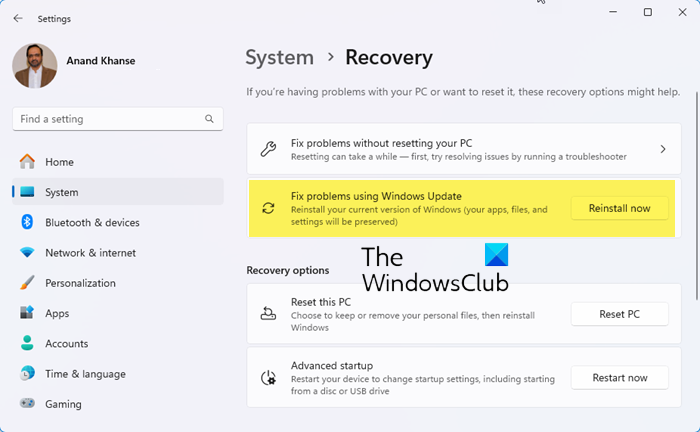
You can use Windows Update to reinstall your current Windows 11 version without losing data. This new feature lets you reinstall your current Windows 11 version using Windows Update. Your apps, files, and settings will be preserved.
Hopefully, the issue will be resolved.
Can I delete MRT.exe file?
Even though we would not recommend deleting MRT or Malicious Removal Tool, you can delete them from the following location if you want.
C:\Windows\System32
It’s not easy to find the MRT.exe file, so, we would recommend you search it out. Just click on the search bar or hit Ctrl + F. Then delete the file and you should be good to go. You can have more than one MRT file.
Read Next: How to fix 100% Disk, High CPU, High Memory usage.
