
Recently, many users have reported that they cannot update or install the Blu-ray app on their Xbox One consoles. Some face this error code when they try to uninstall Minecraft Launcher downloaded from Microsoft Store. In this article, we will talk about this issue in detail and see what should be done to resolve 0x80080204 error.
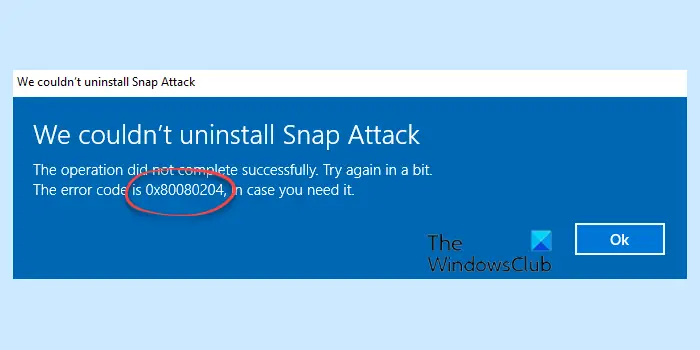
Error 0x80080204: The operation did not complete successfully. Try again in a bit.
What causes Install or Uninstall Error 0x80080204 in Microsoft Store?
More often than not, it is a glitch that should be resolved easily if one takes the necessary steps. The glitch can directly affect the store, or indirectly, whatever the case may be, we have mentioned a couple of solutions that will take care of it. Other than that, corruption in the Microsoft Store can also trigger the error code. Force shutdowns, abrupt restarts, etc., can cause the store to become corrupt. However, the good news is that they can be resolved.
One should also not forget the fact that multiple processes and services are running in the background. They can interfere with your program and prevent the uninstallation process from completing.
Fix Error 0x80080204 when installing, updating or uninstalling Xbox games from Microsoft Store
If while installing, updating or uninstalling Minecraft Launcher, Blu-ray app on Xbox One, etc, you see error 0x80080204, then the first thing you need to do is check for OS updates and install them if available. If updating is to no avail, check out the following solutions to resolve the issue.
- Restart your computer and try again
- Log out and log in to the Microsoft Store
- Use Wsreset
- Reset or Repair Microsoft Store
- Install Console updates
- Troubleshoot in Clean Boot
Go through the list and see which of them may apply in your case.
Error 0x80080204: The operation did not complete successfully
1] Restart your computer and try again
Let us start with a basic solution. We need to reboot your computer. This will get rid of any kind of glitch that could have triggered the error. Also, it will close services and apps that can potentially interfere with your game. A restart will also clear out temporary memory, stopping the app from getting uninstalled. If restarting is to no avail, move to the next solution.
Read: Fix Minecraft Launcher Error 0x803f8001
2] Log out and log in to the Microsoft Store
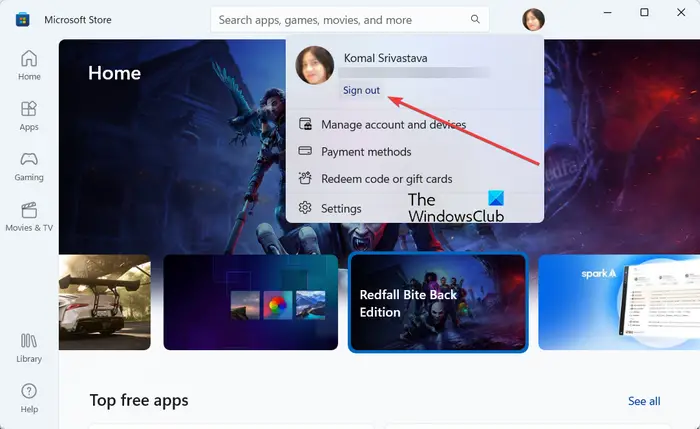
Restarting is not the only way to fix the glitch. You should also log out of the Microsoft Store and then log back in. This way, any bug or corruption related to your profile will be resolved. Also, you are not going to lose any data, so, there is no need to worry. You need to follow the prescribed steps to complete the task.
- Open Microsoft Store.
- Click on your Profile Picture and select Sign out.
- Now, restart your computer and sign in again.
Retry uninstalling the app; hopefully, you won’t get the error code again.
Read: Minecraft Installation Error 0x80070424, 0x80131509, 0x80070057, etc.
3] Use Wsreset
You can also see the error code in question because of corruption in the Microsoft Store. There are various reasons responsible for causing this corruption, but we won’t get into that; we need to resolve it. Lucky for you, there is a command that, when executed, can reset the Microsoft Store.
Open Run by Win + R and execute the following command.
wsreset.exe
Once the command is executed, just open the Microsoft Store, sign in if needed, and try to uninstall Minecraft Launcher.
4] Reset or Repair Microsoft Store
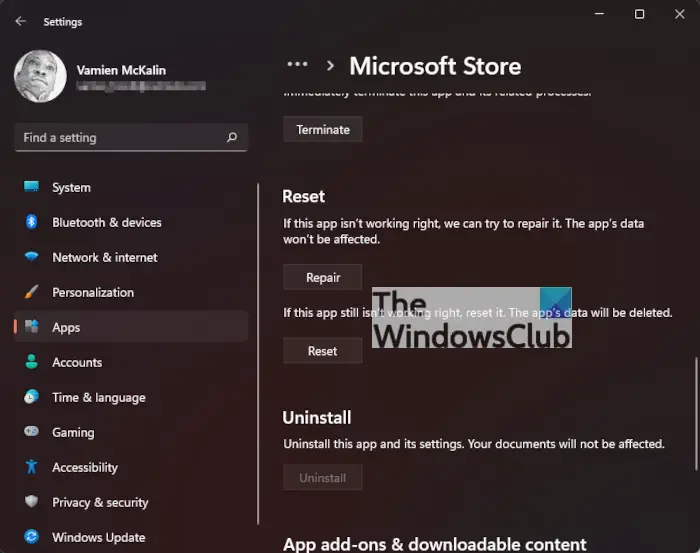
If the previous solution didn’t work for you, then try this. We are going to reset the Microsoft Store; if that doesn’t work, we’ll need to repair it. To do that, follow these steps.
- Open Settings.
- Go to Apps > Apps & features.
- Look for Microsoft Store.
- For Windows 11: Click on the three vertical dots and select Advanced options.
- For Windows 10: Select Microsoft Store and click Advance options.
- Now, click Reset. If that doesn’t work, click Repair.
Hopefully, this will do the trick for you.
Read: Fix Minecraft game has crashed with Exit Code 0
5] Install Console updates
If you see this error code 0x80080204 while trying to update or install an app on your Xbox One console, do the following:
- Press the Xbox button
- Select System > Updates & downloads
- If you see Console update available, install the update.
- Once the update is completed, download and try.
6] Troubleshoot in Clean Boot
As mentioned earlier, other processes can interfere with your programs and cause issues such as the one you are facing. What you have to do is perform Clean Boot and then uninstall the app. If the app is uninstalled without any interruption, you can then use Clean Boot to identify the culprit and remove it.
Hopefully, these solutions will do the job for you.
How do I fix code 0x80242020 Microsoft Store?
To fix error code 0x80242020 in Microsoft Store or Xbox, unhide the game file for which you get this error, and clean the Microsoft Store cache. Also, update the Microsoft Store, and see if the problem is gone. If these don’t work, then you may need to reset or reinstall the Microsoft Store app.
How to fix Error when downloading games from Microsoft Store?
If you face an error when downloading or installing games or apps from the Microsoft Store, then make sure the app or game you’re trying to download works with Windows 11/10. Also, keep your system updated (if not already), reset the Microsoft Store cache, and troubleshoot the game installation. You should also change your network connection and see if it works as the problem might be with your internet connection only.
Read Next: Fix Minecraft Drivers Outdated error message on Windows PC.
