
Minecraft is a game that needs no introduction. It is extremely popular and has more than 100 active users worldwide. However, a big chunk of the users are pissed by the Minecraft Black Screen glitch and they want to know how to fix it. According to some, the screen goes black the moment they launch the game or when they tab out of the game and they are not able to access it. In this article, we will discuss the factors that can cause the problem and explore ways to resolve them.
Why does my screen go black when I tab out of Minecraft or when I open it?
Many causes can trigger this issue. It can be caused by an antivirus that you may have configured on your system. The antivirus can block your game from running, as it may mistakenly identify Minecraft as a virus. Other than this, the issue can be caused by incompatibility issues. You can run the game in Windowed mode or Full Screen, depending on your game’s configuration. There are additional Windows Settings that you need to adjust to resolve the issue. We have accumulated a list of solutions and setting tweaks that can fix the issue.
Fix Minecraft Black Screen glitch on launch or in full-screen
If you want to fix the Minecraft Black Screen glitch then, first of all, update your Windows. Make sure that you are running the latest build. Sometimes, updating alone can resolve the problem by installing new drivers that address the issue. However, even if it doesn’t or if you are already on the latest version, checking for updates periodically is a good practice.
If updating is unsuccessful, try these solutions to resolve the issue.
- Check your antivirus
- Run the game in Compatibility Mode
- Check Full-Screen Optimization
- Use Ctrl + Alt + Delete
- Update Graphics Driver
- Remove App Data
- Update Java (for Java version)
Let us talk about them in detail.
1] Check your antivirus
Your antivirus may think that your game is a virus and then block it from running on your computer. This doesn’t mean that your Minecraft is malicious, it just means that your antivirus has made a mistake in identifying their files. So, try disabling your antivirus and see if the game opens. If it does, then you know what’s causing the problem. You can uninstall the antivirus if you want or whitelist your app.
However, if you don’t have an antivirus app and you are just using the Windows Firewall, then you can disable it temporarily and see if that helps. And if it does, then try allowing your game through the Firewall.
2] Run the game in Compatibility mode
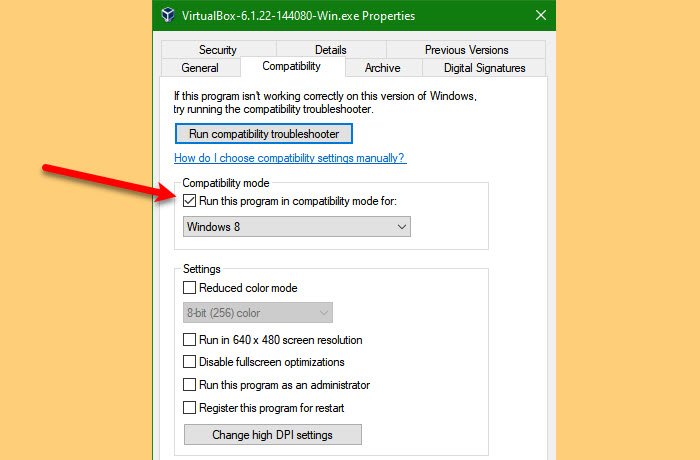
According to many users, the game has been made to work by using Compatibility mode. Therefore, you should also use that setting to resolve the issue. Follow the given steps to do the same.
- Right-click on the Minecraft shortcut and select Properties.
- Then go to the Compatibility tab.
- Tick Run this program in compatibility mode for.
- Select Windows 8 and click Apply > Ok.
Then start the game and see if that helps.
3] Check Full-Screen Optimization
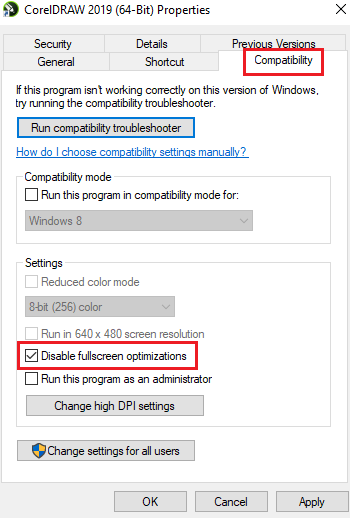
Full-Screen Optimization is there to make sure that your computer is using a big chunk of its resources to run that app or game. However, it can sometimes backfire, causing frame drops, black screen issues, and crashes. Therefore, we need to check if the Minecraft app has this feature disabled or enabled. Follow the steps below to complete the same task.
- Right-click on the Minecraft shortcut and select Properties.
- Then go to the Compatibility tab.
- Check if “Disable fullscreen optimizations” is ticked or unticked. If it’s enabled then disable it and vice-versa.
- Finally, click Apply > Ok.
Hopefully, the issue won’t persist.
4] Use Ctrl + Alt + Del
When you open the game and the black screen appears for no apparent reason, try hitting Ctrl + Alt + Del. This shortcut can return you back to the normal game and you will be able to enjoy it then. Do this and see if that works
5] Update Graphics Driver
Next up, let us update your Graphics Driver and see if that helps. It generally works if you haven’t updated your drivers in a while, they get outdated and start creating a problem for the user. So, always keep them updated, otherwise, they can create problems for a lot of applications.
6] Remove App Data
If the App Data or caches are corrupted, then you may see black screen issues. In that case, it is better to remove it and start your game from the scratch. To do that, open the Run by Win + R, type the following environmental variable and click Ok.
%appdata%
Go to the Roaming folder and open the .minecraft folder. Then delete Bin, resources, config, and mods folders. Now, reopen Minecraft and see if that helps.
7] Update Java (for Java version)
If you are on the Minecraft Java Version then try updating Java and see if that helps. In most cases, outdated Java can cause the issue, and updating it can resolve it. So, do that and see if that helps.
Hopefully, these solutions have helped you resolve the issue and enjoy Minecraft.
Related: You Need to authenticate to Microsoft Services – Minecraft error.
Why isn’t my Minecraft app opening?
The corrupt launcher files, outdated graphics card driver, too many Minecraft Mods, etc., could be the reason why Minecraft is not opening or Minecraft Launcher won’t open on your Windows 11/10 system. First, try running Minecraft as an administrator to see if it works. If not, delete corrupt Minecraft Launcher files, update your graphics card driver, and remove the added Minecraft Mods. Also, ensure you have a stable internet connection to run Minecraft properly.
Also Check: Fix Minecraft game has crashed with Exit Code 0.
