
In this guide, we will be discussing fixes to fix the error message “You Need to authenticate to Microsoft Services” on Minecraft. Minecraft is a popular video game that is gaining popularity among gamers day by day. However, it has its share of errors and bugs that users continue to encounter repeatedly. One such error is “You need to authenticate to Microsoft Services”.
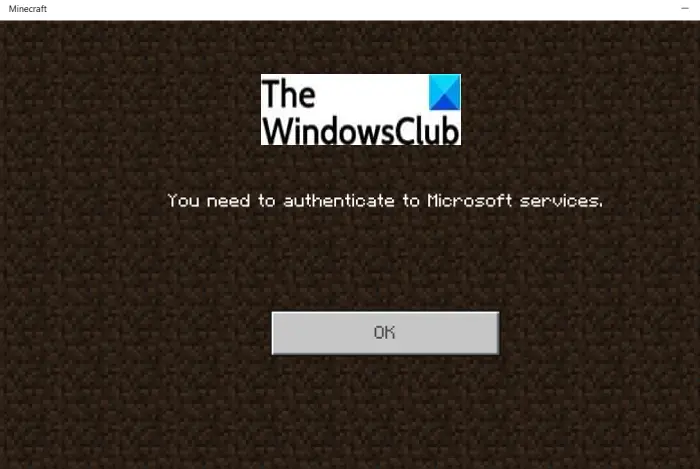
As the error message suggests, it is an authentication error. To access all games, Minecraft requires gamers to use a Microsoft account. This error typically occurs when Minecraft gamers attempt to log in to external servers and realms. This error can be a result of a temporary technical glitch. If you are one of those facing this error in Minecraft, this post will help you. Here, we will list all possible fixes that you can try to resolve this error. Just make sure you have the correct login credentials i.e., Microsoft account and password, and go ahead with the solutions.
You need to authenticate to Microsoft Services Minecraft error
Here are the main methods that you can try when you encounter a “You need to authenticate to Microsoft Services” error on Minecraft:
- Reload the Game.
- Sign Out, then Sign In.
- Check your Time Settings.
- Bedrock Server Fix.
- Install Xbox Identity Provider app.
Let us check out the above solutions in detail now!
1] Reload the Game
The first thing you should try to fix this error is to reload the game. In general scenarios, this fixes the issue for you. So, try closing the Minecraft app and then rebooting your system. Restart Minecraft, and you will be online again. Then, reconnect to external servers as you previously did. If you are able to connect to a server without any errors, the issue is resolved. If not, you should try another troubleshooting method. So, move on to the next potential fix.
Additionally, you can also try turning off your Windows PC or Xbox and then waiting for a short period. After a minute or so, try restarting your PC/Console and then starting Minecraft to check if the issue is resolved. If this workaround doesn’t resolve the error, you can try another solution to resolve the issue.
See: Minecraft keeps crashing or freezing
2] Sign Out, then Sign In
If restarting Minecraft doesn’t work for you, try refreshing your account instead. This might work for you as it did for some other affected users.
Just open Minecraft and then go to the Settings option. After that, press on the Profile tab from multiple Settings options. You will now see a Sign Out of your Microsoft account on the right-hand side; simply tap on this option to log out of your account.
Now, wait for a short time, and then try logging in to your Minecraft account. Enter the right login credentials and sign in back to your account. When you successfully log in, you will be prompted with Save to Microsoft Account and Leave on Device options. You need to click on the Save to Microsoft Account and then press the Continue button on the next prompt. Now, press Continue and then enter your Microsoft account username and password when prompted with Are you trying to sign in to Minecraft PE? You can try reconnecting to external servers and hopefully, the problem is now fixed.
Read: Fix Error Placing Order for Minecraft via the official Mojang Store
3] Check your Time Settings
Another workaround for this issue is to adjust your time settings. You can try fixing your time settings to adjust time and time zones automatically on your PC that you are using to host the Minecraft server. To do that, open the Settings app and then navigate to Time & language tab from the left. Now, go to the Date & time tab from the right panel and turn on the Set time automatically and Set time zone automatically. Additionally, you can press the Sync Now button. See if this fixes up the issue for you.
4] Bedrock Server Fix
In the case of a Minecraft Bedrock server, you can try fixing this issue by running the Bedrock server executable with administrator privileges. In order to do that, here are the steps you need to follow:
- First, locate the Bedrock server executable on your PC and right-click on it.
- From the right-click context menu, select the Properties option.
- In the Properties window, go to the Compatibility tab. Here, you will see a “Change settings for all users” option present at the bottom of the windows.
- Now, click on the “Change settings for all users” button.
- You will get another pop-up window. In this window, under the Privilege section present at the bottom, simply click on the “Run this program as administrator” checkbox to enable this option.
- Finally, press the Apply > OK button to apply changes.
Now, try reconnecting to the external server and see if the issue is resolved for you.
Read: Fix Minecraft unable to connect to the world
5] Install Xbox Identity Provider app
If you are facing this error when connecting to Xbox Live, try using the Xbox Identity Provider app. You can install this app from Microsoft Store. Launch it after installation is complete and follow the onscreen instruction to enable it to connect Minecraft to Xbox Live. Hopefully, this will fix up the issue for you.
That’s it! Hope these solutions worked for you.
See: Port forwarding not working in Minecraft
How to fix Minecraft You need to authenticate to Microsoft services?
To fix the “You need to authenticate to Microsoft services” error on Minecraft, you need to reload the game first. If it doesn’t help, you can log out and re-log into your game, check the date and time settings, etc. Apart from that, you can run the Bedrock server with administrator privileges as well.
Read: Unable to push download Minecraft to Windows 10 PC
What to do when Minecraft can’t validate your login?
The error “Sorry, we couldn’t validate your login” on Minecraft occurs when you try connecting to external. To fix it, try logging out of your account and then logging back in. We have mentioned how you can do that in method (2) above. Try the mentioned steps and see if the issue is resolved for you.
Now read: Fix Minecraft game has crashed with Exit Code 0.
