
If Minecraft LAN games are not working or showing up then this post offers suggestions to resolve the issue. Minecraft is a popular sandbox video game available for Windows. You can play it both locally and globally. There are plenty of servers online that you can join and play on. But what if you don’t want to play online? In this situation, you can create a local game and play offline. And all the players connected to the same local network can join the game. However, while using this feature, users have reported that Minecraft LAN games do not work. Worry not if you are also struggling with the same problem. Try the solutions below to resolve the issue.
Minecraft LAN games not working or showing up on Windows PC
Below is the list of all the effective solutions to try if Minecraft LAN games are not working or showing up.
- Connect every computer to the same network
- Whitelist Minecraft from Windows Firewall
- Download the latest Network Driver update
- Turn on Network Discovery
- Turn off Access Point Isolation
- Run the same version in every system
- Use Minecraft Direct Connect
- Reinstall the game
Now, let’s check out all these solutions in detail.
1] Connect every computer to the same network
Before trying anything technical, you should ensure that every computer is connected to the same local network. The problem mainly occurs when the computer is not connected to the same network. So, do the needful and check if it solves the problem.
2] Whitelist Minecraft from Windows Firewall
Another major reason behind the problem can be Windows Firewall. If Minecraft is blocked under the Firewall, you will face the problem in question. So, whitelist Minecraft from the Windows Firewall settings and check if it solves the problem. If not, try the next solution.
3] Download the latest Network Driver update
Not having the latest Network Driver can also be a primary reason for the problem. You will have to download the latest Network Driver update to solve the problem. Once you have updated the driver, restart your system. Launch the game and check if you are still facing the problem.
4] Turn on Network Discovery
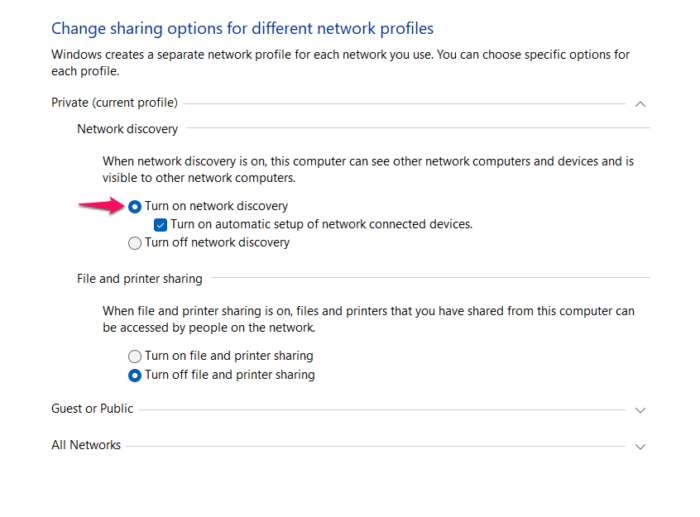
The next thing you can try is to enable Network Discovery from Windows settings. You can do so by following the below steps.
- Open the Start Menu, type Control Panel and press the enter key.
- Navigate to this location – Network and Internet > Network and Sharing Center > Change advanced sharing settings.
- Checkmark Turn on the network discovery option under both Private and Guest or Public.
- Click on Save changes.
Restart your system and check if it solves the problem.
See: Fix Minecraft Drivers Outdated error message on PC
5] Turn off Access Point Isolation
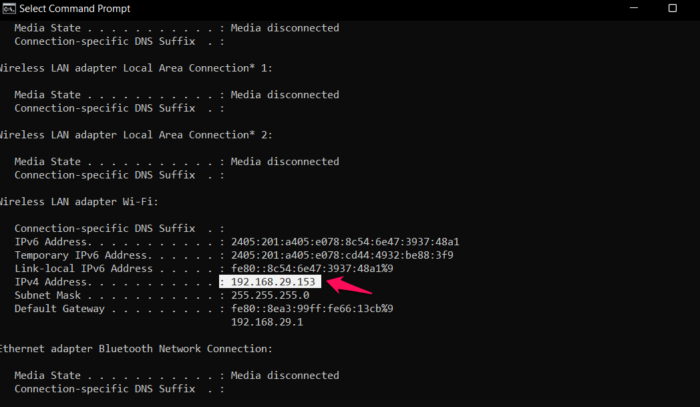
Most Wi-Fi routers use Access Point Isolation as their security measure. But it could also be why you are facing the issue mentioned in Minecraft. As a solution, you will have to disable this feature. Here’s how it’s done.
- Open Command Prompt in administrator mode.
- Type ipconfig and press the enter key.
- Write down your IP (present next to IPv4).
- Now, open any browser and enter the IP address you noted.
- Enter the login credentials.
- Locate AP isolation settings, and turn it off.
Now, reboot your router and check whether the problem is resolved.
6] Run the same version in every system
Another primary reason behind the problem can be different versions of the game. As it turns out, everyone needs to use the same Minecraft version to connect to the local network. If this isn’t the case, it’s no surprise you’re facing the problem. So, check the Minecraft version and update it if needed.
See: Fix Minecraft Launcher Error 0x803f8001
7] Use Minecraft Direct Connect
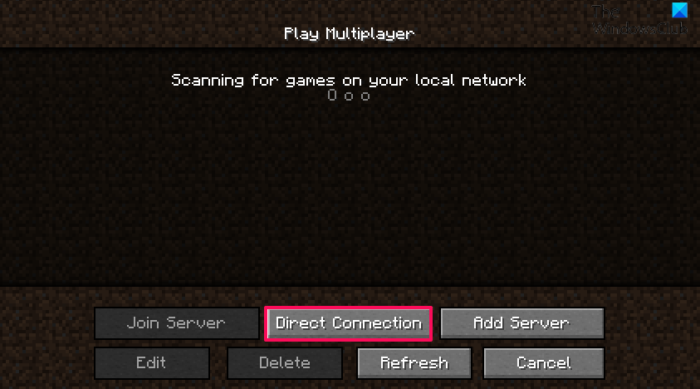
You can use the Minecraft Direct connect feature to solve the problem. Here are the steps you need to follow.
- To begin with, note down your computer’s IP address (see steps in solution 5).
- Open Minecraft, and note down the Port number that appears on the screen.
- Click on Direct Connect, and enter the IP address and the Port number.
Read: Fix Minecraft game has crashed with Exit Code 0
8] Reinstall the game
If none of the steps were helpful, you could go with reinstalling the game. The problem can be caused due to an installation error. In this case, reinstalling the game is the best thing you can try.
Why Minecraft LAN game not working?
There can be multiple reasons why the Minecraft LAN game is not working. But among all, the major culprit is often outdated network drivers. The issue will also occur if the game is blocked under the Firewall settings. It’s very easy to eliminate the problem.
Why can’t my friend join my Minecraft LAN world?
There are mainly two reasons your friend cannot join your Minecraft LAN world. First, he is not connected to the same LAN network. Second, you both have different versions of the game installed on your systems.
Read Next: Minecraft not installing on Windows PC.
