
In this post, we will talk about how to fix Minecraft Can’t resolve hostname problem. When a user tries to connect to their friend’s server or even join a new server, the problem occurs. The error indicates that Minecraft cannot connect to the hostname, as the IP address cannot be found. Thankfully, like any other Minecraft issue, this can also be resolved quickly. Just try the solutions mentioned in this post to fix the problem.
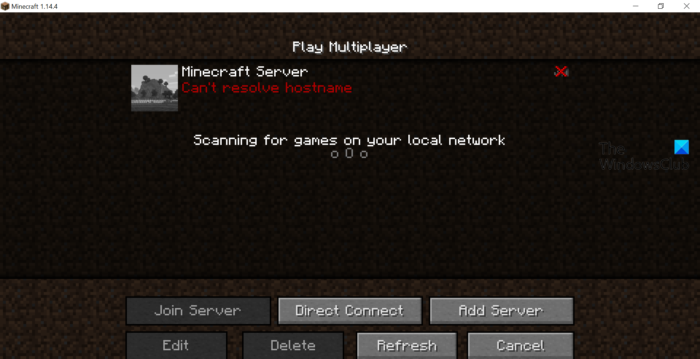
What causes Minecraft Can’t resolve hostname problem?
There can be multiple reasons behind Minecraft Can’t resolve hostname problem. But among them, the most common are listed below.
- If the IP address is misspelled, you will face the error message.
- The problem will occur if Windows Firewall blocks Minecraft.
- If the DNS range is misconfigured, you are most likely to encounter the error message in the game.
Now that you are aware of the different reasons causing the issue, let’s check out how to fix them.
Minecraft can’t resolve hostname
Below is a list of effective solutions you can try to fix “Minecraft can’t resolve hostname.”
- Type the hostname correctly
- Connect to the correct IP address
- Clear DNS cache
- Check for server problems
- Allow Minecraft through Windows Firewall
Let’s take a look at all these solutions in detail.
1] Type the hostname correctly
Before trying any of the following technical solutions, make sure you have correctly entered the hostname. Also, check whether the server’s IP address is written correctly. As it turns out, even one extra space or symbol can cause the issue.
Try connecting to the server again after correcting the hostname and the server’s IP address. If the problem is solved, you are good to go. But in case it continues, try the next solution on the list.
2] Connect to the correct IP address
One of the best solutions for the Minecraft can’t resolve hostname problem is to connect to the correct IP address. To do so, follow the steps below.
- To begin with, press the Windows key to open the start menu.
- Type Command Prompt, and from the result, choose the Run as administrator option.
- In the Command Prompt window, type nslookup <name of the hostname>, and press the Enter key. Suppose, if the hostname is play.TheWindowsClub.org, then type
nslookup play.TheWindowsClub.org. - Under the Non-authoritative answer section, you will find the actual IP address of the server. Copy it.
- Paste the server’s IP address into Minecraft.
Now, check whether the problem is fixed. If not, try the next solution.
See: Minecraft game has crashed with Exit Code 0
3] Clear DNS cache
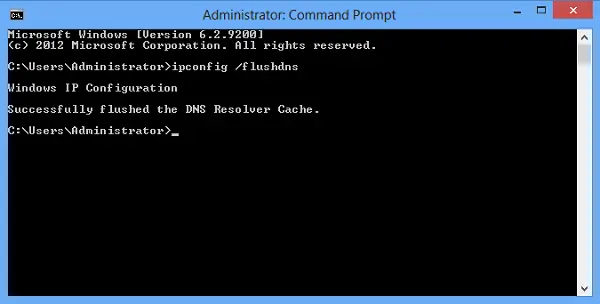
A large amount of DNS cache data can be another significant cause of the issue mentioned. You will have to clear the DNS cache data to solve the problem. Here are the steps you need to follow to get the work done.
- Open Command Prompt in the administrator window.
- Type ipconfig/flushdns and press the enter key.
- Once the command is executed, you will see – Windows IP Configuration. Successfully flushed the DNS Resolver Cache.
- Now, close the Command Prompt window.
That’s it. Your DNS cache should have been reset by now. Check whether the problem is fixed.
See: Fix Minecraft Launcher Error 0x803f8001
4] Check for server problem
If you are still facing the problem, it is likely that a server issue is causing it. In this case, the best thing you can try is to check the server outside Minecraft. Here’s how it’s done.
- Open the Command Prompt in administrator mode.
- In the space provided, type ping <IP address of the server> and press the enter key.
- If you see the message Request timed out, then it points out you can’t connect with the server. If the command executes without any issues, it indicates that the Windows Firewall setting is primarily causing the mentioned Minecraft problem.
5] Allow Minecraft through Windows Firewall
If Minecraft is blocked in Windows Firewall settings, you will see the error message mentioned. You will have to whitelist Minecraft from Windows Firewall to solve the problem. Go through the process, and check if it makes any difference.
Read: Fix Minecraft Drivers Outdated error message on Windows PC
How do I fix Failed to resolve hostname?
If the application is failing to resolve the hostname, you can try these fixes: first, make sure you are entering the correct information; check whether the server is running; and allow the application through Windows Firewall settings. Resetting the DNS cache can prove to be another effective solution in this situation.
Why does it say Cannot resolve hostname?
The Cannot resolve hostname problem mainly occurs when you have entered the wrong hostname of the server. To solve the problem, double-check the hostname, and remove any extra spaces or characters that is causing the issue.
Read Next: Minecraft not installing on Windows 11.
