
The Microsoft Store is excellent for browsing and installing apps on your Windows system safely and conveniently. However, a few users have reported encountering the Microsoft Store error 0xD000000D on their Windows systems. If you encounter the same error, please read through this article for the resolutions.
Fix Microsoft Store error 0xD000000D

The Microsoft Store error 0xD000000D occurs when trying to open the Microsoft Store or an application downloaded from it. The primary cause is that a Windows update could have messed up the settings. In this case, running the Windows Store apps troubleshooter can fix the problem. Another cause could be corruption in the Windows Store folder. It could be either with the cache or the system files.
Try the following solutions sequentially to resolve Microsoft Store error 0xD000000D:
- Run the Windows Store apps troubleshooter
- Reset Microsoft Store settings
- Clear the Microsoft Store cache
- Re-register or reinstall the Microsoft Store
- Reset your operating system
1] Run the Windows Store apps troubleshooter
The Windows Store apps troubleshooter is an excellent tool to resolve problems related to the Windows Store and applications installed through it. The procedure to run the Windows Store Apps is as follows.
- Right-click on the Start button and select Settings from the menu.
- From the Settings menu, go to the System tab on the list on the left-hand side.
- In the right pane, select Troubleshoot from the list.
- In the next window, select Other troubleshooters.
- From the list of troubleshooters, click on Run corresponding to the Windows Store apps troubleshooter.
2] Reset Microsoft Store settings
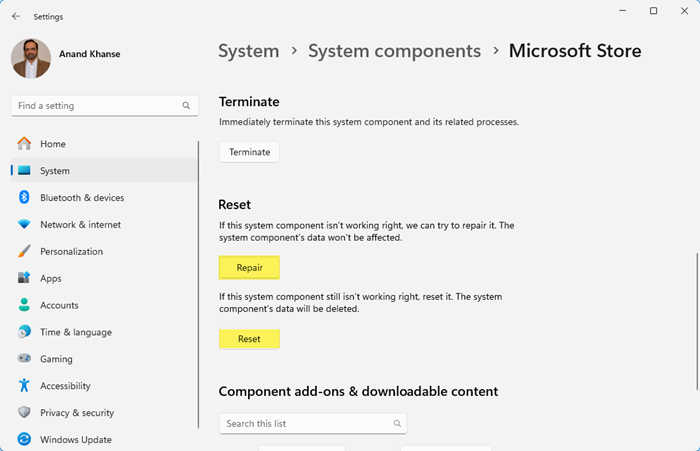
If you changed settings, it might cause an error in the discussion when trying to download an app from the Microsoft Store. To isolate this probability, you can consider resetting the Microsoft Store settings. The procedure is as follows.
- Right-click on the Start button and select Settings.
- In the Settings window, go to Apps on the list on the left-hand side.
- Now, in the right pane, go to Apps & features.
- In the Apps & features window, go to the Microsoft Store application and click on the 3 dots corresponding to it.
- Select Advanced options.
- In the Reset column, click on Reset to reset the Microsoft Store settings to default.
3] Clear the Microsoft Store cache
Corrupt Microsoft Store cache can cause problems with the application including the one in discussion. To overcome the same, you can clear the Microsoft Store cache. Press Win+R to open the Run window. In the Run window, type the command WSRESET.exe and hit Enter to reset the cache.
4] Re-register or reinstall the Microsoft Store
If everything else fails, you can consider reinstalling the Microsoft Store. In this case, all existing files associated with the Microsoft Store will be deleted and when you reinstall it, the Microsoft Store will work as a new software.
5] Reset your operating system
If everything else fails, you can consider resetting your operating system. While doing so, all settings you changed would be undone. There are options to save your data or delete everything. Please choose as per your convenience.
Why is Microsoft Store blocked?
Microsoft Store can be blocked either by a third-party software or using a policy on the Group Policy editor by a system administrator. In case you encounter this problem, you can ask the system administrator to disable the policy.
Where are Microsoft Store apps installed?
Microsoft Store apps are installed on the location C:/Program Files/WindowsApps. However, you can access them through the Start menu. Even more, most apps tend to create a desktop shortcut for ease of use.
