
While updating or downloading apps from Microsoft Store, you might receive an error message saying Something unexpected happened with error code 0x80070032. There could be numerous reasons you are getting this error, and this article explains most of the possible solutions you can follow to eliminate it.
How do I fix error code 0x80070032?
To fix error code 0x80070032 of Microsoft Store, you must check the internet connection first. Following that, use the Windows Store Apps Troubleshooter. Next, you need to clear the Microsoft Store cache. However, if nothing works, you can reset the app and, at last, reinstall it on your computer. You can also see the same error code when WslRegisterDistribution fails, or a file operation fails with the message The request is not supported.
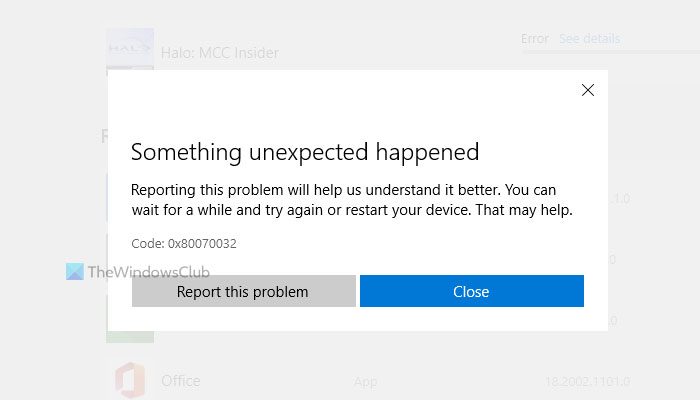
Fix Microsoft Store Error 0x80070032
To fix Microsoft Store Error 0x80070032 on Windows 11/10, follow these steps:
- Check the internet connection
- Run Windows Store Apps Troubleshooter
- Clear Microsoft Store cache
- Repair or Reset Microsoft Store
- Reinstall Microsoft Store
To learn more about these steps, continue reading.
1] Check the internet connection
It is the very first thing you need to check before heading to other solutions. For obvious reasons, Microsoft Store requires a valid internet connection to download or update the apps. However, if you are having some trouble with the internet connection, you might not be able to download them and instead encounter this issue. Therefore, it is recommended that you check for ping loss or any other issues with the connected internet source.
2] Run Windows Store Apps Troubleshooter
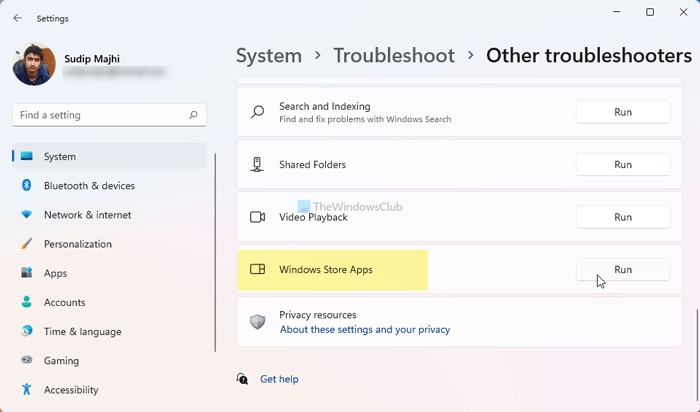
To fix common issues like this one, Windows Store Apps Troubleshooter works like a charm. Since it’s about the Microsoft Store, this particular troubleshooter will be handy for you. It is not very time-consuming and is provided by default.
To run the Windows Store Apps Troubleshooter, follow these steps:
- Press Win+I to open Windows Settings.
- Go to System > Troubleshoot > Other troubleshooters.
- Find out the Windows Store Apps Troubleshooter.
- Click on the Run button.
- Follow the screen instructions to get it done.
After that, you might need to restart your computer. Once done, you will be able to use the Microsoft Store as usual.
3] Clear Microsoft Store cache
There is a command-line tool on your computer that helps you clear the Microsoft Store cache within moments. However, you need to have administrator rights to get it running on your PC. To get started, click on the Taskbar search icon, and search for wsreset.exe. Once the search result appears, click on the Run as administrator button.
Then, click the Yes option. Following that, it will run on your computer via Command Prompt. Please do not close the Command Prompt window until it is finished. Once done, restart your computer.
4] Repair or Reset Microsoft Store
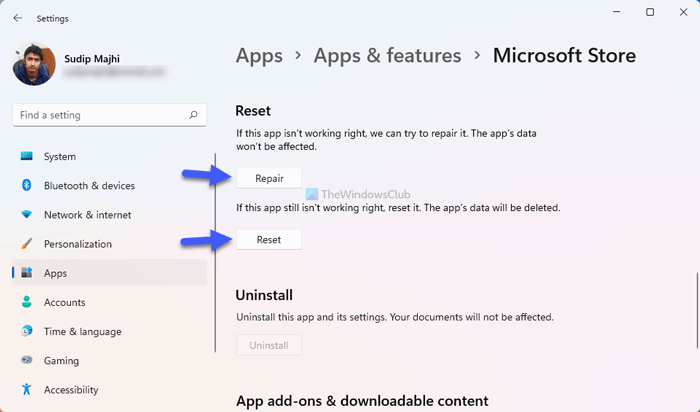
Although clearing the cache covers a lot of ground, it doesn’t do everything you need. That is why you can repair the Microsoft Store app first. However, if it doesn’t help, you can reset the Microsoft Store app. The best thing is that you do not need any command-line tools or anything, since Windows Settings already has these options. To repair and reset the Microsoft Store app on Windows 11, follow these steps:
- Open Windows Settings on your computer.
- Switch to the Apps tab.
- Go to Apps & features.
- Find out Microsoft Store > click on the three-dotted icon and select the Advanced options.
- Click the Repair button.
- Check if it solves the problem.
- If not, click the Reset button twice.
After that, it is recommended to restart your computer and check whether the problem persists.
5] Reinstall Microsoft Store
It is possible to re-register and reinstall the Microsoft Store app using Windows PowerShell. When nothing is working, and you have a valid internet connection, you can reinstall the Microsoft Store app with the help of this tutorial.
Read: Fix Microsoft Store Error Code 0x80070141.
NOTE: Error 0x80070032 can also be seen for – WslRegisterDistribution failed | Windows Update | When copying files | Windows Backup.
I hope this guide helped.
