
Sometimes, in the middle of your browsing session, your Firefox screen may go black. The issue is not just limited to a single website but all the tabs running under the browser window. Upon trying to restart the browser, all the menus and action items disappear from the browser making it inaccessible.
Why does Firefox turn black?
The Black screen issue in Firefox occurs mainly due to a new feature called Off Main Thread Compositing (OMTC) which causes updates, animations and videos to pause. To fix it follow any one of the following methods and see if it fixes your problem.
Firefox screen goes black in Windows 11/10
The issue also occurs while playing video files. For the first few minutes, the video plays as normal but then the window goes blank, turning completely black or white, while the sound continues to play in the background. Take one of the following actions to fix the problem.
- Disable Antivirus and Firewall temporarily.
- Disable any recently installed extensions.
- Disable Hardware Acceleration.
- Run Firefox in Troubleshoot mode.
- Update Display Drivers.
1] Disable Antivirus and Firewall temporarily
Anti-virus programs are designed to monitor program behavior thoroughly and report any suspicious activity if detected. This vigilance can, at times, become a nightmare if the software blocks your WiFi or prevents you from connecting to a website. Then it becomes essential to temporarily disable Antivirus software. Here’s how you can disable Windows Defender in Windows 11/10.
2] Disable any recently installed extensions
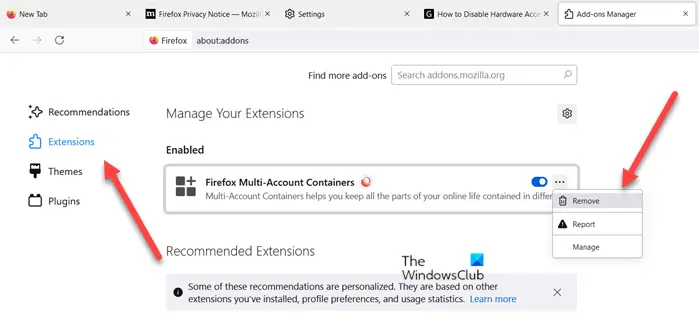
Browsers like Chrome, Firefox and others allow customization on your desktop by adding extensions but at times, their installation results in unwanted problems. So, if you find the Firefox screen has gone black after the installation of an extension, remove the extension or disable it temporarily.
3] Disable Hardware Acceleration
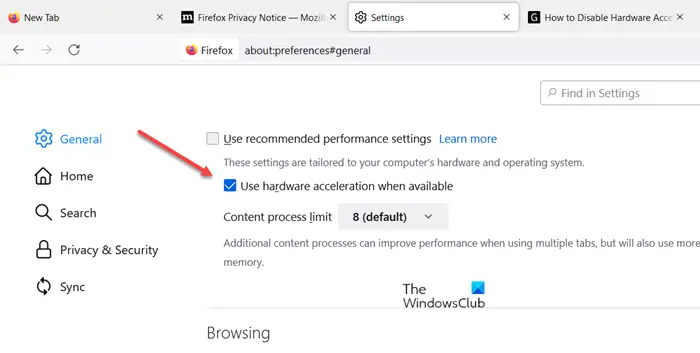
Though Hardware Acceleration significantly improves an application’s performance, it can sometimes have an adverse effect if not configured properly. Turning off the Hardware Acceleration completely will run the application in software rendering mode but if it solves your issue, go ahead and disable it.
4] Run Firefox in Troubleshoot mode
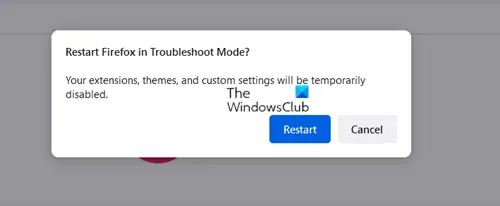
This is a special mode in the Firefox browser that can be used to diagnose and fix problems. When enabled, it temporarily disables add-ons (extensions and themes), turns off hardware acceleration and certain other features, and ignores some customizations (see below to learn more). So, by comparing Firefox’s behavior in normal mode to its behavior in Troubleshoot Mode you can pinpoint the cause of the problem and fix it. Troubleshoot Mode was previously known as Safe Mode in Firefox.
5] Update Display Drivers
Update your Display Drivers and see if that helps you.
All the best.
