
Many Windows users are not able to access Oracle VirtualBox as when they try to launch a VM on your Windows 11/10 computer, they see the following error message.
Failed to acquire the VirtualBox COM object, The application will terminate.
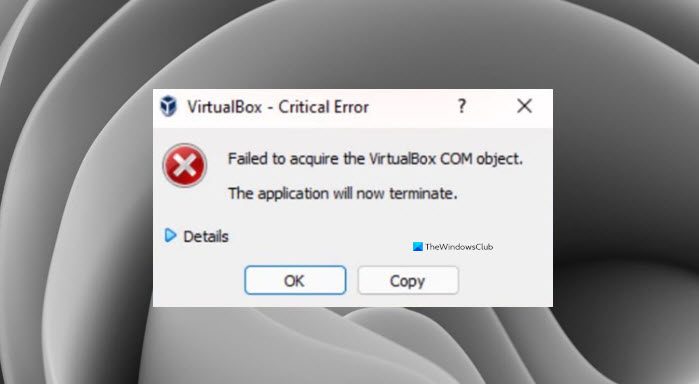
In this article, we will explore the reason behind this error and provide some simple solutions to resolve it.
Why am I seeing “Failed to acquire the VirtualBox COM object” in VirtualBox?
Typically, this error occurs due to a lack of permissions. Even if you are an administrator, you must ensure that you are running the application as an administrator; otherwise, you will encounter the error in question. Other than that, the issue may be caused by incompatibility, antivirus blocking the VM, or other factors.
Fix Failed to Acquire the VirtualBox COM Object
If you are seeing “Failed to Acquire the VirtualBox COM Object” in Oracle VirtualBox, these are the things you can do to resolve the error.
- Run VirtualBox as an administrator
- Install VirtualBox as an administrator
- Disable your antivirus
- Restore Access Control List (ACL) Permissions
- Move .Virtualbox folder to a different location.
Let us talk about them in detail.
1] Run VirtualBox as an administrator
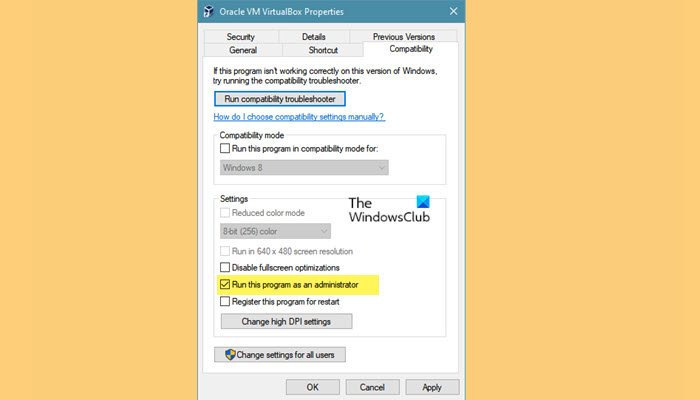
As mentioned earlier, the issue can be a lack of permission and you can run the application as an administrator to gain that permission. You can always right-click on the VirtualBox and select Run as administrator, but if you want to always open the app as an administrator, then follow the given steps.
- Right-click on VirtualBox Shortcut and select Properties.
- Go to the Compatibility tab.
- Tick Run the program as an administrator.
- Now, click Apply > Ok.
Reopen VM and hopefully, you will not see the error message.
However, please note that running it as an administrator is not secure.
2] Install VirtualBox as an administrator
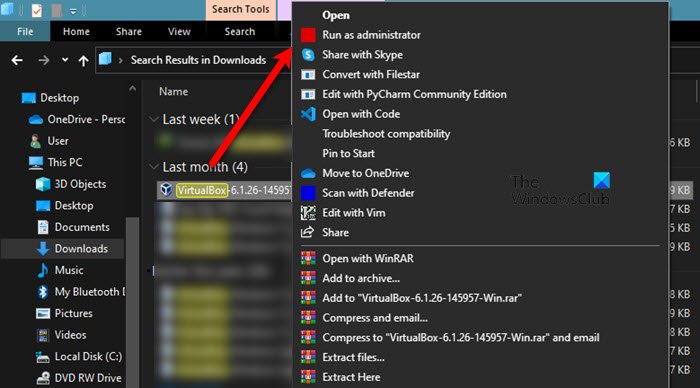
If opening the app as an admin is unsuccessful, you may need to install VirtualBox with administrative privileges. To do that, first, uninstall the application. You can do that from Settings > Apps > Apps & features, select the program, and click Uninstall.
Now, you can right-click on the VirtualBox installation package and select Run as administrator. Now, follow the usual process to install the application on your system and you will be good to go.
3] Disable your antivirus
Next, if the issue persists, we must assume that your antivirus is preventing VirtualBox from functioning. Therefore, we would recommend you to temporarily disable the antivirus that you may have, for the VirtualBox to work on your system.
4] Restore Access Control List (ACL) Permissions
To reset File & Folder permissions to default, launch the command prompt as an Administrator and navigate through the tree of folders you need to fix. Then run the following command:
ICACLS * /T /Q /C /RESET
ICACLS will reset the permissions of all the folders, files, and subfolders to default.
5] Move .Virtualbox folder to a different location
The error message can be caused by a corrupted Virtualbox.xml file or another file present in the VirtualBox folder. Therefore, it is recommended to move the entire VirtualBox folder to a different location, allowing it to create a new folder from scratch and resolve the issue for you.
First of all close VirtualBox, then navigate to the following location.
C:\Users\<UserName>
Replace <UserName> with your username.
Right-click on .Virtualbox folder, and select Cut. Now, go to some other location and paste the folder there.
Finally, open VirtualBox and check if the issue persists.
How do I fix VirtualBox Failed to open session for virtual machine?
If you get the ” Failed to open session for virtual machine error while starting a virtual machine, you need to run VirtualBox with administrator permissions. Following that, you can disable your antivirus or any other security shield that you have installed on your PC. Additionally, it is recommended to restore Access Control List (ACL) permissions as well.
That’s all! Hope it helped.
Related reads:
- VirtualBox Interface has active connections message when shutting down
- VirtualBox Failed to attach the USB device to the virtual machine.
