
You might, at times, get this error message on Windows 11/10 – Explorer.exe Server execution failed every time you click on the File Explorer icon or press Win + E to launch it. This might happen because the Shell folder values might be incorrect, or they might be missing.
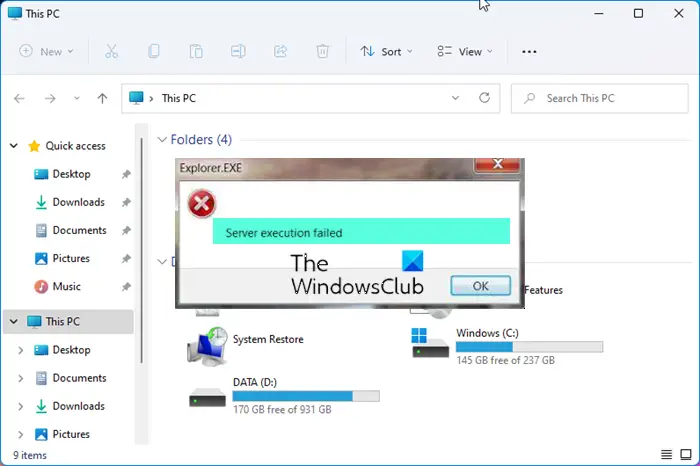
Fix Explorer.exe Server execution failed in Windows 11/10
To fix Explorer.exe Server execution failed error in Windows, try these suggestions:
- Modify Registry
- Create a new Windows Profile or User Account
- Rollback Windows Update
Make sure to try each one and then check if the issue is resolved before proceeding to the next solution.
1] Modify Registry
Make a backup of your registry before making any changes. Once you have created a backup, open regedit (Win + R, type regedit, and press the Enter key) and navigate to the following keys:
HKEY_CURRENT_USER\Software\Microsoft\Windows\CurrentVersion\Explorer\User Shell Folders
HKEY_LOCAL_MACHINE\Software\Microsoft\Windows\CurrentVersion\Explorer\User Shell Folders
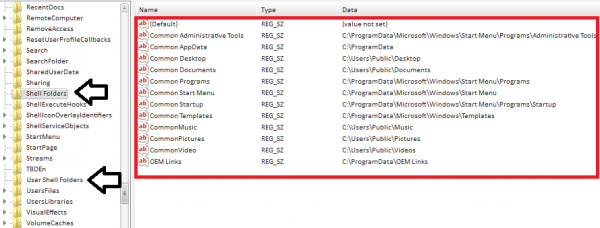
Here are the default values:
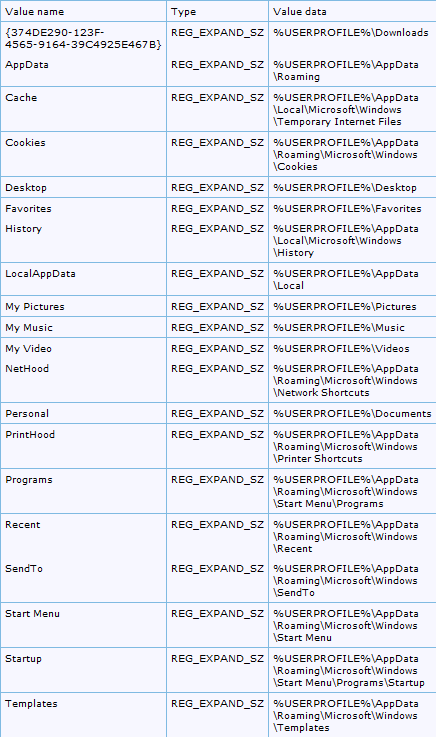
2] Create a new Windows Profile or User Account
If none of the steps resolve your problem, create a new Windows Profile. For more assistance in creating a new Windows Profile and transferring files, visit this article on fixing a corrupted User profile, creating a new user profile, and copying files to the new user profile.
3] Rollback Windows Update
If you have recently installed an update, you may want to roll back or uninstall it.
To do this, go to Settings > Windows Update > Update History > Uninstall Updates. It will reveal the list of updates that have been installed, and you can then choose to remove the most recent ones.
What does Server Execution mean?
When you launch a program, the OS executes it to open it. That’s server execution. However, if the program is already running or is in closing mode, it will result in a server execution error as the OS will not be able to open the program. It has been reported that Windows Update also causes these types of problems.
Related:
