
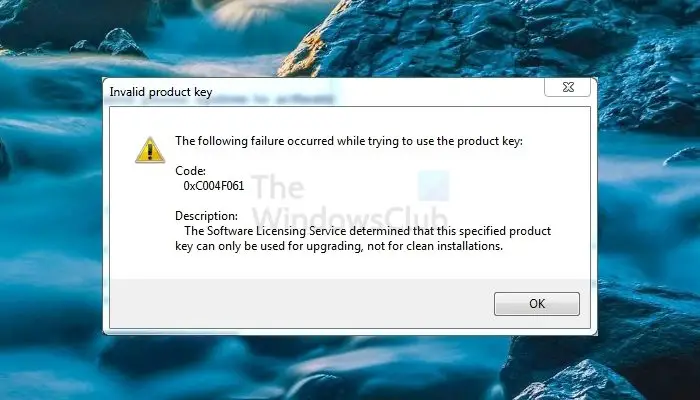
Microsoft follows the policy of one key for one Windows activation. This means only a single key can be used for one installation. Suppose you installed Windows on multiple hard drives of the same computer. Because of this policy, you won’t be able to activate all copies using the same key. Again, some keys can be used only to upgrade your Windows, not for new, clean installations. If you try to use it, you may get an Invalid Product Key Error Code: 0xC004F061.
Fix 0xC004F061, Invalid product key, Activation error in Windows 11
It is likely that the key might be an OEM key (preinstalled by the manufacturer) and cannot be used to activate a retail copy. But if you’ve bought a new license, you shouldn’t encounter this error.
Code 0xC004F061, The Software Licensing Service determined that this specified product key can only be used for upgrading, not for clean installations.
But if you’re facing this error, we’ll tell you how to fix it. Here is how:
1. Press Windows Key + R combination, type Regedt32.exe in the Run dialog box, and press Enter to open the Registry Editor.
2. Navigate to the following location:
HKEY_LOCAL_MACHINE/Software/Microsoft/Windows/CurrentVersion/Setup/OOBE
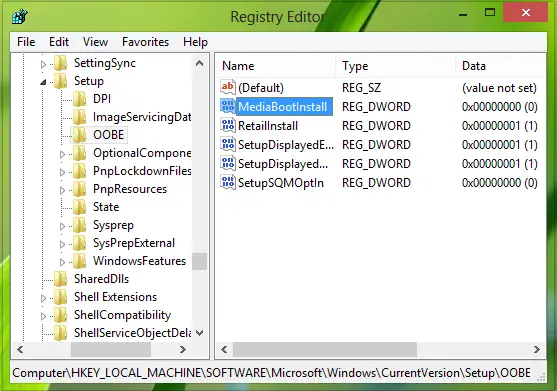
3. In the right pane of this location, you’ll see MediaBootInstall named DWORD, which has Value data as 1. Double-click on this DWORD to modify it:
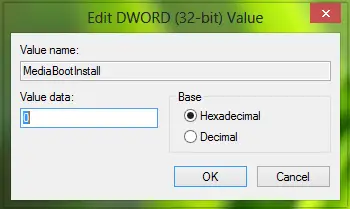
4. In the above window, replace the Value data with 0 from 1. Click OK. Close the Registry Editor.
5. Now open the administrative Command Prompt, type the following command:
slmgr /rearm
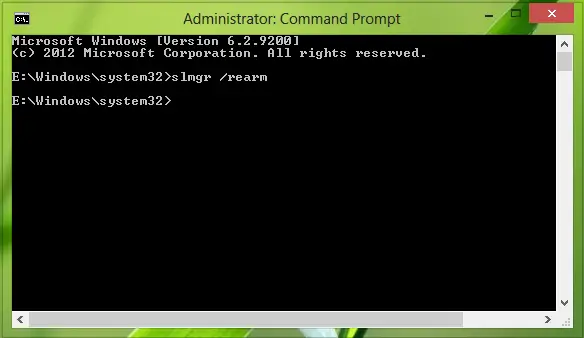
6. After executing this command, you’ll receive the following prompt:
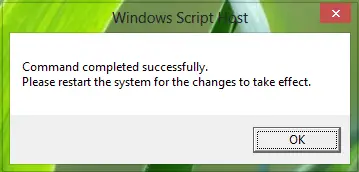
7. If you’re asked to enter the product key, then do it and reactivate Windows.
Click OK in the window shown above and reboot the system. After reboot, your error should be fixed now.
I hope this helps!
How do I get my Windows 11 product key after a clean install?
If you use a Microsoft account, you can sign in with the same account after the clean install. Windows will automatically figure out and activate your key. If you had not used a Microsoft account before, you would have to recover the key from your email. If you still cannot figure it out, connect with Microsoft to get it sorted.
How do I find my full product key?
The only way to find the full product key if you cannot find it anywhere is to use third-party software to reveal the details. However, if you don’t want to use software, you can use the built-in method to reveal the Product key.
