
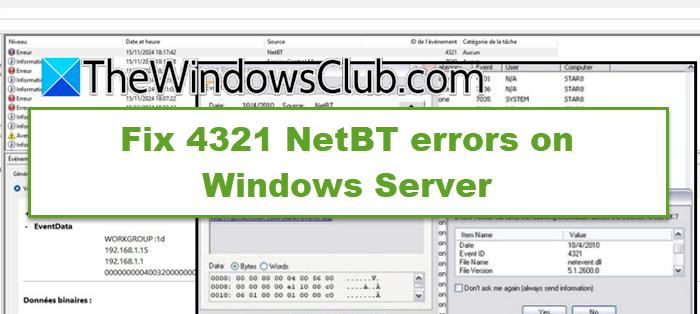
If you manage a Windows Server environment and are frustrated by those persistent NetBT Event ID 4321 errors, you are in the right place. The error indicates that something is not right with how the server is identifying itself on the network. In this article, we will explore what these errors mean and how to fix them.
MYDOMAIN :1d” could not be registered on the interface with IP address 192.168.x.xx. The computer with the IP address 192.168.x.xxx did not allow the name to be claimed by this computer.
What is error code 4321?
Error code 4321 is a NetBT event on Windows Server that indicates the server’s failure to register or refresh its NetBIOS name on the network. This usually points to the name resolution or configuration issues. If you are seeing this error in your logs, continue with the next section to understand the underlying cause.
Fix 4321 NetBt errors on Windows Server
If you encounter 432 NetBt errors on Windows Server, execute the solutions given below.
- Disable NetBIOS over TCP/ IP
- Validate DNS configuration and dynamic registration
- Verify the DHCP Client service
- Identify and reconfigure the conflicting device
- Clear the NetBIOS name cache
Let’s get started with the troubleshooting guide.
1] Disable NetBIOS over TCP/IP
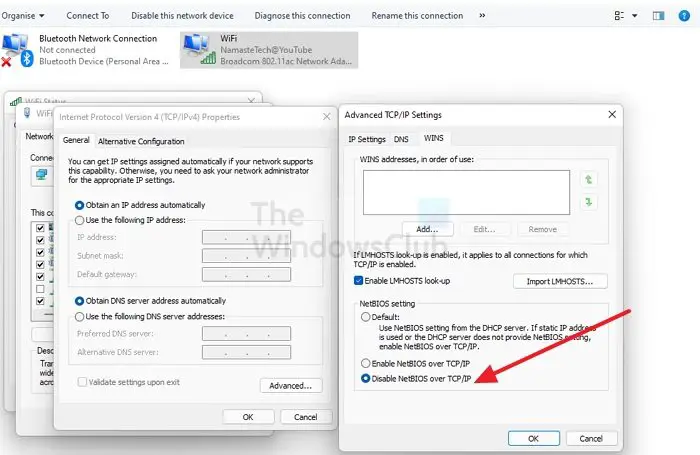
In modern Active Directory environments, the legacy NetBIOS name is unnecessary and can cause registration issues. Disabling NetBIOS over TCP/IP forces Windows to stop broadcasting or querying NetBIOS names and rather rely on DNS. It is efficient and conflict-free in a properly configured domain.
- Click Win + R to open the Run dialogue box, type ncpa.cpl, and press Enter to open Network Connections.
- Right-click on the active network adapter, select Properties and select Internet Protocol Version 4 (TCP/IPv4).
- Click on the Properties button, and then select the Advanced button. Navigate to the WINS tab, select the Disable NetBIOS over TCP/IP options, and click OK on all open dialogues.
Once done, restart the server or open services.msc, locate the NetBT service and restart it. If this doesn’t resolve the issue, move on to the next solution.
2] Validate DNS configuration and dynamic registration
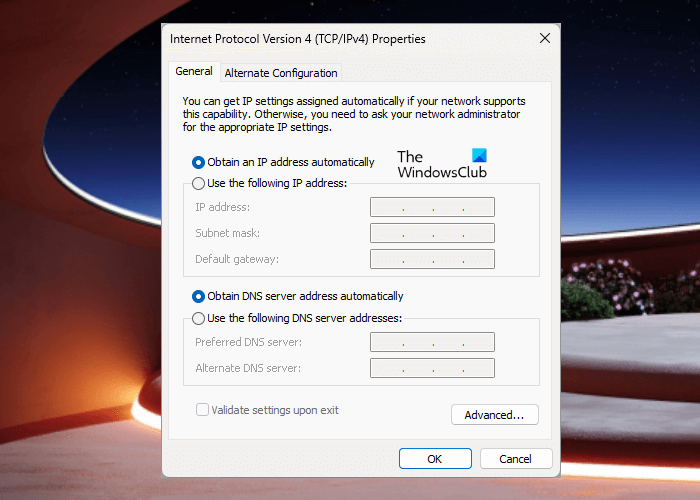
NetBT registration failures can also be the result of incorrect DNS settings, as Windows uses DNS as a fallback. To ensure that name resolution works cleanly, we need to validate the internal DNS server and enable Dynamic registration. This eliminates DNS-induced registration retries.
- Open the Run dialogue box, type ncpa.cpl, and press Enter to open Network Connections.
- Open the Network adapter Properties, select Internet Protocol Version 4 (TCP/IPv4), and click the Properties option.
- In the IPv4 properties window, confirm that the Preferred DNS Server field points to an internal domain controller and not public IPs like 8.8.8.8.
- Next, click on the Advanced button, go to the DNS tab, and ensure that Register this connection’s addresses in DNS is checked.
- Next, type cmd in the Start menu, right-click on it, and select Run with administrative rights.
- To register the server’s host and pointer, run the command and wait for the operation to complete:
ipconfig /registerdns - Once done, confirm that the servers’ A record exists:
dnscmd/ Info
See the next solution if you still encounter the error.
3] Verify the DHCP Client Service
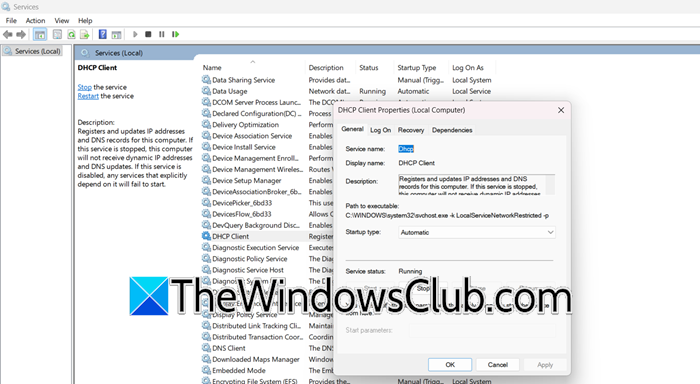
The DHCP Client service is responsible for registering NetBIOS names and DNS records. If it is stopped or disabled, then NetBT cannot perform name registration. To avoid this situation, it is recommended to verify and ensure that the service is running and set to Automatic to complete the name registration handshake.
- Press Win + R to open the Run dialogue box, type services.msc, and hit Enter to open the Windows Service management console.
- Locate the DHCP Client in the list, and verify that the Status shows Running and the Startup Type is set on Automatic.
- If it is not running, right-click on it and select Start. If the Startup type is not set as Automatic, right-click on it, select Properties and set it to Automatic.
- Hit Apply and OK, and restart the server.
Now, check if the issue is resolved or not. Proceed to the next solution if it persists.
4] Identify and reconfigure the conflicting device
The issue can also occur if the name your server tries to take is already used by other devices. So, we are going to see exactly which name it holds, and then either stop its Computer Browser Service or change the name to remove the conflict.
- In the Run dialogue box, type eventvwr.msc, and hit Enter to open the Event Viewer.
- Expand Windows log, click on System, and then select Filter Current log from the right side.
- In the Events ID field, type 4321, click OK, and then double-click on the entry. In the bottom General tab, note the conflicting IP address from the message.
- Now, open Command Prompt with admin rights, and run the following command:
nbtstat -A 192.179.1.70
Note: Replace it with the actual IP.
- Under the Name table, look at the output and pay attention to the suffix. If the name ends with <1D> or <1B>, the issue is most likely due to the Computer Browser Service. To fix this, log in to the conflicting device, open Services.msc and locate the Computer Browser service. Stop it, and set it to Disabled.
- If it shows the server’s exact computer name, then it is the same duplicate hostname. To fix this, rename the conflicting device using System Properties.
- After you are done, run nbtstat -RR on the server to refresh registration.
If no conflicting device is found, go to the next solution.
Read: The VMSP service failed to start on Windows 11
5] Clear the NetBIOS name cache
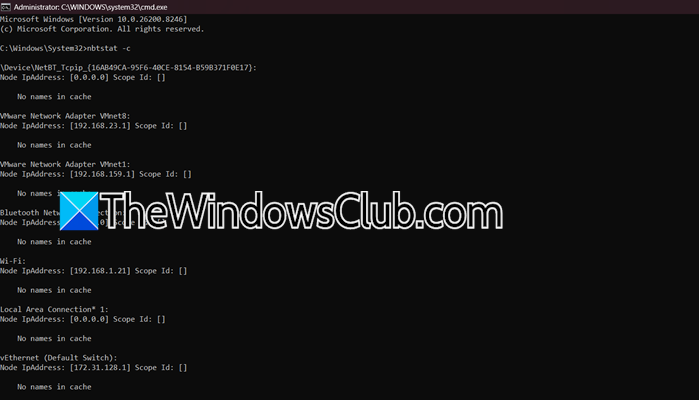
Windows maintains a local cache of NetBIOS names and their associated IP addresses. It can become corrupted, causing the server to believe the name is already taken. Therefore, we will clear the NetBIOS name cache to rebuild the name table.
- Open the Run dialogue box, type cmd and press Ctrl + Shift + Enter.
- To purge the remote cache table, execute the following command:
nbtstat -R
- To release and refresh all NetBIOS names with the WINS server and broadcast,
run nbtstat -RR
- Wait for 30 seconds, and then run nbtstat -c to view the cleared cache. Once done, restart the Computer Browser service by running net stop Browser and then net start Browser.
Monitor Event Viewer for 10-15 minutes, and hopefully, there won’t be any more problems.
Read: NetBT Event ID 4307, Initialization failed error in Windows 11
What is NetBT in Windows?
NetBT (NETBIOS over TCP/IP) is a Windows networking component that allows legacy NetBIOS-based communication over modern TCP/IP networks. It helps system identify each other using NetBIOS names. If the issue arises with NetBT, then users can face errors like Event ID 4321.
Also Read: NetBT Event ID 4307, Initialization failed error in Windows 11.
