
Are you frustrated that your fingerprint works to log into Windows 11/10, but gets rejected by the UAC when trying to install an app or make any changes? If so, we understand how bothersome it can be, especially if one relies heavily on biometrics for quick access. Fortunately, you are at the right place, as we will explore easy fixes to restore fingerprint authentication in this article. So, if the Fingerprint is not being accepted on the UAC prompt, this post is for you.
Fingerprint not being accepted on UAC prompt in Windows 11/10
If the fingerprint is not accepted on the UAC prompt, execute the solutions given below.
- Enable biometrics via Local Group Policy
- Re-register the fingerprint
- Update or reinstall fingerprint drivers
- Run the system file checker and DISM
- Check for OEM-specific Fingerprint Software
Let’s get started with the troubleshooting guide.
1] Enable biometrics via Local Group Policy
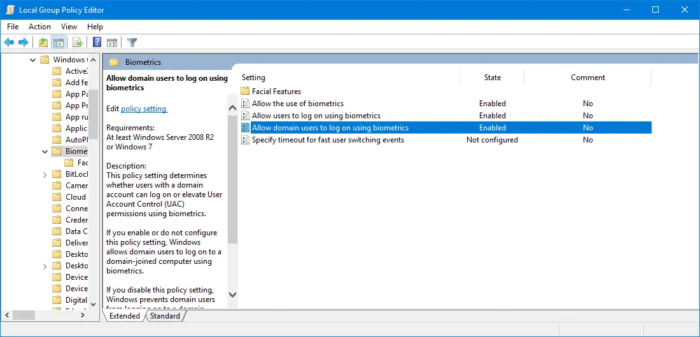
Windows has a master security setting that specifically controls the use of biometrics for authentication. If this is disabled, the fingerprint will be blocked from authorizing elevated actions like UAC prompts. Open the Group Policy Editor and then navigate to the following location.
Computer Configuration > Administrative Templates > Windows Components > Biometrics
You need to enable the following policies.
- Allow the use of Biometrics.
- Allow users to log on using Biometrics.
- Allow domain users to log on using biometrics.
Reboot the device to apply the update, and then trigger a UAC prompt after the reboot. If the fingerprint is not accepted, slide to the next solution, as a normal glitch or driver conflict may be the cause.
If you are a Windows Home user and want the same effect, try making changes to your registry.
2] Re-register the fingerprint
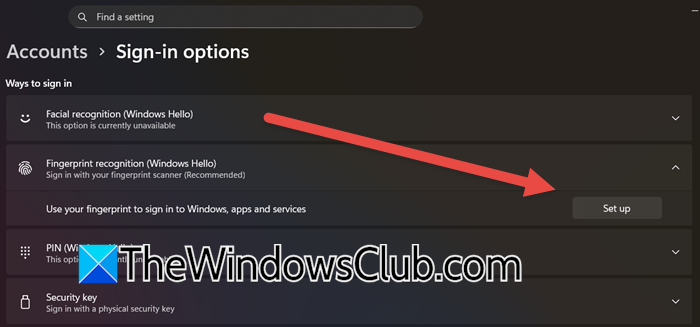
Over time, a registered fingerprint can get corrupted and cause authentication to fail. Deleting it and creating a fresh one forces Windows to generate a new valid credential.
- Open Settings by clicking Win + I, and then navigate to the Accounts tab.
- Select the Sign-ins options from the left-hand menu, and find the Windows Hello section.
- Locate the Fingerprint recognition option and click the Remove button. Confirm when a confirmation window will appear to remove the fingerprint. Once done, restart the PC, and repeat the first and second steps.
- In the Fingerprint recognition, click on the Set up button, and click Get Started.
- Enter the PIN, and follow the on-screen instructions to re-register the fingerprint.
Once the setup is complete, trigger a UAC prompt, and check if it is taking in the fingerprint. If not, proceed to the next solution.
3] Update or reinstall fingerprint drivers
An outdated, generic, or corrupted driver is a common cause of failure. It’s necessary to keep all drivers up-to-date at all times. To do the same, follow any of the solutions mentioned below to update drivers.
- Download the Drivers from the manufacturer’s website.
- Get a Driver Updater Software
- Install Driver and Optional Updates
If the automatic update didn’t work, a manual clean is the next step.
- Identify your hardware model, download the driver from the manufacturer’s website (linked earlier), then click Win + X, and select Device Manager.
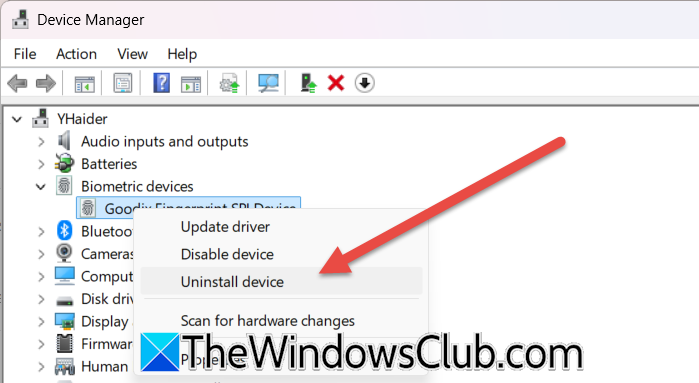
- Expand Biometric devices, right-click the fingerprint sensor, and select Uninstall device.
- Check the Attempt to remove the driver for this device box in the confirmation page, and select Uninstall to remove the current driver software.
- Now, locate the driver file downloaded earlier, double-click on the file to run the installer, and follow the steps to complete the process.
Restart the device after the installation is complete, and test the fingerprint reader. Move to the next solution if it is still not functioning properly.
4] Run the system file checker and DISM
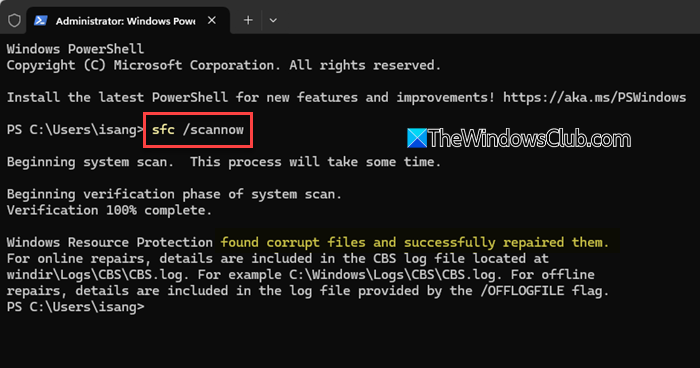
Underlying Windows files can become corrupted, and prevent features like fingerprint sign-in from working correctly. We will run the SFC and DISM tools to identify and repair this corruption.
- Open an elevated Command Prompt, and paste the following command to run the System File Checker (SFC) scan.
sfc /scannow
The scan will take time, so wait for it to complete.
- Once it is completed, we are going to run the DISM tool. Even if SFC found no error, it is a good practice to run this next. Type or paste the following command to do the same.
DISM /Online /Cleanup-Image /RestoreHealth
- This process takes longer than SFC, so wait patiently. Once both commands are completed, restart the device.
Verify if the fingerprint is now recognised or not. No? Then go to the next troubleshooting solution.
5] Check for OEM-specific Fingerprint software
Last but not least, proprietary manufacturer software can cause conflict with Windows’ native fingerprint management, leading to failures at the UAC prompt. Hence, removing the third-party software and using Windows Hello instead might resolve the issue.
- Press the Windows key or click on the Start menu, type and open Installed apps.
- In the search bar at the top list, search for Fingerprints or the name of the PC’s manufacturer, and look through the results for any associated software.
- Click on the app, select the Uninstall option, and follow the on-screen prompts.
- Reboot the PC, then go to Settings > Account > Sign-in options. Under Windows Hello, set up the fingerprint again.
The system will now use the standard Windows driver without third-party interference. Hopefully, this will resolve the issue by allowing Windows to manage the fingerprint sensor directly.
Read: Windows Biometric Service stopped working [Fixed]
How do I avoid UAC prompt?
Users can avoid UAC prompts by disabling them in User Account Control Settings by sliding the bar to Never notify. However, before doing this, keep in mind that this severely reduces the security by allowing silent system changes. A safer method is to use Task Scheduler to run specific tasks with the highest privileges without prompting, or ensure that the account is a standard user to trigger fewer prompts for elevation naturally.
Read: Cannot login with Fingerprint in Windows 11 on a Domain
How to solve We couldn’t find a fingerprint scanner compatible with Windows Hello Fingerprint?
The error We couldn’t find a fingerprint scanner compatible with Windows Hello Fingerprint typically indicates a driver or compatibility issue. First, ensure the fingerprint scanner is physically enabled in the device’s BIOS or UEFI settings. Then, verify whether the device is running the latest version of the driver, as the generic Windows driver is not sufficient. If the problem persists, refer to the article mentioned above, as it addresses a similar issue with fingerprint functionality.
