
There could be nothing worse than a failing hard disk with the risk of losing all your crucial data in one go. While in many cases, it might not carry a warning, some users have reported getting errors which help them find out if their hard drive is failing well in advance. One such error is “File record segment is unreadable‘.
File record segment is unreadable Disk error in Windows 11
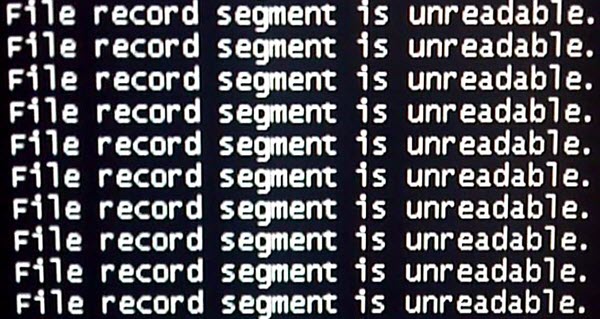
File record segment is unreadable message usually points to a serious issue with the disk’s file system or even physical damage to the drive. In Windows 11, it often shows up when NTFS encounters corruption or bad sectors. If you have started seeing this message on your Windows computer, back up your data right away and then follow these suggestions to address the issue.
1] Copy your hard drive’s data to an external hard drive
While you can copy and paste the files directly onto the external hard drive, you may also clone the hard drive or create an image of it while troubleshooting is performed. You would need a new hard drive with enough space to accommodate all the data while leaving some space for the job. Other than the external disk, a good cloning or imaging software would be needed.
2] Perform a chkdsk scan at Boot Time
Press Win+X, then open Command Prompt (Admin). Enter the following command and press Enter:
chkdsk /r
It will prompt if you wish to perform the disk error checking on next restart. Enter Y and press Enter.
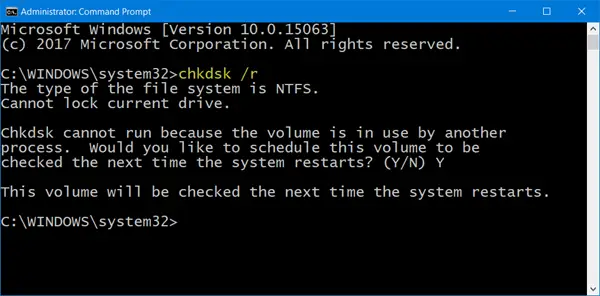
The next time your computer starts, the system will perform the chkdsk scan.
You have two chkdsk command line parameters that can help you:
- /f : Will fix errors detected
- /r : Will identify Bad Sectors and attempt recovery of information.
When /scan not specified /r implies /f.
3] Run S.M.A.R.T. check
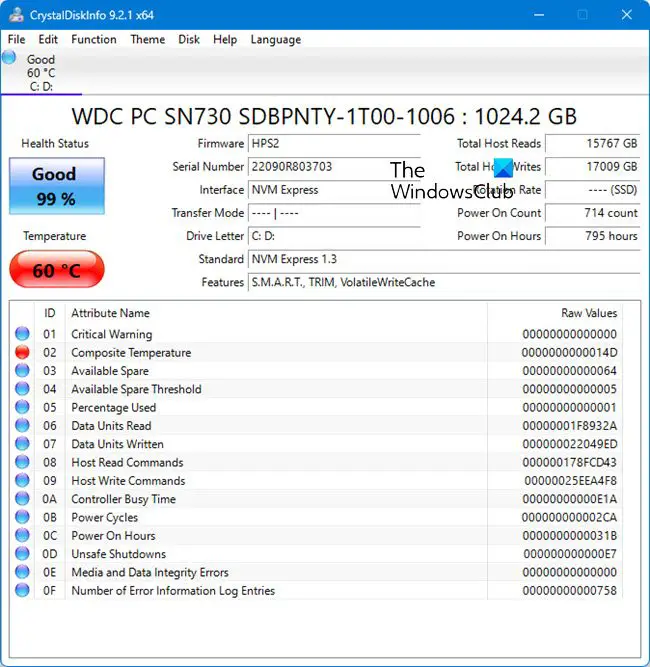
Use tools like CrystalDiskInfo to see if the drive is reporting hardware issues. It is a free tool used for monitoring the health and performance of hard drives and SSDs. It reads S.M.A.R.T. data to provide insights on drive reliability and to predict potential failures, ensuring data integrity and system stability. It supports NVMe, SATA, and PATA connections, catering to various storage devices.
4] Try Data Recovery freeware
Some free data recovery software products are known to help with data recovery unless the issue is physical damage to the hard drive. If they help recover the data, well and good. Otherwise, too bad.
If these tools help recover the data, try formatting the drive and check whether it is usable now.
Read: You need to format the disk in drive before you can use it.
5] Connect the hard drive to a different PC
If the damage to the hard drive is physical, the chance of saving all the data is much lower. But an attempt to retrieve some files could be made by connecting the drive internally or by using a hard drive enclosure.
If the files are accessible after connecting to an external PC, try to retrieve as many of them as possible.
Remember, Hard Drive failure can be devastating, and such unreadable sections of data will only get worse, so it’s best that you recover as much data as you can and change your hard disk right away.
See this post if you receive The Disk structure is corrupted and unreadable error.
