
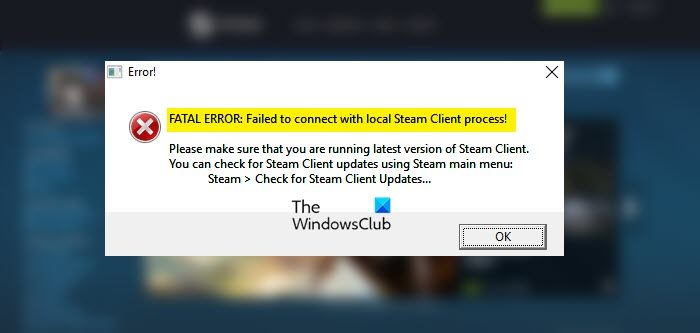
Some users have reported that they are unable to launch a game on the Steam client. According to them, when trying to launch the game, the following error message pops up.
FATAL ERROR: Failed to connect with Local Steam Client Process
Please make sure that you are running latest version of Steam Client.
You can check for Steam Client updates using Steam main menu:
Steam > Check for Steam Client Updates.
In this article, we will resolve the issue with some simple solutions.
Fix Failed to connect with local Steam Client process Fatal error
If you are encountering “Failed to Connect with Local Steam Client Process”, check the following solutions.
- Check for Steam Update
- Launch Steam as an administrator
- Uncheck “Run as administrator” for your game
- Repair Game Files
- Log out and Log in to Steam
- Reinstall Steam
Let us talk about them in detail.
1] Check for Steam Update
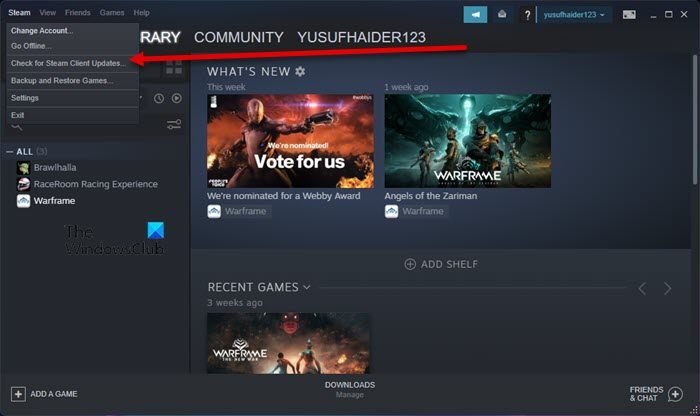
First of all, we should what the error box is saying i.e; to update Steam. So, open the app and click Steam > Check for Steam Client Updates…
If an update is available, it will be downloaded and installed. As a result, your issue will be resolved. In case there is no available update, move to the next solution.
2] Launch Steam as an administrator
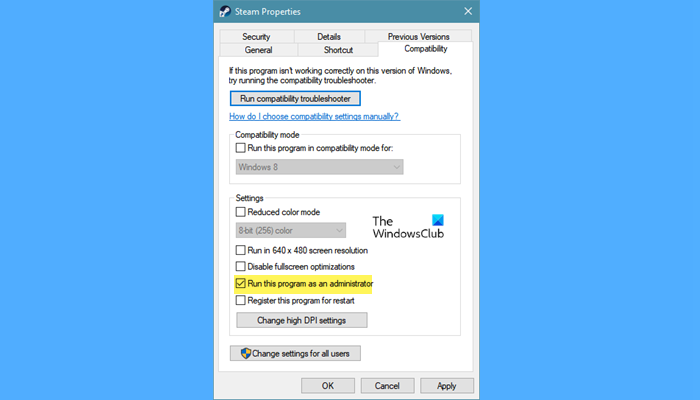
According to some users, Steam requires administrative privileges to run the game. So, you can just right-click on Steam and select Run as administrator. This will allow it to run with required permissions. You can also configure the Steam Client such that it always run with administrative privileges.
- Right-click on Steam and select Properties.
- Go to the Compatibility tab.
- Tick “Run this program as an administrator” and click Apply > Ok.
Hopefully, this will do the trick for you.
3] Uncheck “Run as administrator” for your game
Now that you have launched Steam as an administrator, we need to configure the game you are unable to launch so that it doesn’t run as an administrator. This may sound a bit contradictory, but it has worked for some folks and should do the job for you as well. Follow the given steps to do the same.
- Open Steam.
- Go to the Library.
- Right-click on the game that’s not launching and select Properties.
- Go to the Local Files tab and click Browse.
- Right-click on the EXE file (for example, csgo.exe) and select Properties.
- Go to the Compatibility tab.
- Untick “Run this program as an administrator” and click Apply > Ok.
Now, restart the game and check if the issue persists.
4] Repair game files
If the files of your game are corrupted, you will see the error message in question. We need to use the Steam launcher to scan and repair corrupted files. Follow the prescribed steps to do the same.
- Open Steam.
- Go to the Library.
- Right-click on the game you want to repair and select Properties.
- Click Local Files > Verify integrity of game files.
Wait for the process to complete, then check whether the issue persists.
5] Log out and Log in to Steam
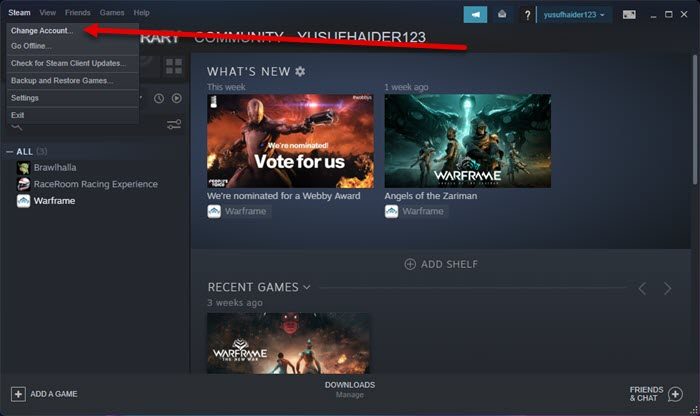
Next up, we should try logging out and back in to Steam. This solution will do the trick if the issue occurred because of a glitch in your account. So, to log out, open Steam, and click Steam > Change Accounts. Then, follow the on-screen instructions to log out and log in. Hopefully, this will do the job for you.
6] Reinstall Steam
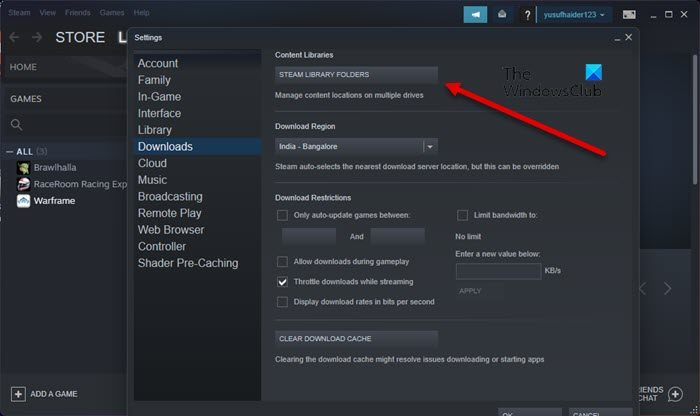
Reinstalling the Steam client app should be your last resort; deploy it only if nothing else works. What you have to do is first back up the SteamApp folder. You can navigate to the following location.
C:\Program Files (x86)\Steam\steamapps
Or, open Steam, click on Steam > Settings > Downloads > STEAM LIBRARY FOLDERS. Click on the three horizontal dots and click Browse Folder. You will be redirected to Steamapps.
Now, delete all the content of that folder.
Finally, uninstall Steam, then redownload it from store.steampowered.com and install it. Hopefully, this will do the trick for you.
How do I fix Failed to connect to local Steam client?
If you are seeing “Failed to connect to local Steam client” error message, then try the solutions mentioned in this article to troubleshoot. Mostly, the issue is caused due to lack of permissions and a conflict of permissions. You need to try the first two solutions, as they address that permission issue. If changing the privileges is to no avail, try other solutions and see if they work. Just make sure to go in the given order, as it will save a lot of your time.
Read: Steam Cloud not syncing, uploading or working properly
Can’t connect to Steam Network?
If you can’t connect to Steam Network, the first thing you should check is your bandwidth using an Internet Speed tester. If it is low, restart your router and if that doesn’t work, contact your ISP. Also, check our guide to resolve slow Internet. In case, the speed is not an issue, restart your network devices, flush DNS, restart TCP/IP, and reset Winsock. Hopefully, it will do the trick for you.
That’s it!
Also Check: Shared IPC Compositor Invalid Connect Response (307) SteamVR error.
