
SteamVR is a Virtual Reality platform developed by Valve Corporation that provides users with a 360-degree virtual gaming experience. Some users have experienced an error while using SteamVR. According to them, after connecting the SteamVR link box to their systems, they received the following error message when launching the SteamVR application.
Error Starting SteamVR, SteamVR failed to initialize for unknown reasons, Shared IPC Compositor Invalid Connect Response (307).
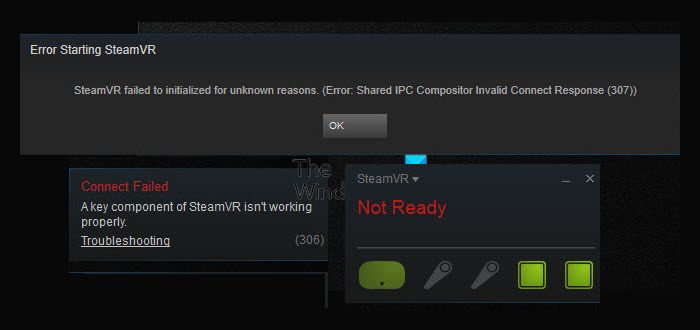
The above error message prevents users from playing games on SteamVR. If you receive this error message, the solutions provided in this post may help you fix the problem and make things normal again.
Shared IPC Compositor Invalid Connect Response (307) SteamVR error
Follow the suggestions provided below to get rid of the Shared IPC Compositor Invalid Connect Response (307) SteamVR error.
- Roll back your graphics card driver
- Uninstall and reinstall your graphics card driver
- Disable HDR in Windows
- Change your cable
- Uninstall the latest Windows Update
Let’s see all these solutions in detail.
1] Roll back your graphics card driver
Usually, outdated graphics card drivers cause problems. But in this case, most users have experienced the problem after installing the latest version of the NVIDIA graphics card driver. In such a case, there is an easy fix: roll back your graphics card driver. If you are using a graphics card other than NVIDIA, you can also try this solution and see if it helps.

The steps to roll back your graphics card driver are as follows:
- Press Win + X keys and select Device Manager.
- When the Device Manager opens up, expand the Display adapters node.
- Right-click on your graphics card driver and select Properties.
- Now, select the Driver tab and see if the Roll Back option is available.
- If the Roll Back option is available, click on it to roll back your graphics card driver.
The above steps will downgrade your graphics card driver by installing its previous version. After rolling back the driver, check if the issue persists.
2] Uninstall and reinstall your graphics card driver
If the above method does not resolve your problem, uninstall your current graphics card driver and then reinstall it. Visit the official website of your graphics card manufacturer and download the latest version of the driver. Now, uninstall the currently installed graphics card driver from your system. To uninstall your graphics card driver, you can use DDU (Display Driver Uninstaller). After uninstalling your driver, run the installer file to install the latest version of the graphics card driver. Now, check if the issue persists.
If the issue is not resolved, download the older version of your graphics card driver from the manufacturer’s website, then install it using the above method.
3] Disable HDR in Windows
If you have enabled HDR on multiple displays, turn it off and check whether it fixes the problem. The steps to turn off HDR on Windows 11 and Windows 10 systems are listed below:
Windows 11
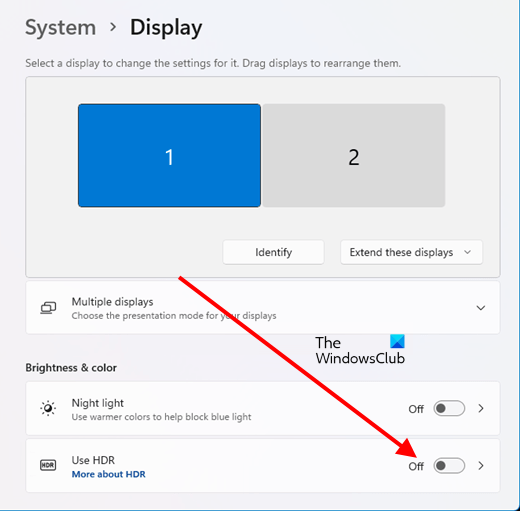
The following steps will help you disable HDR on Windows 11:
- Press the Win + X keys and select Settings.
- When the Settings app appears, go to “System > Display.”
- Now, select the display on which you have enabled HDR and disable it by turning off the Use HDR button.
Windows 10
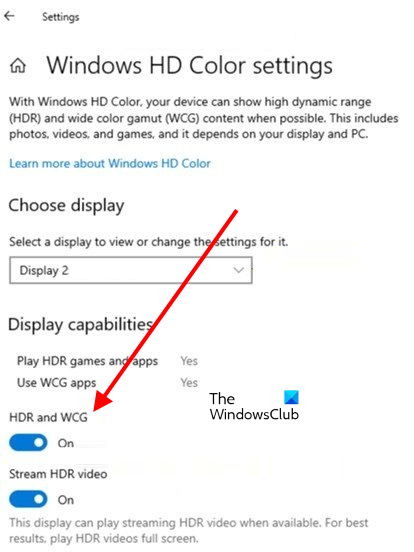
Follow the steps written below to turn off HDR on Windows 10:
- Open Windows 10 Settings app.
- Go to “System > Display.”
- Select your HDR capable display under the Rearrange your displays section.
- Now, click on the Windows HD Color settings link.
- Under the Display capabilities section, turn off HDR and WCG.
4] Change your cable
The error message “Invalid Connect Response” indicates a connection issue between SteamVR and your system. Hence, you should check if the cable that you are using to connect your SteamVR link box to your system is faulty or not.
For some users, the DP-to-HDMI cable fixed the issue, whereas for others, the DP-to-Mini DP cable worked fine. What was common among these users was that they received the error after connecting the link box to their systems via an HDMI-to-HDMI cable.
If you are using an HDMI-to-HDMI cable to connect your link box to your system, replace it with a DP-to-HDMI or DP-to-Mini DP cable.
5] Uninstall the latest Windows Update
If the issue started occurring after a recent Windows Update, rolling back to the previous version of Windows will fix the problem. You can uninstall the latest Windows Update from Windows 11/10 Settings. This should fix the problem.
Hope this helps.
Read: SteamVR keeps telling to update Graphics driver.
Why does my SteamVR keep failing?
SteamVR may fail or not work properly due to missing or corrupted files in the SteamVR app. To fix this problem, you have to verify the integrity of the SteamVR app from the Steam Client. The following steps will guide you on this:
- Close the SteamVR app on your computer.
- Open the Steam Client.
- Go to Library and select Tools from the left side.
- Now, right-click on the SteamVR app and select Properties.
- Select the Local Files tab and click on the Verify integrity of tool files.
If after performing the above steps, SteamVR still does not work, you can try some other fixes, like running the SteamVR app as an administrator, updating your graphics card driver, etc.
How do I fix HMD not found on SteamVR?
If you receive the error HMD not found on SteamVR, follow the instructions provided below:
- Close the SteamVR app and Steam Client.
- Unplug the cables connecting your computer and the link box.
- Unplug the power cable to turn off the link box.
- Wait for a few seconds, then power on the link box and connect it with your computer.
- You may see a message that drivers are being installed on your system.
- Let Windows install the drivers. After the process gets completed, restart the SteamVR app.
Read next: How to fix SteamVR Error Code 436.
