
Some users encountered hard drive issues, such as system freezes during data-saving operations or when using applications and games installed on the same drive. Upon reviewing the Windows Event Viewer logs, users noticed the warning message: Event ID 51, An error was detected on device during a paging operation. If you encounter the same problem on your Windows machine, follow the solutions provided in this article to resolve the issue.
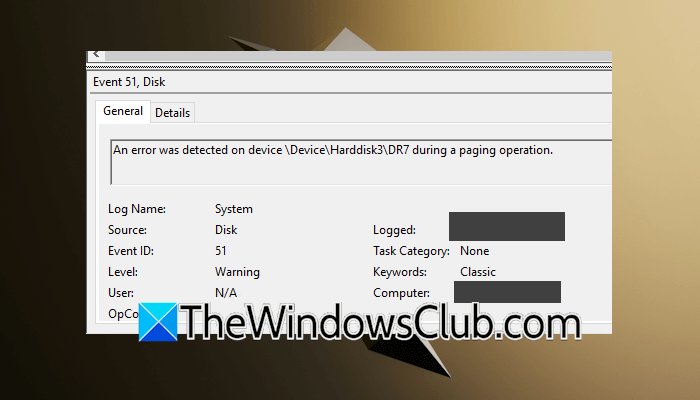
An error was detected on device during a paging operation
If you experience hard drive-related issues and Event Viewer shows you the “Event ID 51 An error was detected on device during a paging operation” warning message, use these solutions:
- Check the cable connecting your hard drive
- Disable Disk write caching
- Troubleshoot in a Clean Boot state
- Run the Chkdsk scan
- Are you using a docking station?
- Hardware fault
All these fixes are explained in detail below.
1] Check the cable connecting your hard drive
The first step is to check the SATA cable connecting your hard drive or SSD to the motherboard. You have to open your computer case, remove the cable, and reconnect it. Additionally, inspect the cable physically for signs of damage. If your system has an NVMe SSD, remove it from the M.2 slot, clean it, and reinstall it.
2] Disable Disk write caching
The Disk Write Caching is enabled by default on all Windows devices. This feature enhances the system’s performance; however, a power failure can result in data loss. Disabling this feature for the affected hard drive can help fix this issue.
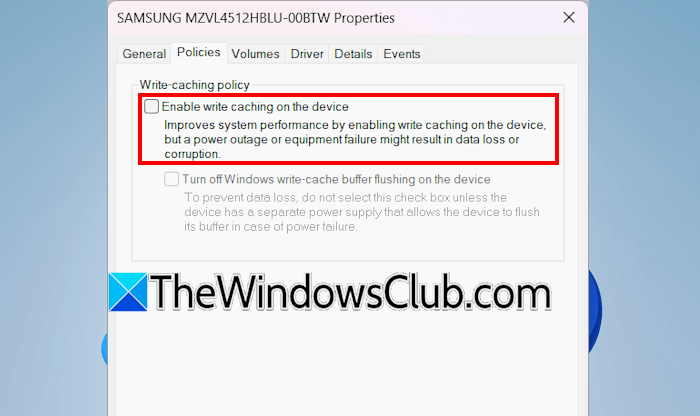
These are the steps:
- Open File Explorer.
- Right-click on the affected hard drive and select Properties.
- Go to the Hardware tab. You will see all the hard disk drives connected to your system there.
- Select the affected hard drive and click Properties.
- Under the General tab, click Change settings.
- Go to the Policies tab and uncheck the “Enable write caching on the device” checkbox.
- Click OK to save changes.
To identify the affected hard drive, read the warning message in the Event Viewer carefully. The message looks like this:
An error was detected on device \Device\Harddisk1\DR1
As you can see, the affected hard drive is the hard disk 1. Now, open the Disk Management to view the volume label of the affected hard disk.
3] Troubleshoot in a Clean Boot state
One possible cause of this issue is a third-party background application or service. To check this, troubleshoot in a Clean Boot state. First, disable all the startup applications through the Task Manager. Now, launch MSConfig and disable all the third-party services. Be careful while disabling the services, as disabling all the services by mistake will make your system unstable and put you in trouble. Now, restart your computer.
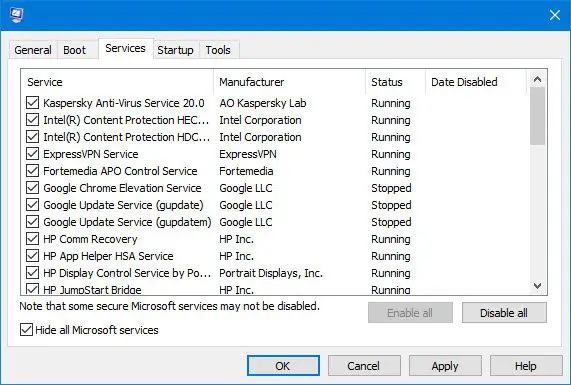
After restarting your device, you will enter the Clean Boot state. Now, check if the same issue occurs in the Clean Boot state. If not, you need to find out the culprit third-party application or service. Enable some of the services and restart your computer. If the issue reappears, one of the services you have just enabled is the culprit. Repeat the process to find out the culprit third-party service. Once you find it, check which application the service is associated with. Once you find the problematic application, uninstall it.
4] Run the Chkdsk scan
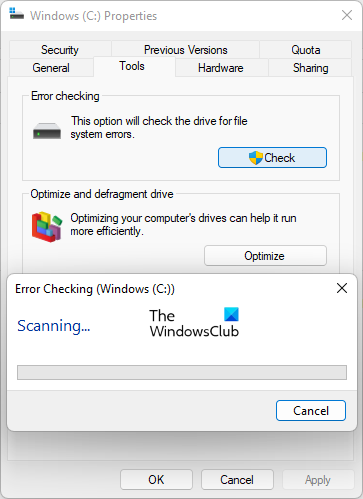
The warning message may also indicate that the affected hard drive may have bad sectors and logical errors. Windows has a built-in utility to fix bad sectors and logical errors on hard drives. Perform Disk error checking through the Chkdsk utility. Check if this fixes the issue.
5] Are you using a docking station?
Is this issue associated with your external hard drive? If so, do you use a Docking station to connect an external hard drive to your system?
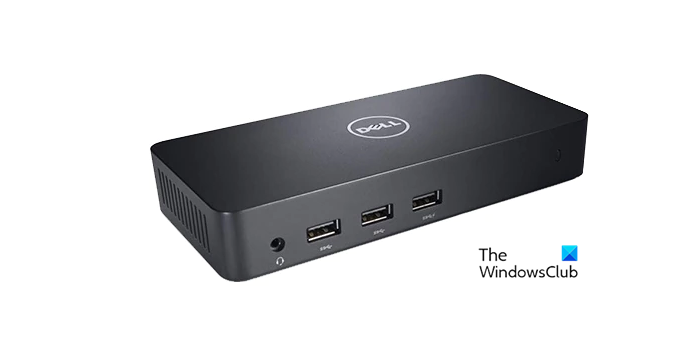
If you use a docking station to connect an external hard drive to your computer, disconnect the hard drive from the docking station and connect it directly to a USB port on your computer. Check if this fixes the issue. If yes, the problem may be with your docking station. The docking station or the cable connecting it to your computer may be unstable or faulty. Apart from this, it is also possible that the docking station is not providing enough power supply to your HDD or SSD.
6] Hardware fault
If, despite trying all the fixes explained above, the issue persists, there may be a hardware fault. The problem may be with your hard drive or the SATA cable. If you have an NVMe drive, the M.2 port may be faulty. Get professional help for further assistance.
That’s it. I hope this helps.
How to fix the paging file error?
If your system shows the “Windows created a temporary paging file on your computer” error message, this means that it ran out of virtual memory. To fix this error, you need to set the virtual memory manually.
How to fix an IO device error?
You may see different IO errors on your Windows machine. For example, “The request could not be performed because of an IO device error” in Diskpart. This error means that Diskpart is unable to access the hard drive. You need to check the hard drive permissions to see if it is write-protected.
Read next: How to fix the I/O Device error for an external hard drive on Windows.
