
When browsing through the internet if you receive an error that says Error 105 (net:: ERR NAME NOT RESOLVED): Unable to resolve the server’s DNS address, it means that DNS lookup has failed. This is one of the most common error codes you can encounter, and the solution is easy to Fix Error Code 105 in Google Chrome. Let’s take a look at all the solutions.
Error 105 ERR_NAME_NOT_RESOLVED in Chrome
Part of this error could be related to the Chrome browser, and partly because of network issues with your Windows PC.
1] Disable Prefetch in Google Chrome
Google utilizes a prediction service to assist in completing searches and URLs typed into the address bar. It uses the already resolved IP address to connect to the website you have already visited. It’s a good idea to disable it at these times.
- Open Settings in Chrome
- Go to Privacy and Security and search for ‘Prefetch’
- Toggle off this setting which says ‘Use a prediction service to help complete searches and URLs typed in the address bar.’
- Restart Chrome.
2] Check your Network Cables, Restart Your Router and Reconnect
Basic tips, but sometimes are the cause of the issue. Make sure your cables are properly in place, either connecting to your PC or router. If you are connected through WiFi, make sure to restart your router once. Lastly, you can always forget the WiFi you are already connected to and then reconnect.
3] Remove Proxy
- Press Windows Key + R then type “inetcpl.cpl” and hit enter to open Internet Properties.
- Next, Go to Connections tab and select LAN settings.
- Uncheck Use a Proxy Server for your LAN and make sure “Automatically detect settings” is checked.
- Click Ok then Apply and reboot your PC.
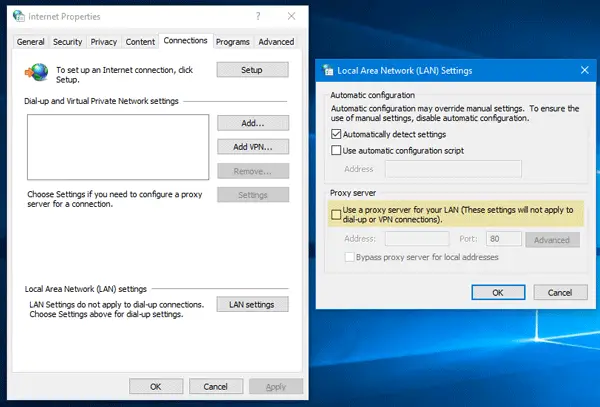
If you are using a third-party proxy service, make sure to disable it.
4] Flush DNS, reset Winsock and reset TCP/IP
Sometimes the websites don’t resolve because the DNS in your PC still remembers the old IP. So make sure to Flush the DNS, Reset Winsock and Reset TCP/IP.
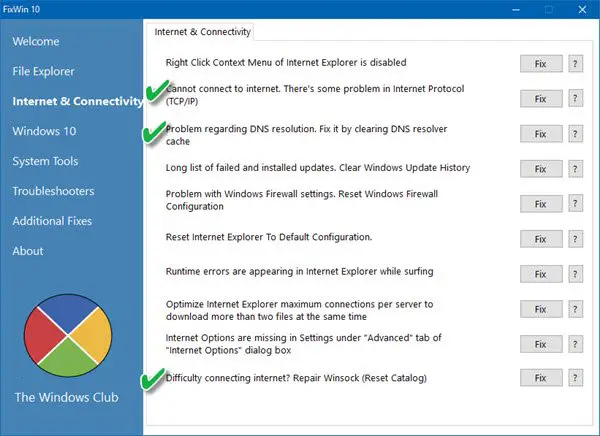
You can also use our freeware FixWin to carry out these three operations with a click.
5] Use Google Public DNS
If it does not help, use Google Public DNS and see if that works for you. You need to explicitly change the DNS settings in your operating system use the DNS IP addresses. You don’t need to worry about the procedure; the process of changing your DNS settings varies according to the operating system and version of the operating system or the device which you are using. In this article, we will show you how to fix this problem on Windows.
The issue about which we are talking in this article generally occurs on the Google Chrome browser that you are using on Windows PC. Chrome might display a grey window with one of these messages if something is wrong with the Internet or DNS settings. Whenever you type the domain name into the browser, it is a known fact that DNS will look for the IP address of the domain name and return the result to you.
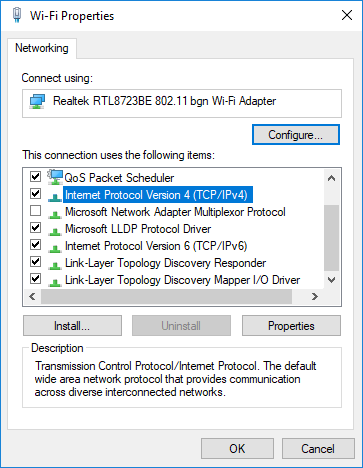
- First of all, right-click on the taskbar Network icon and select Network and Sharing Center.
- Select “Change Adapter Settings”.
- Search for the network connection that is used to connect to the internet; the option might be either “Local Area Connection” or “Wireless Connection”.
- Right-click on it and click Properties.
- Choose the new window to select “Internet Protocol 4 (TCP/IPv4)” and then click the Properties button.
- Click the checkbox for “Use the following DNS server addresses” in the new window.
- Enter in 8.8.8.8 and 8.8.4.4
- Finally, click OK and exit.
6] Temporarily Disable Antivirus and Firewall
Both of these are like security guards for the OS. If they find a website that is malicious or considered malicious due to false-positive effects, the response from those sites will be blocked. Try disabling both the AnitVirus and Firewall to see if it works. If that’s the case, you will have to add those sites as an exception, and then enable it. That should work like a charm.
Hope these tips resolve the Error Code 105 ERR_NAME_NOT_RESOLVED in Google Chrome on Windows 11/10.
