
This post will show you how to disable or enable Mouse Click Sound in Windows 11 using Mouse Sound Settings.
How to enable Mouse Click Sound in Windows 11
To turn on mouse click sounds in Windows 11 you will have to use Sound settings as follows:
- Press Win+I to open Windows Settings
- Scroll down, locate and click on More sound settings
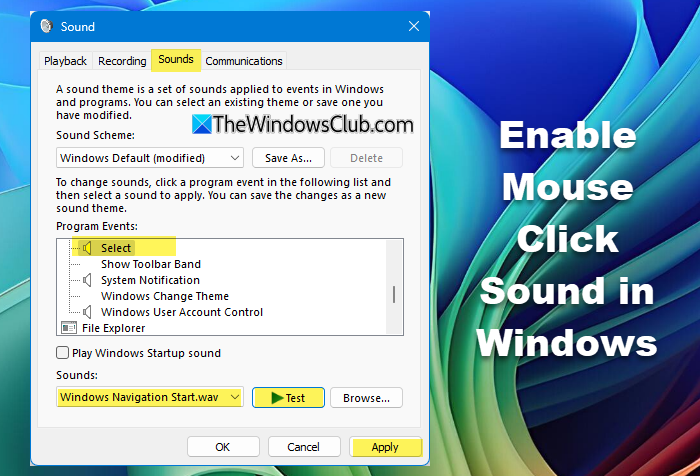
- This will open the Control Panel’s Sound setting box
- Next in the Sounds tab, scroll Program Events till you locate these two events:
- Select: This plays when you select items.
- Start Navigation: This plays when opening files or folders in File Explorer.
- Now under Sounds drop-down, select you want the soundplayed for that event.
- Click on Test and once you are satisfied, click on Apply.
You can also assign different sounds to events like Open Program, Close Program, Maximize, or Minimize for a more personalized experience.
Now, whenever you perform that action with your mouse, you’ll hear the assigned sound.
You can also use the Browse button to browse to a custom sound on your PC. It has to be .wav file, however.
By assigning a sound to system events you will be able to hear a audio cue whenever you click or navigate.
You should know that the physical click sound of a mouse button is mechanical and cannot be disabled or changed in Windows.
To disable the mouse click sounds, simply reverse the changes.
Hope this helps.
Read: Mouse is highlighting everything when I click in Windows.
Can I make my mouse clicks play a sound in Windows 11?
Yes. You can assign sounds to system events like “Select” or “Start Navigation” through the Control Panel’s Sound settings. This lets you hear a click-like sound whenever you select or navigate items.
How do I change or customize the mouse click sound?
You can pick from the default Windows sound list or upload a custom .wav file. Once applied, the chosen sound will play whenever the linked event like selecting or opening a folder occurs.
Read: Turn on ClickLock to select, drag items without holding down mouse button.
