
In this post, we’ll show you how to disable AutoPlay in Windows using Control Panel, Group Policy, or the Registry Editor. But before that, let us see what is AutoPlay and AutoRun in Windows. Then we will see how to enable or disable AutoPlay or AutoRun in Windows 11/10.
Difference between AutoPlay & Autorun
Autorun starts programs or enhanced media content automatically when you insert a CD, DVD, or other media into your computer. This differs from AutoPlay, but the result is often the same: when inserted, the CD starts automatically, using a specific program.
AutoPlay lets you choose which program to use to start different kinds of media, such as DVD, CD, etc, containing music, video, photo, etc. For example, the first time you try to play a music CD, AutoPlay will ask you which media player you want to use if you have more than one installed on your computer. Autorun is incorporated into the media types that use it, and you can’t modify it. When you try to play a CD that uses autorun, AutoPlay asks you to choose an action: play the autorun content or skip it. AutoPlay lets you choose an action, and it is in a way, the successor to AutoRun.
In order to help prevent malware from spreading using the AutoRun mechanism, Microsoft made an important change, starting with Windows 7. AutoPlay no longer supports the AutoRun functionality for non-optical removable media. In other words, AutoPlay still works for CD/DVDs but not for work for USB drives.
AutoPlay in Windows 11
When you connect devices to your Windows computer, AutoPlay starts automatically and begins playing media such as music, images, and videos. For example, the first time you try to play a music CD, AutoPlay asks which media player you want to use if you have more than one installed on your computer. Although it’s helpful, some of you may want to disable it.
How to disable AutoPlay in Windows 11
Here’s how you can disable AutoPlay in Windows 11/10.
1] Control Panel
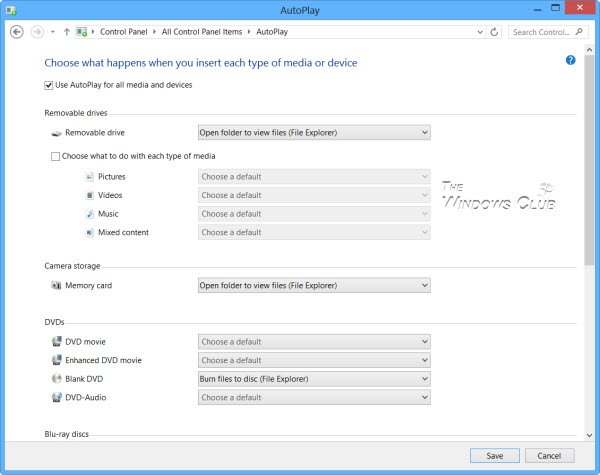
Open Control Panel > All Control Panel Items > AutoPlay and set the options as per your preferences.
2] Using Settings
Windows 11
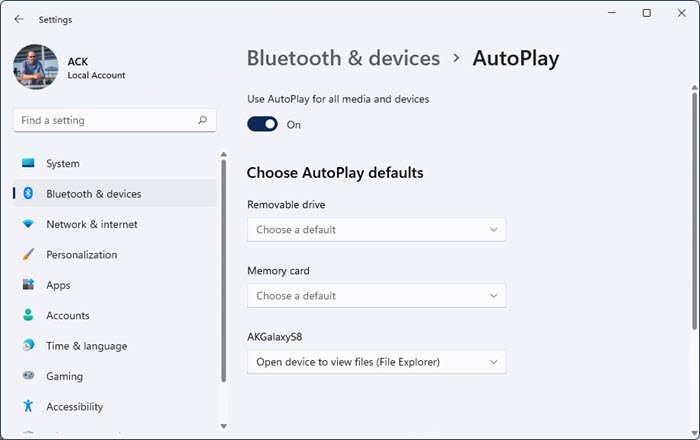
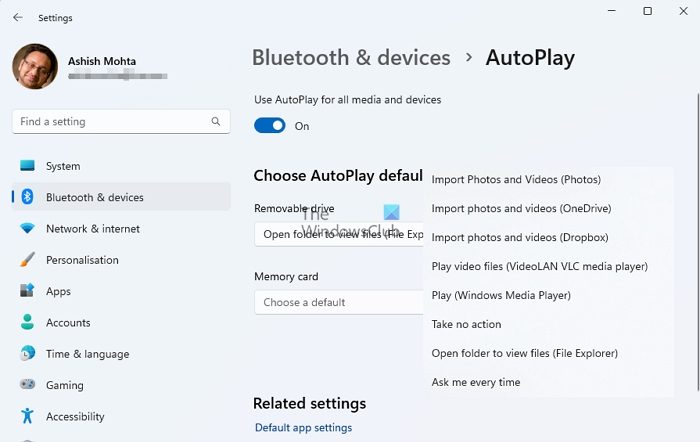
- Open Windows 11 Settings
- Open Bluetooth and devices settings
- On the right, click on AutoPlay
- Toggle the AutoPlay slider to Off position.
- You can also change other related AutoPlay settings.
Windows 10
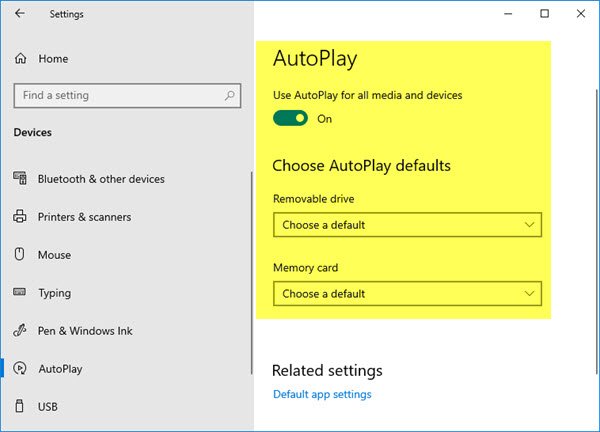
Open Settings > Devices > AutoPlay.
Here you can toggle the AutoPlay slider to Off position.
You can also change other related settings here.
3] Using Group Policy
Type gpedit.msc in the Run box, and then press ENTER to open the Group Policy Editor. Under Computer Configuration > Administrative Templates > Windows Components > Click Autoplay Policies.
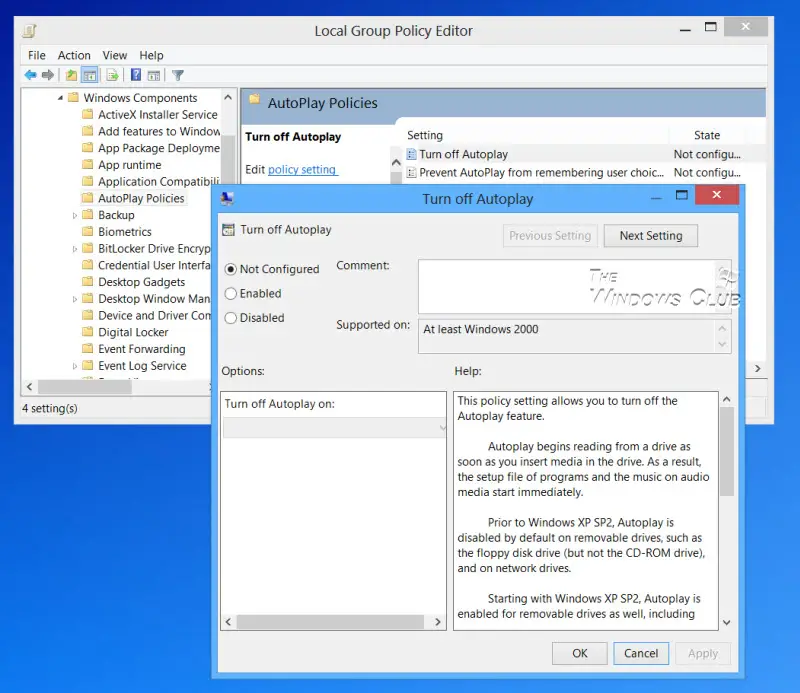
In the RHS Details pane, double-click Turn off Autoplay to open the Properties box.
This policy setting allows you to turn off the Autoplay feature. Autoplay begins reading from a drive as soon as you insert media in the drive. As a result, the setup file of programs and the music on audio media start immediately. Prior to Windows XP SP2, Autoplay is disabled by default on removable drives, such as the floppy disk drive (but not the CD-ROM drive), and on network drives. Starting with Windows XP SP2, Autoplay is enabled for removable drives as well, including Zip drives and some USB mass storage devices. If you enable this policy setting, Autoplay is disabled on CD-ROM and removable media drives, or disabled on all drives. This policy setting disables Autoplay on additional types of drives. You cannot use this setting to enable Autoplay on drives on which it is disabled by default. If you disable or do not configure this policy setting, AutoPlay is enabled.
Click Enabled, and then select All drives in the Turn off Autoplay on box to disable Autorun on all drives.
Restart your computer.
4] Registry Editor
The same can also be achieved by editing the Registry. Run regedit and navigate to
HKEY_LOCAL_MACHINE\Software\Microsoft\Windows\CurrentVersion\Policies\Explorer
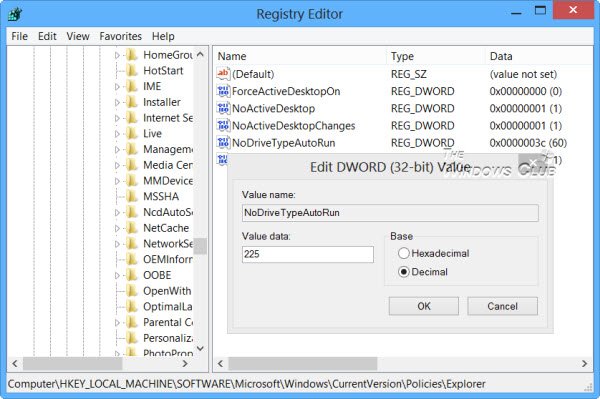
In the right side, you will see dword NoDriveTypeAutoRun. You will see the default value 60 or 3C. Right-click on it and give it a decimal value 255 (or Hexadecimal value 000000FF). Exit regedit. Reboot. This will disable AutoRun on all drives.
TIP: You can also download and use our Ultimate Windows Tweaker to disable AutoPlay with a click.
Read: How to set AutoPlay defaults in Windows.
AutoPlay in Windows 11 FAQ
The Windows AutoPlay feature helps users when they insert media via CD/DVD, USB, or Media Cards. While useful, AutoPlay can confuse many users, so Microsoft has put together a Help and How-To page with the most common questions.
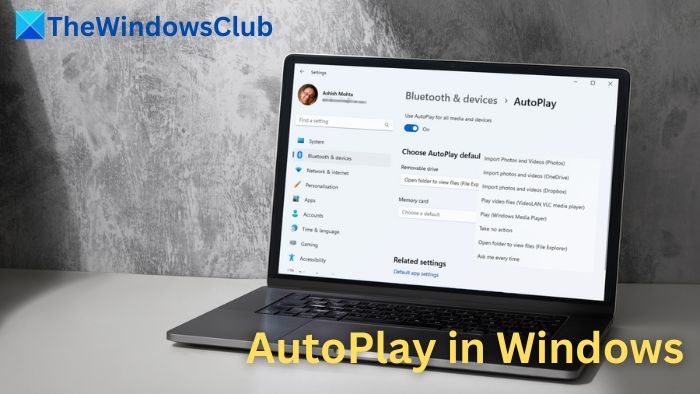
How do I stop AutoPlay from asking what program to use?
There are two ways to enable or disable AutoPlay in Windows:
1] Turn off AutoPlay completely
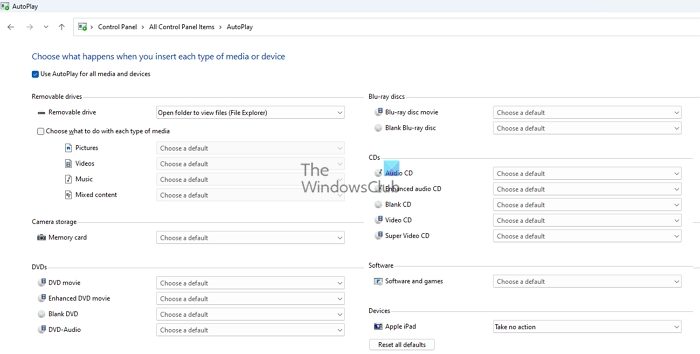
- Open AutoPlay by clicking the Start button, then Control Panel. In the search box, type autoplay, and then click Auto Play.
- Clear the Use AutoPlay for all media and devices checkbox, then click Save.
2] Turn off AutoPlay for only one type of media
- Open AutoPlay by clicking the Start button, then Control Panel. In the search box, type autoplay, and then click Auto Play.
- In the list next to each type of media you don’t want to be asked about, click Take no action, then click Save.
I set the default action for a device or media type, but now I wouldn’t say I like that action. How do I change it?
- Open AutoPlay by clicking the Start button, then Control Panel. In the search box, type autoplay and then click AutoPlay.
- In the list next to the device or type of media, click the new action you want to use.
How do I make sure that I am asked each time for the action I want to choose?
- Open AutoPlay by clicking the Start button, then Control Panel. In the search box, type autoplay and then click AutoPlay.
- In the list next to each type of media you want to be asked about, click Ask me every time, then click Save.
How can I run or install a program from a disk or device?
To run or install a program one time, follow these steps:
- Open File Explorer using Win + E
- Right-click the device or drive, then click Run enhanced content or Install or run the program.
To have a program always run automatically, follow these steps:
- Go to AutoPlay Settings in System > Bluetooth & devices > Autoplay
- Choose Run enhanced content for the type you want (enhanced audio CD or enhanced DVD movie), or choose Install or run a program for software and games.
This program runs for all discs of this type, not just the ones you currently use.
Note: The option will change depending on the type of removable media. You cannot force the USB to run a program or install software if it doesn’t already.
Why does AutoPlay behave differently when my media program is open?
If a media program is open in an active window, it can cancel AutoPlay and run or play the content. AutoPlay will not appear, and the default action won’t run. Some programs cancel AutoPlay when they’re open, depending on the type of media you insert.
What would keep a device from appearing under Devices in AutoPlay?
If you have connected a volume device to your computer (for example, a USB flash drive or external hard drive), that device will not appear in the Devices section of AutoPlay. AutoPlay only lists non-volume devices (such as digital cameras, video cameras, and phones). This is because these devices don’t use a standard file system, and AutoPlay cannot browse the contents of these devices to see what types of files they contain. To browse the contents of volume devices, open the This PC folder.
How can I open AutoPlay, even if the default setting doesn’t open?
Hold down the Shift key when you insert devices or media into your computer to open AutoPlay, regardless of the default setting.
What is an Enhanced CD or an Enhanced DVD movie?
An enhanced audio CD or DVD movie contains additional content in other formats. For example, a recording artist might include video clips or artist profiles on an enhanced audio CD.
What does the Software and Games Category include?
The “software and games” category includes any media containing programs or games you need to install or play.
I hope this explains the subject.
