
Antivirus protects us from multiple online threats, so we can surf the internet without worry. Some antivirus programs have a battery-saver mode that reduces laptop battery consumption when enabled. In this article, I will show you how to enable Battery Saver Mode in the antivirus in Windows 11.
How to enable Battery Saver Mode in Antivirus in Windows 11
I will explain the process to enable the Battery Saver Mode in antivirus in Windows 11 for the following popular antiviruses:
- Bitdefender
- Avast
- Avira
- AVG
Let’s start.
1] Bitdefender Antivirus
Bitdefender antivirus has different profiles for different needs. These profiles include Work Profile, Movie Profile, Game Profile, Battery Mode Profile, and Public WiFi Profile. The Battery Mode Profile saves battery life by limiting background activity and adapting product settings.
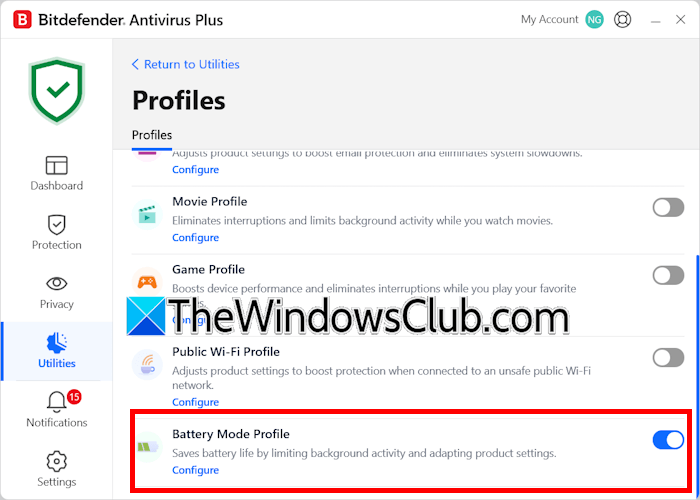
Follow these steps:
- Open Bitdefender antivirus.
- Select Utilities.
- Click Settings under the Profiles section.
- Scroll down and turn on the Battery Mode Profile.
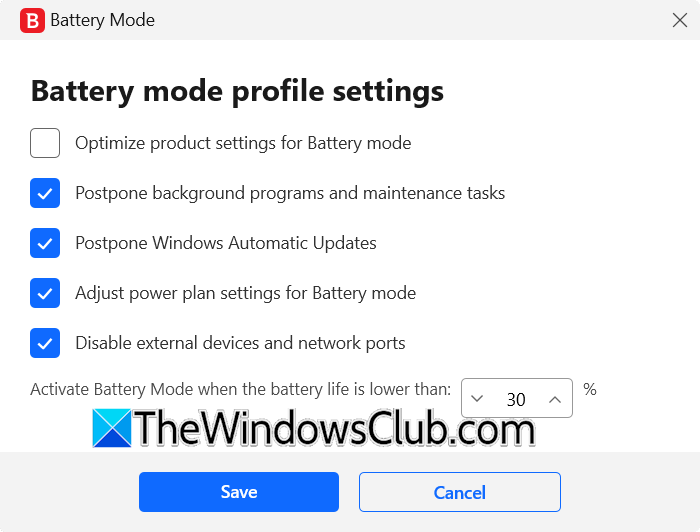
You can customize the Battery Mode Profile by clicking on the Configure link. From here, choose the actions you want to enable when Battery Saver Mode is active. You can also set the battery percentage at which the Battery Saver Mode should automatically turn on.
2] Avast Antivirus
To enable the Battery Saver Mode in Avast Antivirus, follow the steps written below:
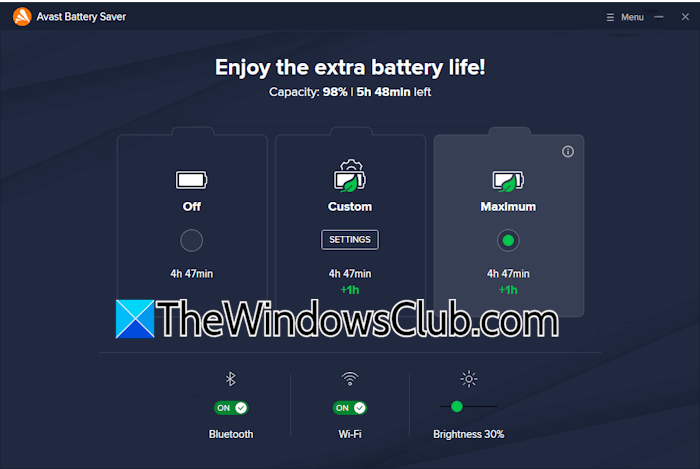
- Open Avast Antivirus.
- Click Performance from the left pane and select Battery Saver.
- Now, select the Maximum option to reduce your battery consumption.
The Custom option runs Battery Saver according to your current custom mode settings. You can configure the custom mode by clicking Settings under this option. Here, you can set screen brightness level, adaptive backlight settings, and other hardware and device settings, such as processor performance, wireless adapter settings, WiFi performance settings, etc.
The Battery Saver Mode in Avast antivirus is not available in its free version.
3] Avira Antivirus
Avira Antivirus offers the Battery Saver Mode in its free version. However, you will get limited access to this feature in the free plan. If you want full access to this feature, you have to purchase its license.
Go through the following instructions:
- Launch Avitra antivirus.
- Click Performance and then select Battery Saver.
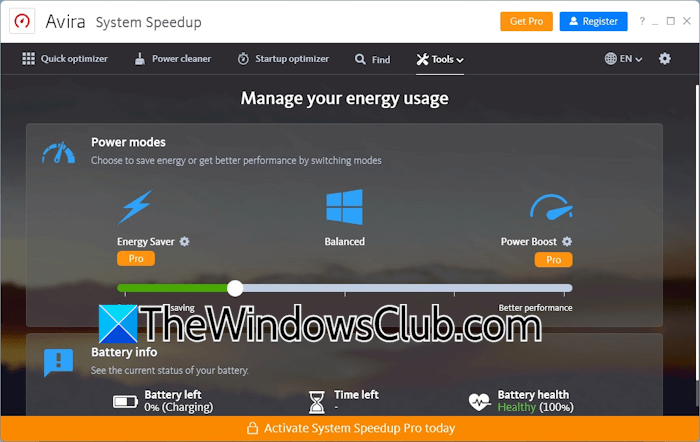
- The Avira System Speedup utility will launch on your screen. Here, you can manage the power usage by switching between the available power modes.
Energy Saver, Balanced, and Power Boost are the three available modes in Avira antivirus. Energy Saver saves the maximum energy, whereas the Power Boost mode is for better performance. The Balanced mode maintains a balance between performance and battery life. Avira System Speedup also shows your battery info. Moreover, it also has many additional features.
4] AVG
AVG Battery Saver is a paid product that requires a subscription to use. If your AVG antivirus license includes Battery Saver, you can activate it in AVG settings. The battery saver feature of AVG extends your laptop’s battery life by reducing the internal and external power demands.
Follow these steps:
- Click the System Tray and select AVG Battery Saver. Or, you can launch it by clicking its Desktop shortcut.
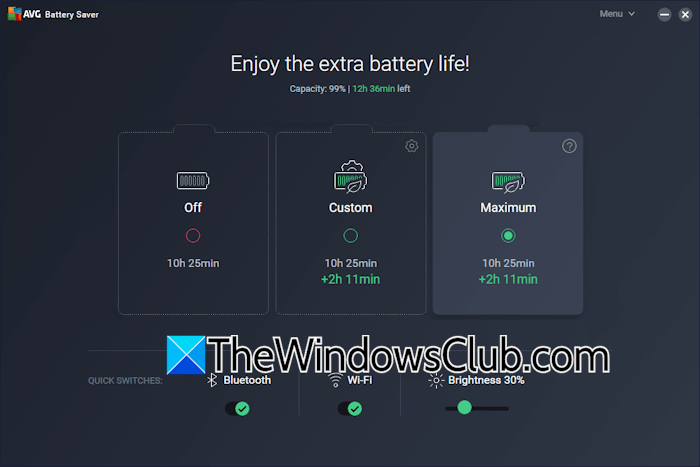
- The AVG Battery Saver dashboard will appear on your screen. Select Maximum.
The Custom battery mode is also available. Here, you can modify the settings manually to save your battery. You can customize the screen and display options, such as brightness and adaptive brightness. The Hardware and Devices customization options include processor performance, laptop sleep settings, wireless adapter settings, etc.
How to enable Battery Saver Mode in Windows Defender
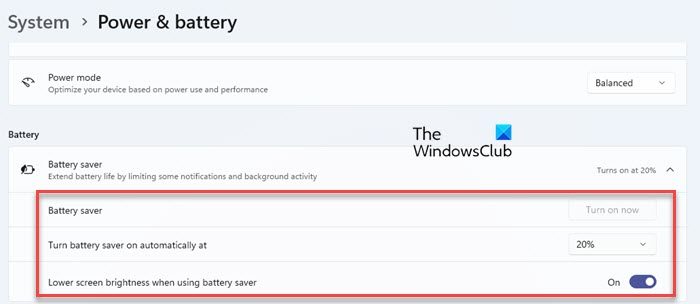
Microsoft Defender does not have a built-in Battery Saver Mode. However, you can reduce Defender battery consumption by activating the Battery Saver mode in Windows 11.
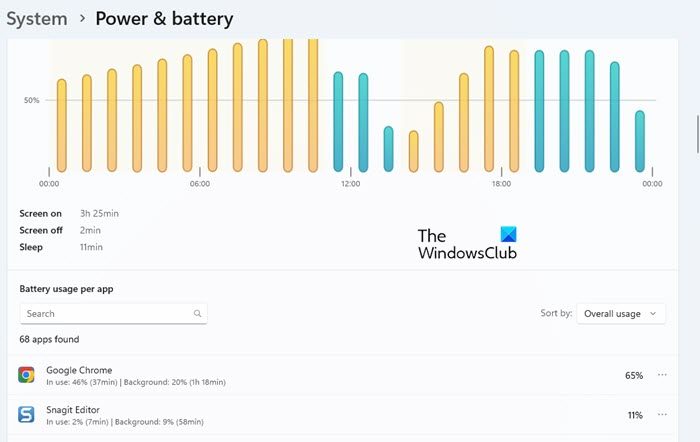
Windows turns ON the Energy Saver mode when your battery level reduces to a certain percentage. You can customize this setting. You can also view your battery consumption by different apps at different time intervals.
Does my antivirus include the Battery Saver Mode?
The Battery Saver Mode is not present in all antivirus software. To check if your antivirus has this feature, open its settings. If you do not find any related option in your antivirus settings, it means it does not have this feature. Another way to confirm this is to read its official documentation.
If your antivirus does not have this feature, you can use the built-in Energy Saver Mode. Additionally, you can also create a custom power plan to extend your battery life.
How do I turn on battery saver mode in Windows 11?
You can turn on Battery Saver Mode in Windows 11 directly from the Notification Center. Click the battery icon in the Notification Center, and then click Energy Saver to turn it on. To configure Battery Saver Mode, open Windows 11 Settings and go to System > Power & Battery. You will see the Energy Saver option there.
Is it better to charge to 80% or 100%?
It is generally better to charge a laptop to 80% than 100%. This is because Lithium-ion batteries experience more stress when charged at 100%. This contributes more to wear and tear during the charging cycle, reducing the battery’s lifespan.
Read next: How to add File or Folder to Antivirus Exception List in Windows 11.
