
The Elgato Video Capture is a popular tool for converting analog video from sources such as VHS tapes into digital files on your computer. However, after upgrading to Windows 11, users often encounter issues where the device is not detected or the video signal fails to appear in the accompanying software. In this post, we will explore what you can do if Elgato Video Capture is not working.
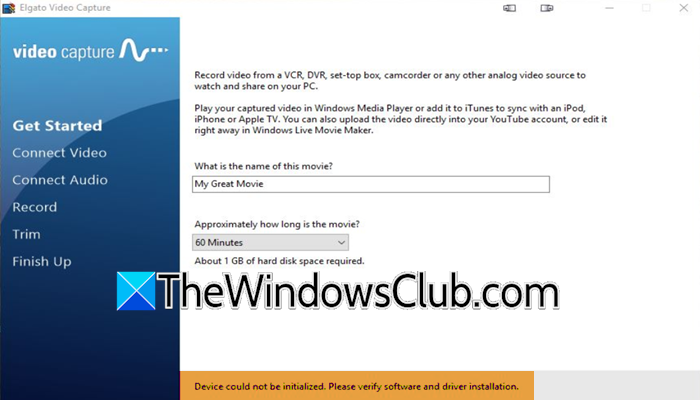
Sometimes, you might even see the following error message.
Device could not be initialized. Please verify software and driver installation.
Elgato Video Capture not working on Windows 11
This problem often happens because of outdated drivers that don’t work well with Windows 11, privacy settings that block the software from accessing the camera, or issues with the USB port and power management. These issues can stop the Elgato software from communicating with the capture device, causing errors or preventing it from recognizing the hardware.
If Elgato Video Capture is not working, follow the steps below.
- Check Camera Privacy Settings
- Update Device Drivers Manually
- Use a different USB port and cable
- Reinstall Elgato
Let us talk about them in detail.
1] Check Camera Privacy Settings
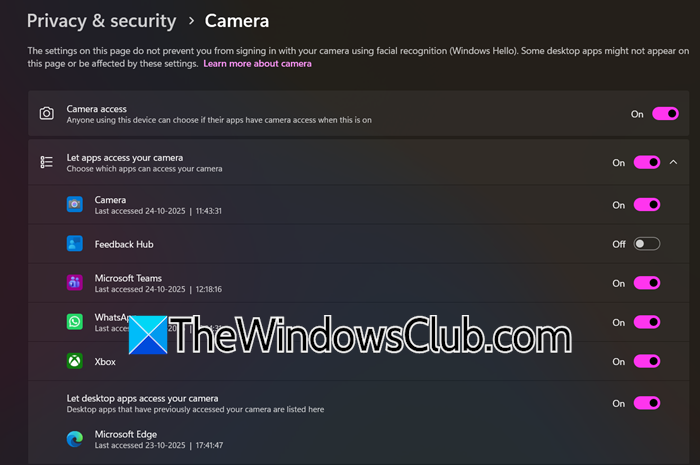
Windows 11 has strict privacy controls that can block applications, including the Elgato software, from accessing camera devices, even if they are external capture cards. Therefore, we need to check the camera privacy settings using the steps mentioned below.
- Open Settings by Win + I.
- Now, go to Privacy & security > Camera.
- Make sure that the Camera access is On.
- Ensure that Let apps access your camera is also turned On.
- Scroll down to find the Elgato Video Capture app in the list and make sure its toggle is switched On.
Finally, check if the issue is resolved.
2] Update Device Drivers Manually
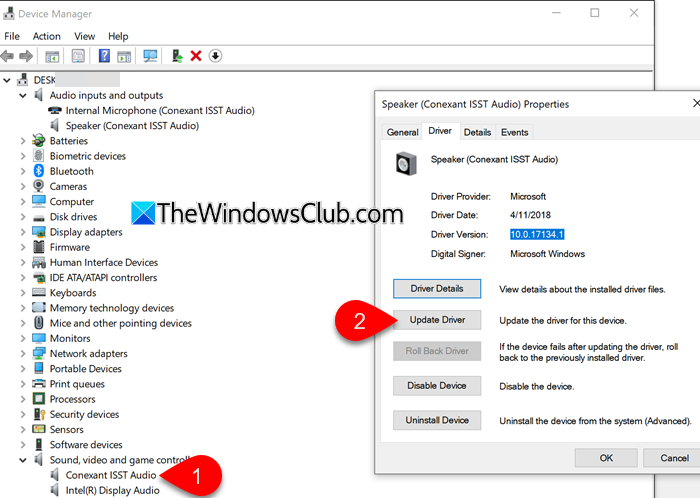
It is essential to keep your drivers updated, and typically, these updates are downloaded automatically, but if that’s not the case, we can check and ensure that they are updated manually. So, go ahead and update device drivers manually.
Open Device Manager, expand Sound, video and game controllers or Imaging devices section, right-click on Elgato Video Capture, and select Update driver.
Choose Browse my computer for drivers, and then Let me pick from a list of available drivers on my computer. Select the USB Video Device driver from the list and click Next to proceed with the installation.
3] Use a different USB port and cable
This works by eliminating potential power delivery issues or a faulty USB port, which are common causes for intermittent device detection, especially for bus-powered hardware like a capture card.
First of all, unplug the Elgato device from your computer. Plug it directly into a different USB port, preferably a USB 3.0 (blue) port on the back of your PC. Avoid using USB hubs, extension cables, or front-panel ports. If the issue persists, try using a different, high-quality USB cable to rule out a cable fault.
4] Reinstall Elgato
If nothing worked, your last resort is to uninstall Elgato and then install the latest version of the same.
That’s it!
Read: How to allow or deny Video Capture in Chrome browser
Is the Elgato HD60 compatible with Windows 11?
The Elgato HD60 is compatible with Windows 11. Elgato confirms that products designed to support Windows 10 also work with Windows 11. A specific driver for the Game Capture HD60 is available for download on their official support page for these operating systems. You may need to manually download and install the driver from the Elgato website to ensure it functions properly.
Read: Webcam is not working in Chrome and Edge
Does Elgato Stream Deck work with Windows 11?
Yes, the Elgato Stream Deck is fully compatible with Windows 11. The official system requirements state that the Stream Deck software works with Windows 10 or Windows 11 (64-bit).
Also Read: OBS Camera Not Showing up or Working in Windows 11.
