
You’ve spent hours perfecting a PowerPoint or Google Slides deck, only to realize recording the voiceover will be a headache. Maybe you don’t have a good mic, or you just dislike how your voice sounds. Thankfully, text-to-speech has moved far beyond robotic monotone. With AI tools like ElevenLabs, you can create voiceovers so natural they sound like they came straight from a studio.
ElevenLabs AI review
ElevenLabs is an AI voice platform that transforms text into natural, lifelike speech. Unlike old robotic voices, it captures human emotion, tone, and pacing in over 70 languages. Whether you need a strong narrator for a presentation or a lively voice for training, it offers a wide range of options and customization to match your project’s style.
How to use ElevenLabs AI Voice
Getting started with ElevenLabs on your Windows PC is refreshingly simple because it doesn’t require a heavy download or installation that eats up your hard drive space. ElevenLabs is a cloud-based platform, meaning you access it directly through your web browser. This approach has a couple of big advantages: it ensures you are always on the latest version with the latest AI voices, and it works seamlessly on desktop, laptop, or tablet.
Access ElevenLabs
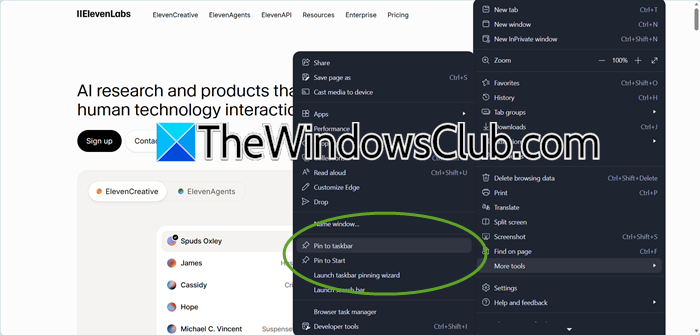
Open up your favorite browser, whether that’s Chrome or Edge, and navigate to the ElevenLabs website. Sign up for an account, and you’re ready to go. If you want quick access, you can even pin the site to your Windows taskbar. In Edge or Chrome, just go to the menu and select Pin this page to the taskbar. This creates a dedicated, app-like icon that opens ElevenLabs in its own focused window, keeping it separate from your casual browsing tabs.
You might come across shady websites or GitHub repositories offering ElevenLabs Pro Cracks or Modded versions for Windows. Stay far away from these. They are often filled with malware or viruses that can compromise your computer. ElevenLabs offers a legitimate free tier that gives you plenty of credits to get started, so there’s no need to risk your security.
Create your presentation voiceover
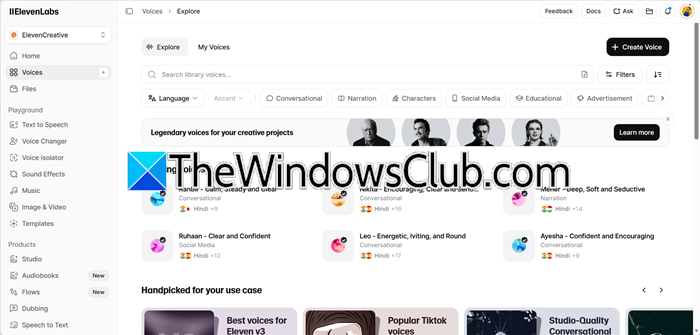
Once you’re logged into the ElevenLabs website, the process is surprisingly simple. Here’s how to turn your presentation script into a professional voiceover.
Before you even open ElevenLabs, have your final script ready. Since you’re creating a presentation, break your script down by slide. This will make it much easier to match the audio to your visuals later. Open a text file or a document and have it ready to copy and paste.
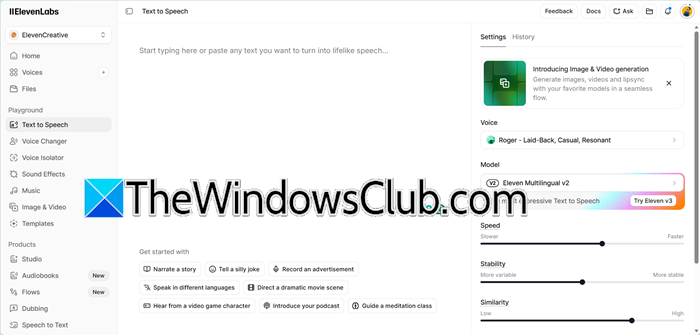
This is the fun part. Head to the Voice Library or the Instant Speech (or Text-to-Speech) tab. You’ll find hundreds of voices to choose from.
- Browse the Library: You can filter by gender, accent, and tone. Listen to samples of a few voices to see which one fits the mood of your presentation. A corporate finance report might need a serious, clear voice, while an internal training video could benefit from something more friendly and conversational.
- Voice Cloning (Advanced): If you have a subscription, you can even clone your own voice or create a completely new, custom voice by adjusting sliders for “Stability” and “Similarity”.
