
Microsoft Edge InPrivate Mode offers a private web browsing experience to users. It does not save users’ browsing history. Additionally, all the cache and cookies are cleared after exiting InPrivate Mode. However, if the Edge InPrivate Mode is not working on your Windows 11/10 computer, the solutions provided in this article will help you.
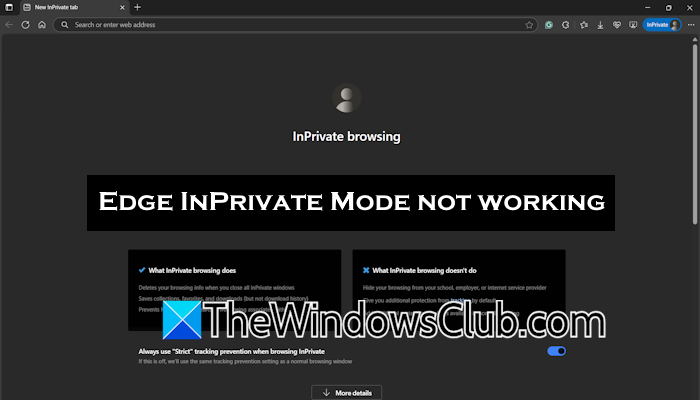
Edge InPrivate Mode not working on Windows 11
Use the following fixes if Edge InPrivate Mode is not working on your Windows 11/10 computer. Before proceeding, restart your computer, as issues may sometimes occur due to a minor bug.
- Update Edge
- Are you using a Child account?
- Check Registry and Group Policy Settings
- Create a new user account
- Reset Edge
All these fixes are explained below in detail.
1] Update Edge
An outdated version of Edge causes issues. Check for updates in Edge and install the same (if available). Follow these steps:
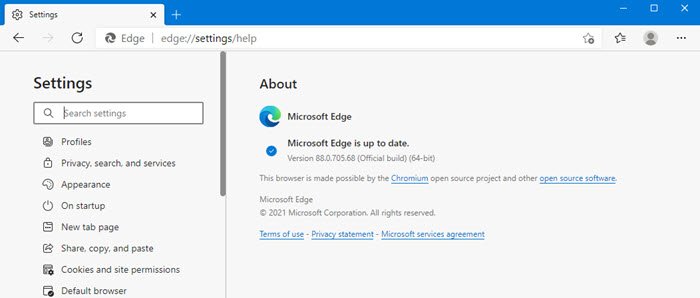
- Click on the three dots in Edge on the top right side.
- Select Help & Feedback > About Microsoft Edge.
If an update is available, Edge will start downloading and installing it. After installing the update, restart Edge.
2] Are you using a Child account?
A Child account has several restrictions. If you are using a Child account, you may not use the InPrivate Mode in Edge. Switch to another account.
3] Check Registry and Group Policy Settings
In Windows 11, you can block users from accessing InPrivate Mode in Edge by tweaking the Registry and Group Policy Settings. The Local Group Policy Editor is not available on Windows 11 Home Edition.
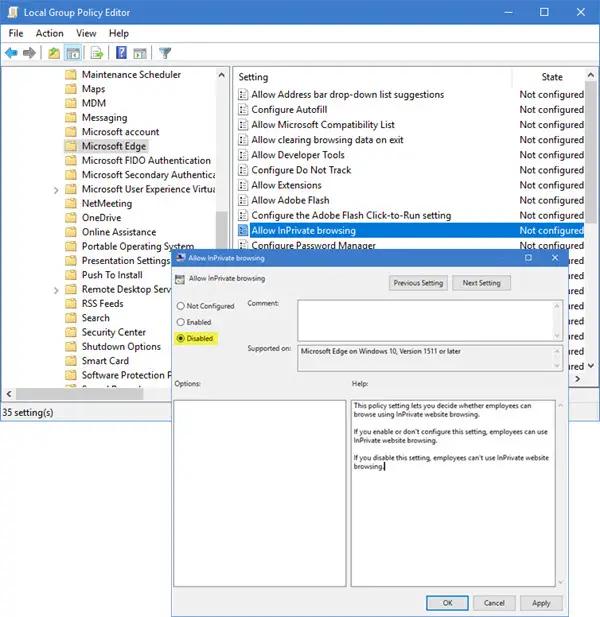
Check your Registry and Group Policy Settings. If a Registry key or a Group Policy Setting is configured to block InPrivate Mode in Edge, revert changes. If you are using a school or work computer, you cannot access the Registry and Group Policy Editors. In such a case, you need to contact your administrator.
4] Create a new user account
The problem may also be with your user profile. To check this, create a new user profile. Now, sign in to that user profile and launch InPrivate Mode in Edge. If you can use the Edge InPrivate Mode in the new user account, your previous user profile might have been corrupted.
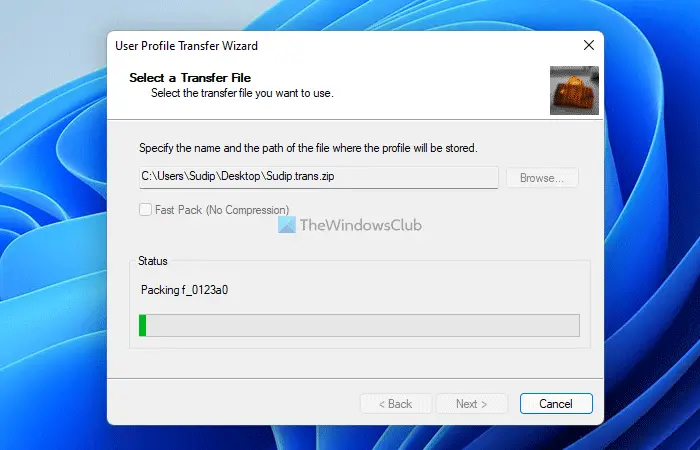
In this case, you can transfer your user data from the previous user profile to the new user profile by using a third-party tool like Transwiz.
5] Reset Edge
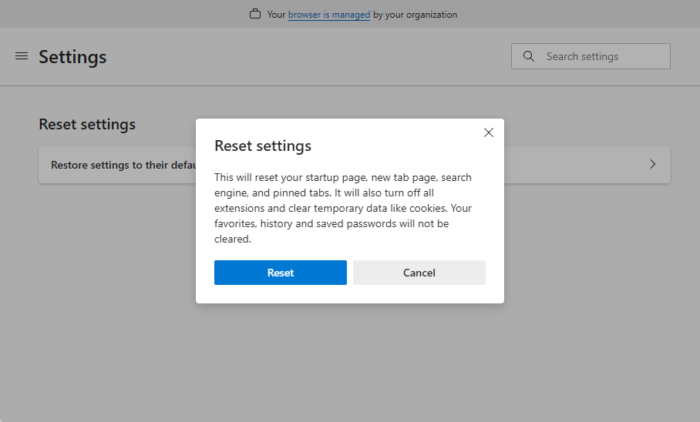
If the issue persists, you can reset Edge to factory default settings. This action will reset Edge’s startup page, new tab page, search engine, and pinned tabs. All your bookmarks and passwords will remain saved.
That’s it. I hope this helps.
Is Edge InPrivate the same as Incognito?
Yes, Edge InPrivate Mode is the same as Google Chrome Incognito Mode. Edge InPrivate Mode is the private web browsing experience. Different browsers use different names for private web browsing. For example, in Firefox, private web browsing is named Private Mode.
How to enable InPrivate browsing in Microsoft Edge on Windows 11?
You do not need to enable InPrivate browsing in Microsoft Edge, as it is a built-in feature. To use InPrivate browsing in Edge, press the Ctrl + Shift + N keys. Or, click on the three dots on the top right side and select the New InPrivate window option.
Read next: We couldn’t load this extension in Microsoft Edge.
