
Some users complain that as soon as they boot their system, a DST.exe prompt flash on the computer screen and then goes off after 10 seconds. Following this, Windows Defender blocks its access. If you find that DST.exe is blocked by Windows Defender here is what you can do.
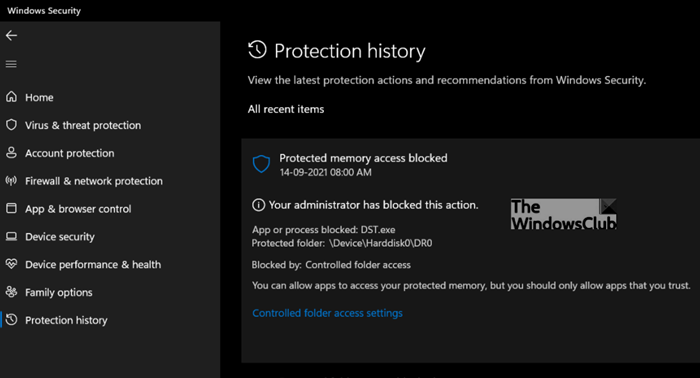
What is DST.exe? Is DST.exe a virus?
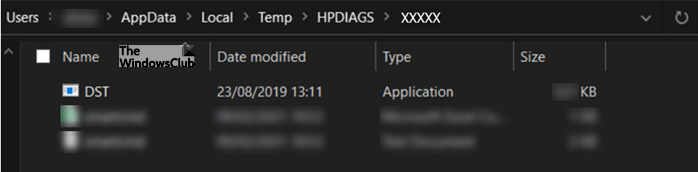
No, DST.exe is not a virus but an HP monitoring tool for the laptop (NVMe) hard drive, and is considered to be safe. It is digitally signed by HP Inc. The file is mainly found under AppData\Local\Temp\HPDIAGS\XYZXYZ. Since it is located in the Temp directory it is obvious that the file has temporary use and once the run is done, it becomes useless.
DST.exe is blocked by Windows Defender on startup
You can get the DST.exe is blocked by Microsoft Defender problem solved by adding an exception for DST.exe or folder C:\DR0 in Controlled folder access. The file is not malicious but still, you can get it checked with multiple AV file scanners like VirusTotal. If all looks good, you can add an exception for DST.exe or folder C:\DR0 in Controlled folder access. Here’s how it’s done!
- Select Start.
- Go to Settings
- Choose Update & Security.
- Switch to Windows Security.
- On the right, select Virus & threat protection.
- Under Virus & threat protection settings, choose Ransomware Protection.
- Select Manage ransomware protection.
- Hit the Allow an app through Controlled folder access.
- Click the Add an allowed app button
- Choose Recently blocked apps.
This will add an exception for the DST.exe or folder C:\DR0 in Controlled folder access, and you should not see the pop-up again.
How to fix the DST.exe file error in Windows?
Navigate to Windows Settings > Update & Security section.
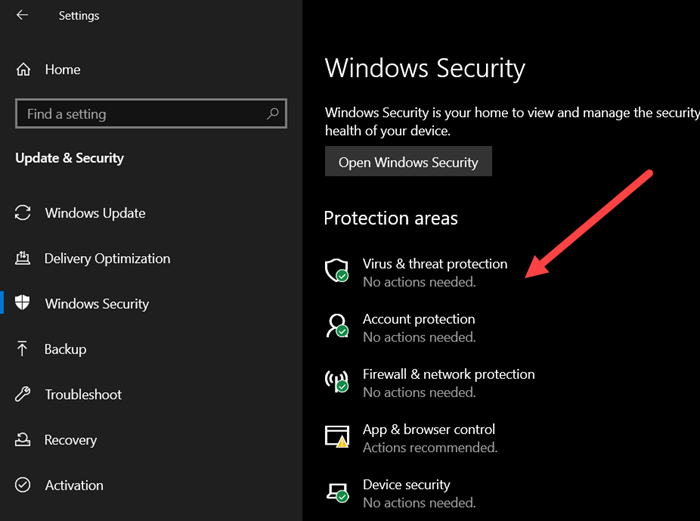
From the left sidebar, choose Windows Security and switch to the right pane. There, under Protection areas heading, choose Virus & threat protection entry.
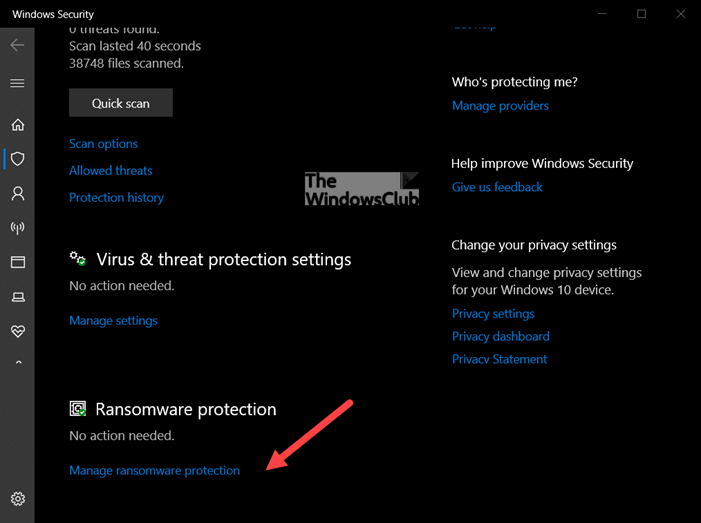
In the new security screen that opens, go to Ransomware Protection and hit the Manage Ransomware Protection link.
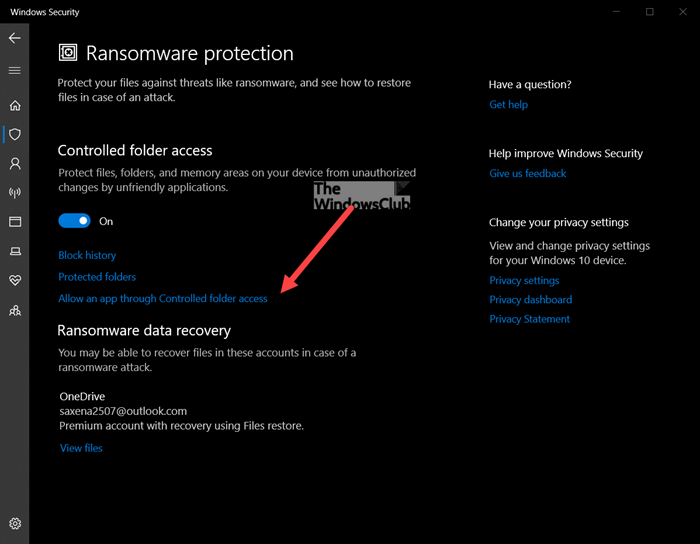
Next, click the Allow an app under the Controlled folder access link, under the Controlled folder access heading. If Controlled folder access has blocked an app you trust, you can add it as an allowed app.
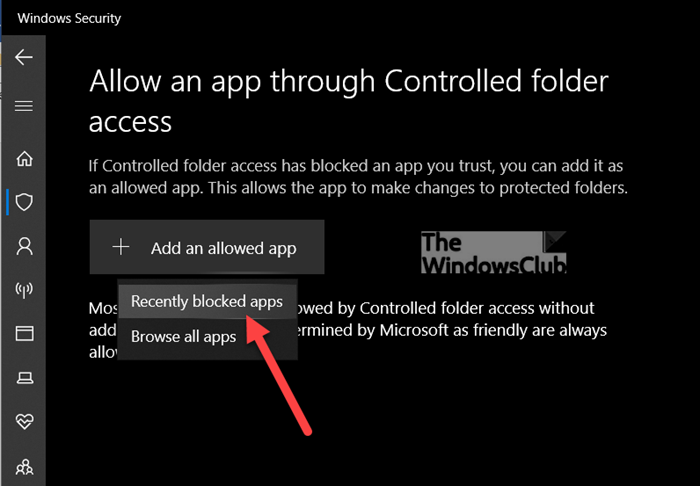
Hit the Add an allowed app button and select the Recently blocked apps option.
Alternatively, you can add this file to the Exclusion list in Windows Security or remove the DST.exe file from the startup programs list. For this open Task Manager and switch to the Startup tab. Under it locate the DST.exe file entry, right-click it and choose the Disable option.
All the methods highlighted above assume importance since an app that is safe to use can be identified as harmful. This happens because Microsoft wants to keep you safe, and so at times, it errs on the side of caution. You can override this restriction, add an app to the list of safe or allowed apps to prevent them from being blocked, and use your computer normally.
Hope it helps!
How to unblock files blocked by Windows Defender?
To unblock a file blocked by Windows Defender, right-click the file in File Explorer, select ‘Properties,’ and check ‘Unblock’ at the bottom of the dialog box. Click ‘OK’ to apply the changes. This process disables the block by Windows Defender SmartScreen or the Windows Attachment Manager.
How do I stop Windows Defender from blocking EXE files?
To stop Windows Defender from blocking .exe files, go to Windows Security, select “Virus & threat protection,” then “Manage settings.” Under “Exclusions,” choose “Add or remove exclusions.” Click “Add an exclusion,” and select the .exe file or folder. Alternatively, use PowerShell with the Add-MpPreference cmdlet to add exclusions.
