
Some often report this strange but quite annoying issue. While logging in to the computer, the This PC or the Documents folder opens automatically at Windows Startup. Unless you have placed its shortcut in the Startup folder, the most likely cause of this issue is the incorrect or duplicated Usernit value in the Windows Registry.
Windows Explorer window keeps popping up
The first thing you can do is to open Task Manager and restart the Explorer process. See if that helps. If not, then the fix for this problem does exist, but it requires modifying the registry. Serious problems might occur if you modify the registry incorrectly. Therefore, you must follow these steps carefully. For added protection, back up the registry before modifying it, or create a system restore point first. Then, you can restore or revert if the changes are not what you expected.
This PC or Documents folder opens automatically at Startup in Windows
If when you start your Windows 11/10, the This PC, Computer or Documents folder opens up automatically at start-up, first check if you have set the option to Restore previous folder windows at logon via Folder Options. If that option is checked, uncheck it and see if it sorts the issue. If it is unchecked, try this :
Click Start > Run Regedit > Navigate to the following key:
HKEY_LOCAL_MACHINE\SOFTWARE\Microsoft\Windows NT\CurrentVersion\Winlogon
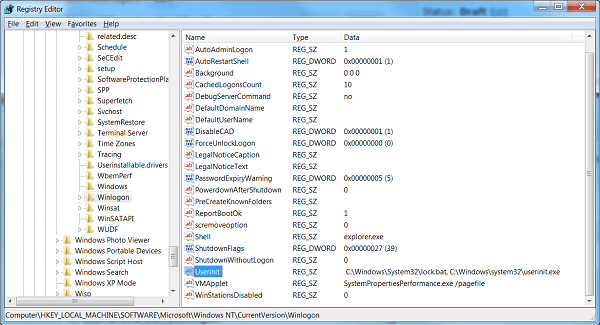
In the right-side panel, change the value of Userinit to :
C:\WINDOWS\system32\userinit.exe
Now Navigate to the following key :
HKEY_CURRENT_USER\Software\Microsoft\Windows\CurrentVersion\Explorer\Advanced
In the right-side panel, change the value of PersistBrowsers to 0.
Reboot your computer.
If it does not, Run System File Checker. You could also boot in Clean Boot State and see if the problem persists and if you can identify and eliminate the offender.
This should help!
Related:
- Windows Libraries folder keeps opening or popping up at startup
- System32 folder opens automatically at startup.
Why does Windows Explorer keep randomly opening?
If a third-party process is interfering with the smooth functioning of the Windows operating system or the Explorer.exe process, this issue may occur. Check the Explorer addons and remove the ones you don’t want. Additionally, check if the issue replicates in a Clean Boot State and then manually identify the offending process, disabling or removing it.
How do I stop Documents from opening on startup?
In order to stop Documents from opening on startup, you need to go through the Registry Editor trick mentioned above. However, to prevent an app from opening on startup on a Windows 11/10 PC, you need to use the Task Manager to accomplish this. To do that, open the Task Manager and switch to the Startup tab. Then, find the app, and click on the Disable button.
