
If you find that the Disk Cleanup button is missing from the Drive Properties box of your Drive on your Windows 11/10 PC, then it is quite possible that your Registry may have been corrupted. In such a case you may need to make some changes to it. This post will show you how to do it.
Disk Cleanup button missing in Windows 11
Before you begin, you may want to create a system restore point and/or backup your Registry.
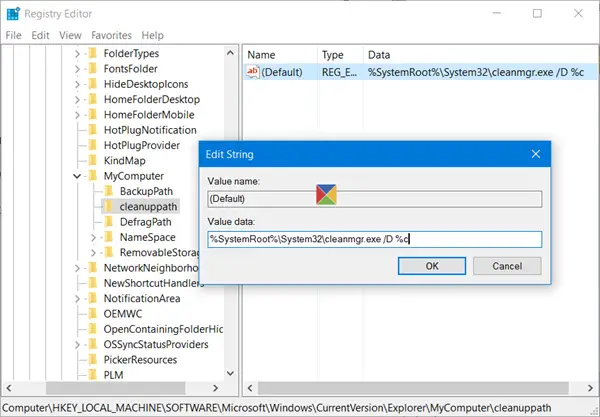
Having done that, Run regedit to open the Registry Editor, and navigate to the following key:
HKEY_LOCAL_MACHINE\SOFTWARE\Microsoft\Windows\CurrentVersion\Explorer\MyComputer
Right-click on MyComputer > New > Key. Name the new key cleanuppath.
Now for cleanuppath, in the right pane, double-click the Default value, and in the Edit String dialogue box which pops up, in the Value Data field, copy-paste the following path:
%SystemRoot%\System32\cleanmgr.exe /D %c
Click OK and exit.
This is sure to fix the problem and you will be able to see the disk Cleanup button now.
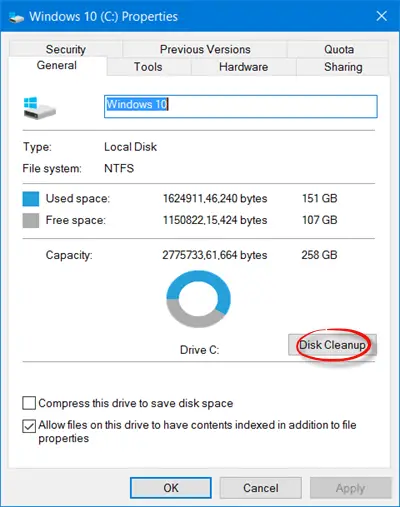
Some people have reported that if they had unchecked the Display delete confirmation check box in the Recycle Bin Properties, their Disk Cleanup button disappeared from the Drive Properties box. I was unable to reproduce this on my system, but one setting you may want to check is this checkbox; select it and see if it helps.
You should also run an SFC scan and see if that resolves the issue.
If you simply need to access the Disk Cleanup Utility, you could Run cleanmgr.exe to open it. Alternatively, search for Disk Cleanup in the taskbar search and pin its shortcut to your Start Menu.
Related: Disk Cleanup is not working properly.
