
This post will show you how to change the number of Quick Action buttons shown in the Action Center of Windows 10.
If you do not use the Quick Action icons in the Action Center in Windows 10, you can easily remove or hide the 4 displayed buttons. The Notification & Action Center on Windows 10, displays important notifications in the top part and provides buttons that let you perform important actions quickly.
By default, the Action Center displays 4 Quick Actions, with an arrow that lets you Expand or Collapse the Action Center in order to show more than 4 buttons. The new operating system even allows you to choose & arrange the Quick Actions to display – but if you wish you can also change the number of Quick Action buttons or hide the displaying of these 4 Quick Actions as follows.
Change number of Quick Action buttons shown in Action Center of Windows 10
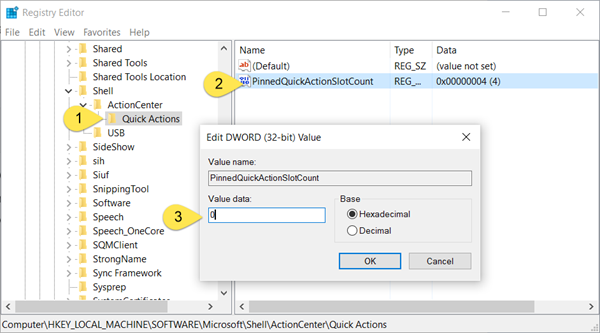
The PinnedQuickActionSlotCount DWORD in Windows controls how many Quick Action buttons are shown in the Action Center when it is collapsed. By default, Windows displays 4 icons, but you can change this number through the registry.
To change the number of Quick Action buttons in Windows Action Center, run regedit and navigate to the following registry key:
HKEY_LOCAL_MACHINE\SOFTWARE\Microsoft\Shell\ActionCenter\Quick Actions
In right-side pane, you will see PinnedQuickActionSlotCount DWORD. Double-click on it and in the box which opens up, change its value from 4 to 0.
Set its value to the number of icons you want: 0, 2, 4 or 6.
Setting it to 0 will hide the buttons.
Exit Registry and restart your Windows Explorer.
You will now see that the displayed 4 Quick Action icons have disappeared and you see a blank space. The Expand or Collapse arrow will, of course, still allow you to toggle the showing of the Quick Actions.
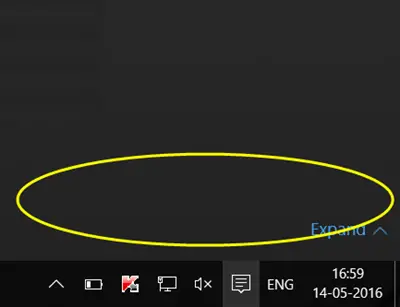
In this way, you can hide the 4 displayed Quick Action ions from the Action Center if you wish.
What is the use? Nothing really. It is just something which Windows 10 lets you do.
NOTE: Microsoft has removed this tweak in Windows 10 builds after 18277. In Windows 11, Quick Settings replaced the old Action Center, so this DWORD may not have any effect. Instead, you can edit Quick Settings directly via the UI
If you wish, you can even go a step further and disable the entire Notification and Action Center.
