
The notification area, or system tray, is located on the right side of the Windows taskbar. It displays icons of programs currently active on your PC and any notifications.
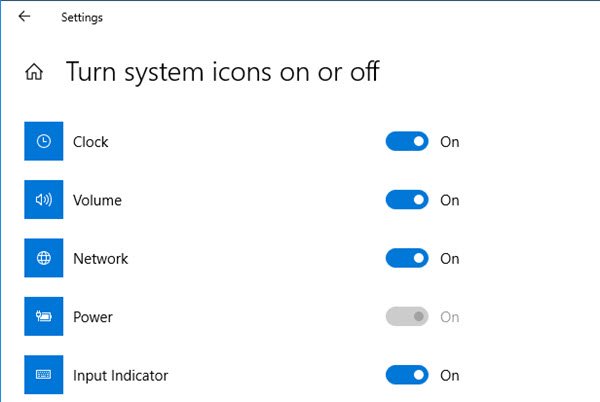
To show or hide system icon, typically, in Windows 11/10, you have to open Settings > Personalization > Taskbar and click on Turn system icons on or off link. In the panel which opens up, you can toggle the switch to show or hide the system icons.
In Windows 7/8, to remove an icon from the notification area, you open Taskbar and Start Menu Properties > Appearance and Personalization > Taskbar and Start Menu. Under the Taskbar tab, click on Customize. Here you can choose to hide the notification area icons that you do not wish to see.
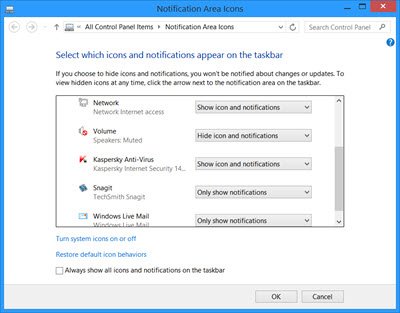
But this only hides the icons, not removes them. Often, even after you uninstall a program, its icon remains, though it may not be displayed. Windows may not remove the icon for an uninstalled program from the Notification Area Icons Control Panel applet.
Remove old Notification icons in Windows 1/10
Follow this procedure to clear or remove past or old icons from the notification area or system tray in Windows 11/10. You can also carry out a Registry tweak or use freeware to delete or clear past icons in the system tray or notification area.
Run regedit and navigate to the following registry key:
HKEY_CURRENT_USER\Software\Classes\Local Settings\Software\Microsoft\Windows\CurrentVersion\TrayNotify
Delete the ‘Icon Streams‘ and ‘Past Icons Stream‘ values.
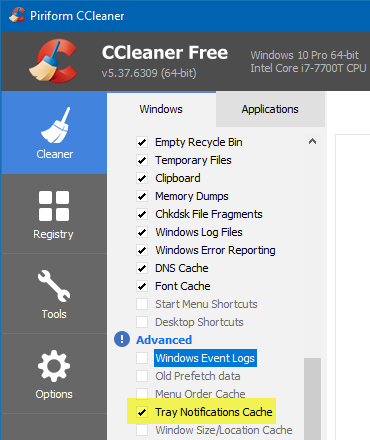
Clear Tray Notifications Cache
Alternatively, you can also use freeware Wise Cleaner or CCleaner to do the job easily.
Restart your explorer.exe process or your Windows computer.
Your clutter would have cleared up.
Also read: How to ALWAYS show all the Icons in Notification area of Windows?
