
If you want to always show all the icons in the Windows notification area or System Tray, or Taskbar, here is how you can do that. There are two ways to do this, and this article explains both methods so you can choose the one that fits your needs. However, the second method shows specific icons, while the first lets you show all icons at once.
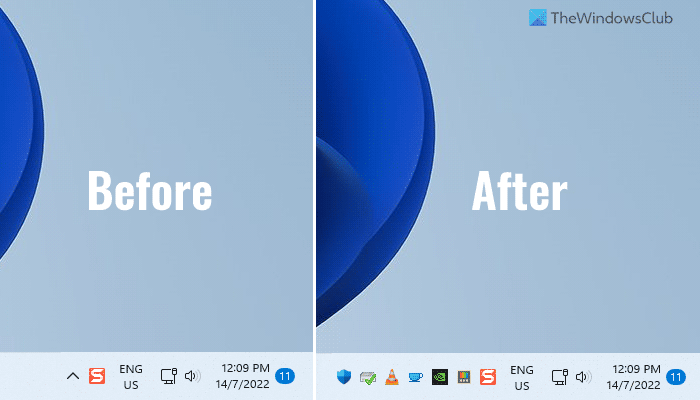
The notification area, or system tray, on the Windows 11 taskbar displays various items, including app icons, time, date, language pack, network icon, volume icon, and more. As said, it displays icons but not all the apps at once or in a row. It shows one or two app icons and the rest are stored in the system tray.
Sometimes, you might want to display all the icons so you can quickly click any of them and open the app. As some icons are placed inside the system tray, you must click on the respective upper arrow icon to find the apps. However, if you follow this guide, you will be able to show all the icons on the Taskbar or in the notification area at once.
How to always show all the icons in Windows Notification area
Before you begin, you should know that Microsoft has changed how things work, so see which method works for you in your Windows 11/10 OS.
- Drag and Drop icons
- Use Settings to configure the icon settings
- Use Control Panel.
1] Drag and Drop icons onto the Notification area
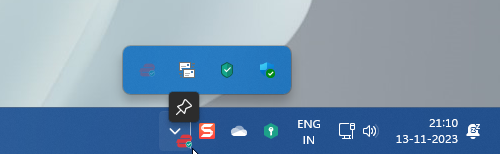
Drag and drop the hidden icons next to the arrow. You will see the Pin icon when you do this.
2] How to always show all the icons in System Tray using Windows Settings
To always show all the icons in the system tray using Windows Settings, follow these steps:
- Press Win+I to open Windows Settings.
- Go to Personalization > Taskbar.
- Expand the Other System Icons Tray section.
- Toggle the app buttons to show them.
Let’s go over these steps in detail.
To get started, you need to open the Windows Settings panel by pressing Win+I. Then, switch to the Personalization tab and click on the Taskbar menu.
Here you can find the Other System Icons Tray section that you need to expand. It contains all the app icons that you can show in the notification area.
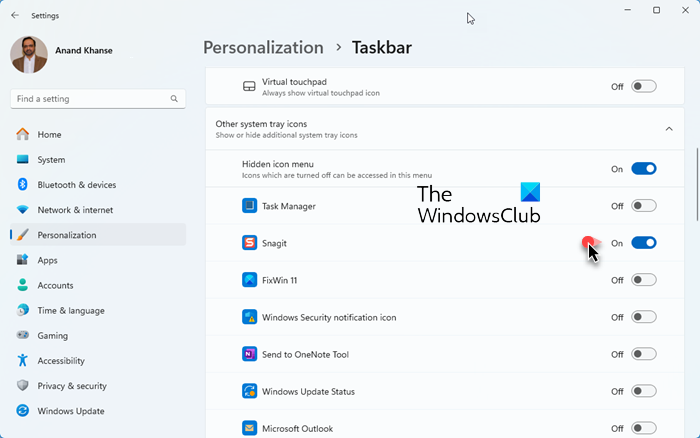
Click the corresponding buttons to show the icon in the notification area.
3] Use Control Panel to show the icons
To always show all the Icons in the System Tray or Notification area of Windows 11/10, via Control Panel follow these steps:
- Press Win+R to open the Run prompt.
- Enter this value:
explorer shell:::{05d7b0f4-2121-4eff-bf6b-ed3f69b894d9} - Tick the Always show all icons and notifications on the taskbar checkbox.
- Click the OK button.
To learn more about these steps, continue reading.
First, you need to open the Classic Notification Area Icons panel. For that, follow these steps. Press Win+R to open the Run prompt on your computer.
Then, enter this command:
explorer shell:::{05d7b0f4-2121-4eff-bf6b-ed3f69b894d9}
It opens the Notification Area Icons panel on your computer. If so, you can find a setting called Always show all icons and notifications on the taskbar. You need to tick the corresponding checkbox.

Finally, click the OK button to save the change. Once you do that, you can find all the available icons on the Taskbar or in the notification area.
As said earlier, there is another method – using Windows Settings. However, this method doesn’t include an option to enable all icons at once. You need to toggle each button to show or hide an app in the notification area.
Read: Remove old Notification Icons from Notification area in Windows 11
Read: How to Show or Hide the Notifications Area in Windows 11
How do I show all icons in the Notification area?
To show all icons in the Notification area in Windows 11, follow the steps above. First, open the Notification Area Icons panel on your computer and tick the Always show all icons and notifications on the taskbar checkbox. Finally, click the OK button to display all icons at once.
Read: How to Show or Hide Icons in Taskbar Corner Overflow on Windows 11
How do I show all system icons?
To show all system icons in the notification area in Windows 11, you can use Windows Settings. Press Win+I to open the Windows Settings panel. Then, go to Personalization > Taskbar and expand the Taskbar corner icons section. From here, toggle the buttons to enable system icons.
Read: Make Notification dialog boxes stay open longer in Windows 11.
