
We have already seen how to log in directly into Windows without entering a password. Today in this article, I’m going to share with you the option that is sometimes pretty helpful. Actually, whenever we enter Sleep Mode in Windows 11/10 and then wake up the computer, it asks us for the password.
Log into Windows automatically after exiting Sleep

While this is a good security measure, some of you may not want to be asked for a password, every time your computer exits the Sleep Mode. Let us see how to make Windows stop asking you for the password on each wake-up by configuring the options. To do that, follow these simple steps.
In Windows 11, open Settings > Accounts > On the right side locate Sign in options.
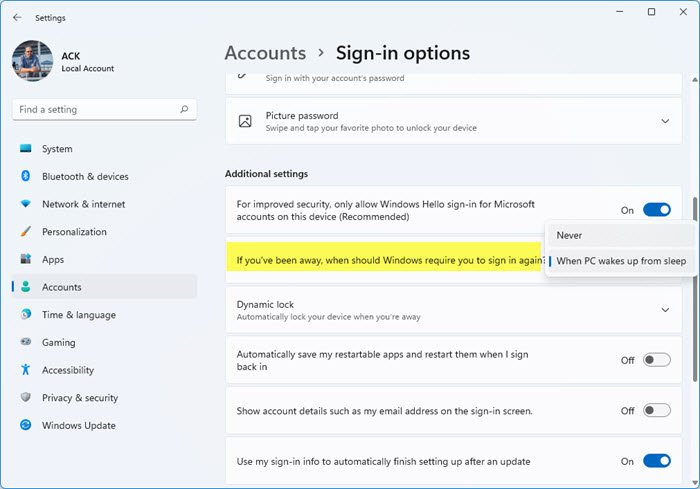
You will see If you’ve been away, when should Windows require you to sign in again. Set it to Never.
In Windows 10, you will have to open Settings > Accounts > Sign in options.
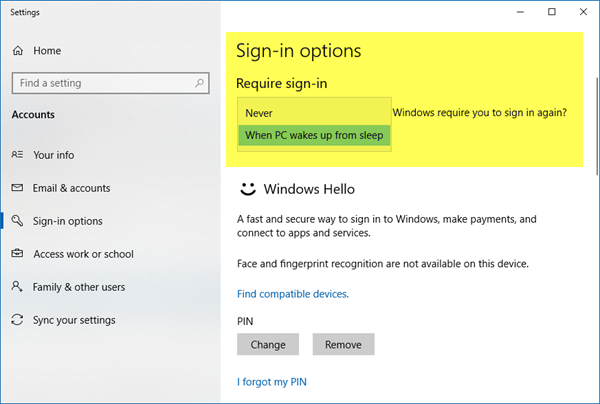
Under Require sign in, select Never.
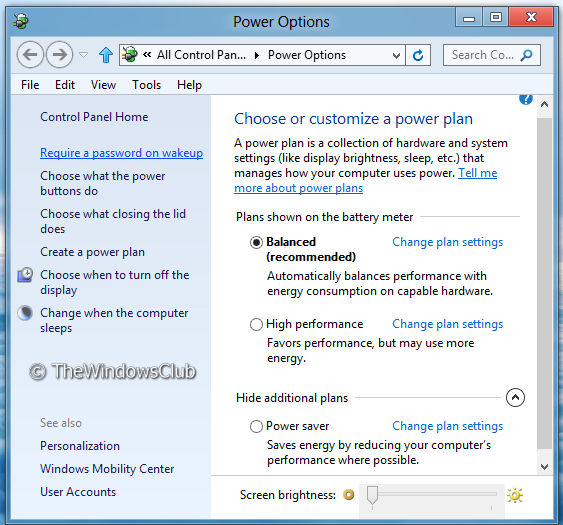
In Windows 8/7, using the Start Search, open Control Panel > All Control Panel Item > Power Options.
1] In the left panel you may click on Require a password on wakeup or on Choose what the power buttons do.
2] In the next panel, click on Change that settings that are currently unavailable.
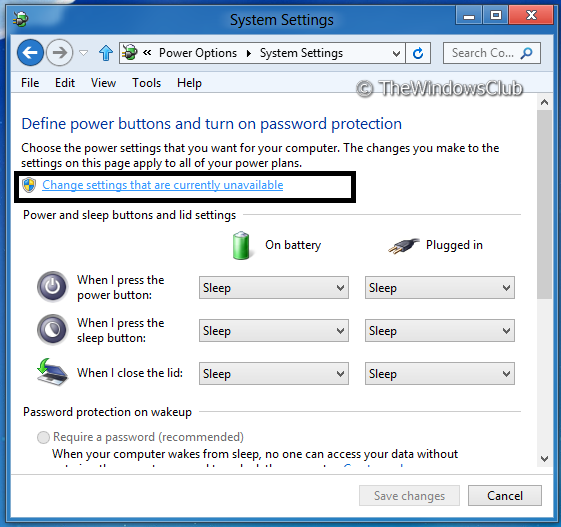
3. Moving on, see the Password protection on wakeup section. Choose the option Don’t require a password.
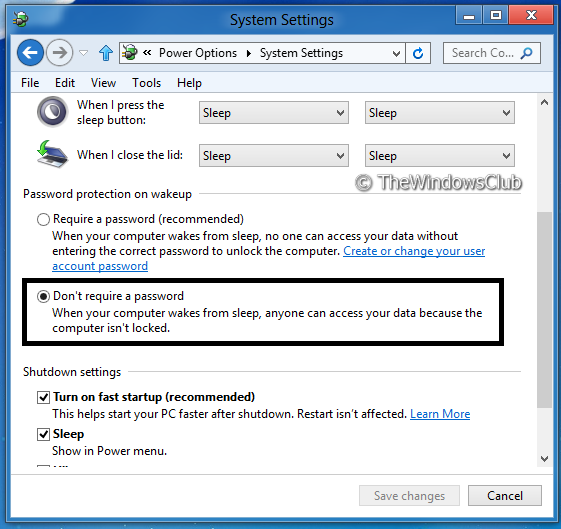
Finally, click on Save changes and it’s done. This will disable login after Sleep in Windows. From now on, whenever your system wakes up, it won’t ask you to enter your credentials and will start from the stage where you left off.
NOTE: Please note that modifying the above option will not have any effect on the usual login. It will configure the option only for after-sleep or wake-up conditions. In that case, it’s not the same thing as this article indicates:
I hope you find the tip useful!
Now read:
- How to prevent Automatic Sign-in after installing Windows Updates
- Log in directly into Windows without entering a password
- Make Windows require a password on wakeup from Sleep.
