
Windows Defender which has been integrated with Windows Security also includes a Device Performance & Health section. In this post, we will explain what is Device Performance & Health in Windows 11/10 and how you can disable or hide it.
Device Performance & Health in Windows 11/10
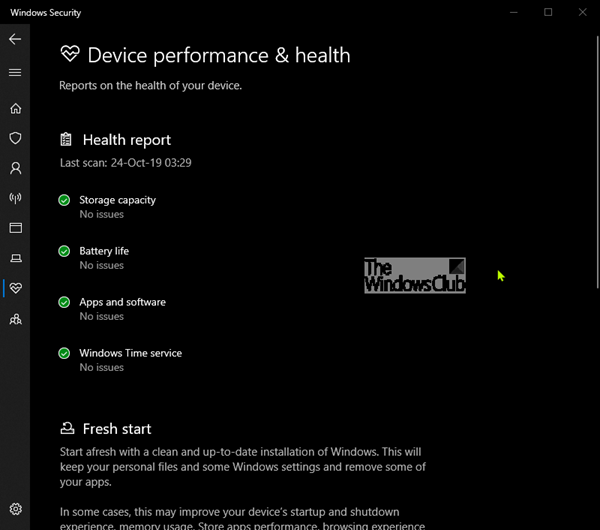
The ‘Device Performance & Health‘ protection area in Windows 11/10, is one of the seven areas that protect your device and let you specify how you want your device protected in Windows Defender Security Center.
The seven areas include-
- Virus & threat protection
- Account protection
- Firewall & network protection
- App & browser control
- Device security
- Device performance & health
- Family options.
To help you keep your device secure, Windows Security monitors your device for security issues and provides a Health Report, which appears on the Device performance & health page. The Health report alerts you to common issues with your system and offers recommendations to remedy them.
If your device meets system requirements, you’ll also see the Fresh Start option, which helps you refresh your device by reinstalling and updating Windows 11/10.
The Device Performance & Health area can be hidden from users. This can be useful if, as an admin, you don’t want them to see or have access to this area. If you choose to hide the Account protection area, it will no longer appear on the Windows Security Center home page, and its icon will not be displayed on the navigation bar on the app’s side.
Show or Hide Device Performance & Health in Windows Security via GPEDIT
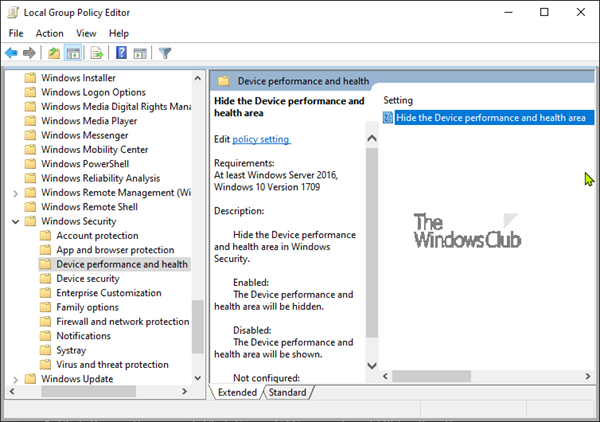
- Run gpedit to open the Group Policy Editor
- Navigate to Computer Configuration > Administrative templates > Windows components > Windows Security > Device Performance & Health.
- Open the Hide the Device performance and health area setting
- Set it to Enabled.
- Click OK.
The settings are as follows:
- Enabled: The Hide the Device performance and health area will be hidden
- Disabled or Not configured: The Hide the Device performance and health area will be shown.
Hide Device Performance & Health in Windows Security via Registry
- Double-click the downloaded Hide-Device-Performance-&-Health.reg file to merge it.
- Click Run on the prompt. Click Yes on UAC prompt and OK to allow the merge.
- Restart PC to apply.
- You can now delete the downloaded .reg file.
Show Device Performance & Health in Windows Security via Registry
- Double-click the downloaded Show-Device-Performance-&-Health.reg file to merge it.
- Click Run on the prompt. Click Yes on UAC prompt, and OK to allow the merge.
- Restart PC to apply.
- You can now delete the downloaded .reg file.
You can click here to download the zipped Registry files from our servers.
How do I turn off Device performance & health?
You can turn off the Device performance & health section of Windows Security with the help of the Local Group Policy Editor. To do this, navigate to the following path: Computer Configuration > Administrative Templates > Windows Components > Windows Security > Device Performance & Health, and then double-click on the “Hide the Device Performance and Health area” setting. Then, choose the Enabled option and click the OK button to save the change.
How do I disable Windows Security’s health service?
To disable Windows Security’s Device Performance & Health service, you can download the ZIP file mentioned above. Then, extract the .reg and double-click on it. Click on the Yes button to add it to the Registry Editor. Alternatively, you can modify the same setting using the Local Group Policy Editor.
How to check device performance in Windows 11?
To check device performance in Windows 11, use the Task Manager. Press Ctrl + Shift + Esc to open it, then navigate to the ‘Performance’ tab. This will provide real-time data on your CPU, memory, and disk usage, helping you monitor your laptop’s performance effectively.
How to check device health in Windows 11?
To check device health in Windows 11, use the PC Health Check app. This tool provides a detailed report on your device’s performance and hardware compatibility. Download it from Microsoft’s official website and run the application to assess your system health and ensure it meets Windows 11’s requirements.
