
The DCOM error “87” appears when you try to start the GamingServices service on Windows. This error is common and can cause games to crash or to run poorly. You might see it repeatedly in the Event Viewer. The error means that the DCOM component, which helps different software communicate, could not launch the gaming service. In this post, we will see what you can do if the DCOM got error “87” when attempting to start the service, GamingServices.
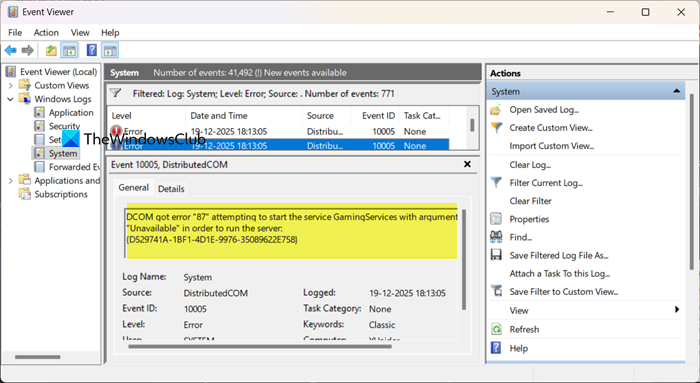
DCOM got error “87” attempting to start the service GamingServices with arguments “Unavailable” in order to run the server:
{D529741A-1BF1-4D1E-9976-35089622E758}
DCOM got error “87” attempting to start the service GamingServices
This error usually happens because Gaming Services is not installed correctly. Gaming Services is important for playing Xbox and Microsoft Store games on Windows. Common reasons for this error include damaged application files from a bad update, system permissions preventing the service from starting, or other system errors that corrupt files. This error is about configuration, not hardware failure, and it often appears alongside other system problems.
If your Event Viewer log says DCOM got error “87” attempting to start the service GamingServices, follow the solutions mentioned below.
- Reinstall Gaming Services via PowerShell
- Repair System Files
- Troubleshoot using Clean Boot
- Reset Gaming Services via Registry
Let us talk about them in detail.
1] Reinstall Gaming Services via PowerShell
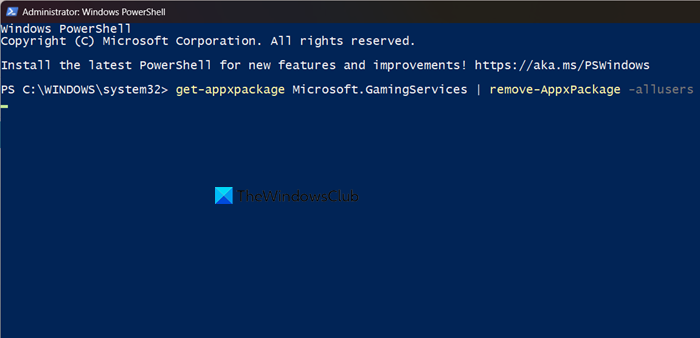
We need to perform a clean reinstallation of the Gaming Services component. The error is often caused by corrupted or misconfigured application files. The PowerShell command forcibly removes these files for all users, and reinstalling from the Microsoft Store replaces them with a fresh, functional version.
Launch PowerShell as an administrator and then run the following command.
get-appxpackage Microsoft.GamingServices | remove-AppxPackage -allusers
After the command completes, open the Microsoft Store, search for “Gaming Services,” and install it. Alternatively, you can use this direct link: apps.microsoft.com.
Finally, check if your issue is resolved.
2] Repair System Files
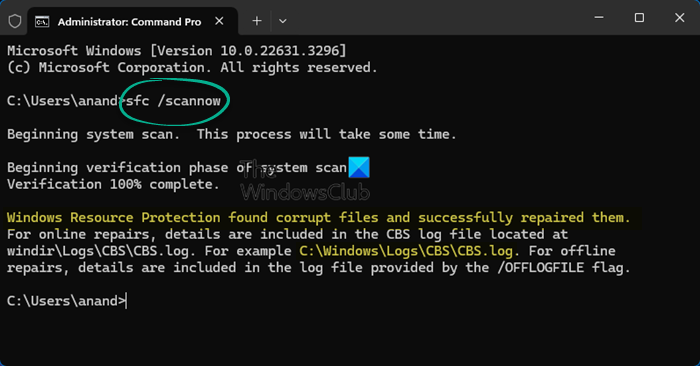
The DCOM error 87 can stem from corrupted or missing core Windows system files that the GamingServices rely on. Running the SFC command repairs these general system files, while the DISM command fixes the deeper Windows system image, ensuring a healthy foundation for services to run correctly.
Open the Command Prompt as an admin, then run the following commands.
sfc /scannow
Wait for SFC to complete, and then run the following command.
DISM /Online /Cleanup-Image /RestoreHealth
Finally, check if your issue is resolved.
3] Troubleshoot using Clean Boot
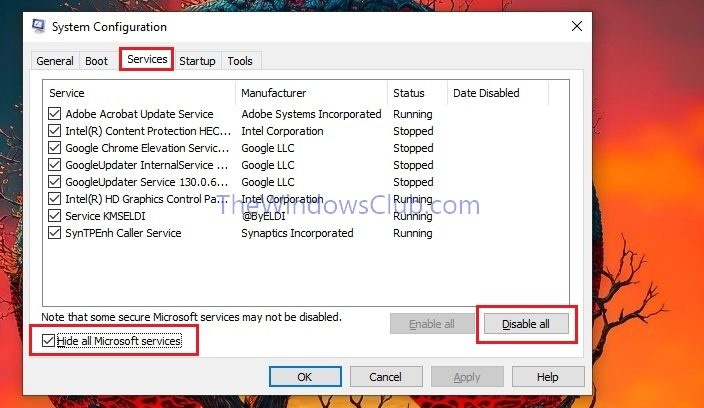
The error can be triggered when background programs or services conflict with system components. By performing a clean boot, you disable all non-essential software, helping you determine if the cause is a conflict with another program on your system. So, go ahead and perform a Clean Boot and see if the issue is resolved. If the issue doesn’t persist, keep enabling processes until you can identify the cause.
4] Reset Gaming Services via Registry
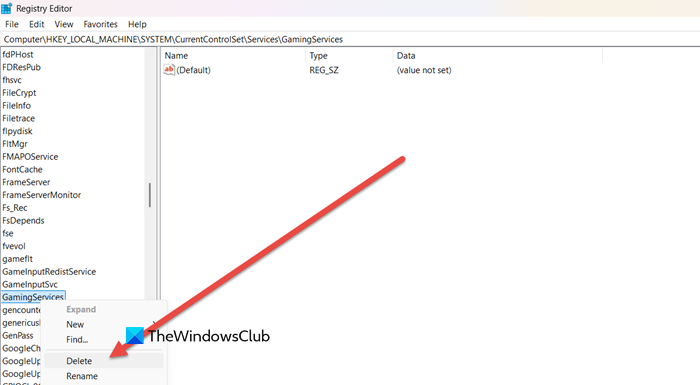
When the Gaming Services registry entries are damaged, the service cannot initialize correctly. Deleting these keys allows Windows to rebuild them with clean default values upon the next system start, which often resolves persistent startup failures.
However, since we need to be cautious, we will first take a backup of the registry.
Press Windows Key + R, type services.msc, and press Enter. Find Gaming Services and GamingServicesNet in the list. Right-click each one and select Stop if they are running.
Then, in Registry Editor, go to the location mentioned below.
HKEY_LOCAL_MACHINE\SYSTEM\CurrentControlSet\Services\
Within the Services folder, carefully find and right-click the GamingServices folder key, then select Delete. Repeat this step for the GamingServicesNet key if it is present.
Close all windows and fully restart your PC. Windows will automatically recreate the deleted registry keys when it boots up.
Read: Xbox app not detecting Gaming Services
How to fix unable to start DCOM server?
If DCOM was unable to start, first verify and attempt to manually start the specific service or application referenced in the error from the Services management console (services.msc). If it fails to start, use system repair commands; run sfc /scannow in an Administrator Command Prompt to fix corrupted Windows files, followed by DISM /Online /Cleanup-Image /RestoreHealth to repair the system image. Finally, ensure the service account has proper permissions by checking the DCOM configuration in the Component Services console (dcomcnfg), locating the specific application, and verifying security settings under its properties. We recommend you check our guide on Event ID 10000, Unable to start a DCOM Server to know more.
Read: Gaming Services not working or installing
How to fix DCOM was unable to communicate with the computer?
To fix the “DCOM was unable to communicate with the computer” error, first check that the remote machine is powered on and reachable over the network. Then configure Windows Firewall to allow DCOM by enabling inbound rules for COM+ Network Access and Distributed Transaction Coordinator, and opening TCP port 135 along with required dynamic ports. Finally, on the target computer, adjust DCOM permissions in the Component Services console under “My Computer” to grant remote launch and activation rights to the correct user or machine account.
Also Read: DCOM Error 1084, Attempting to start the service on Windows 11.
