
In Windows, every file has user permission, and if a user who doesn’t have access to it gets an Access denied message in Windows 11/10. The user gets a general error message, and it can be customized by the system administrator or an admin account on the computer. This post will guide you on how you can customize the Access denied message on Windows 11/10.
Customize Access Denied message on Windows 11/10
The standard access denied messages are of no help as they ask to contact the administrator. Instead, Windows offers a group policy and registry method, which can add sense to it, like allowing users to add a message, email folder owner, server admin, and so on.
- Using Group Policy
- Using Registry Editor
As an admin, ensure that you configure it carefully so that it all makes sense when an admin or file owner receives the email.
Using Group Policy
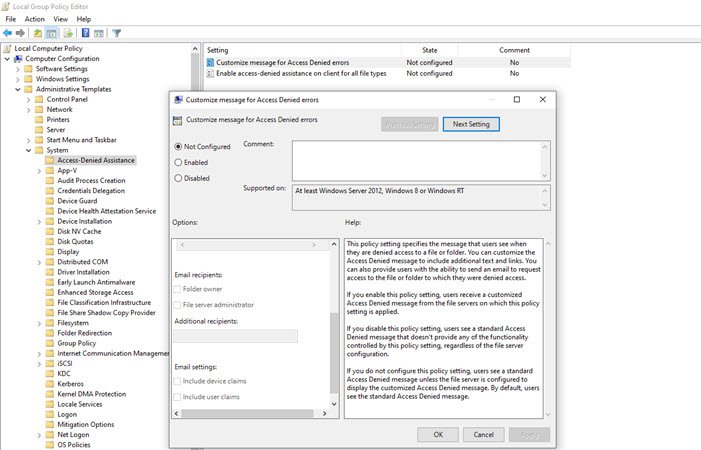
Open Group Policy Editor by typing gpedit.msc in the Run prompt (Win +R) and pressing the Enter key. In the Group Policy console, navigate to the below-mentioned path and locate the policy – Customize message for Access Denied errors.
Computer Configuration\ Administrative Templates\ System\ Access-Denied Assistance
Double click to open, and configure the following:
- Display the following message to users who are denied access
- Enable users to request assistance
- Add the following text to the end of the email.
- Email recipients (folder owners and file server administrator)
- Additional recipients
- Email settings can also include device claims and user claims.
- You can also Log emails in the applications and services event log.
Using Registry Editor
The same can be configured on computers through the Registry Editor. This method is handy if the computer doesn’t have a group policy or plans to deploy this through a network computer registry file. Registry Hive allows you to connect to Network Registry, and that’s where it comes in handy.
- Open Registry Editor by typing Regedit in the Run prompt followed by pressing the Enter key.
- Navigate to the following path
Computer\HKEY_LOCAL_MACHINE\SOFTWARE\Policies\Microsoft\Windows\ADR\AccessDenied
- Right-click on the right panel, and create New > DWORD (32-bit Value) and name it as Enabled
- Double-click to edit the Enabled DWORD and set it to 1
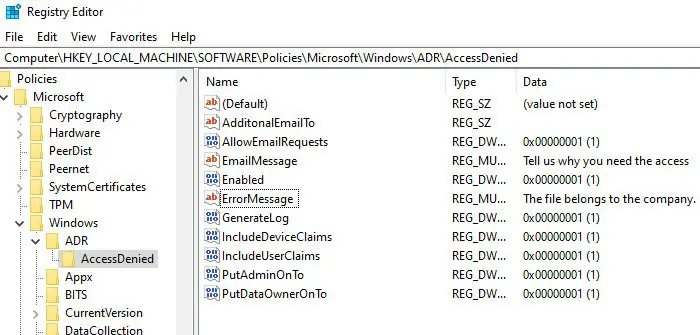
Next, create the following DWORD and Strings.
- AdditonalEmailTo — String – Blank
- AllowEmailRequests — Dword -1
- EmailMessage — Multi-String – Your personalized message
- Enabled — Dword – 1
- ErrorMessage — Multi-String – Your personalized message
- GenerateLog — Dword – 1
- IncludeDeviceClaims — Dword – 1
- IncludeUserClaims — Dword – 1
- PutAdminOnTo — Dword – 1
- PutDataOwnerOnTo — Dword – 1
Ensure that the value is set according to the information displayed in the screenshot.
You can customize the details for strings such as email messages, error messages, and Additional emails.
A straightforward approach is to enable Group Policy on a computer. It will create the respective registry keys, which you can export and then import into other computers.
I hope you were able to customize the Access denied message on Windows 11/10.
How do I fix Access Denied messages?
On Windows 11/10, users may encounter error messages for various tasks. For example, if you receive an Access is denied error message while installing software, then options like running the setup as administrator, temporarily disabling the security software, and using the built-in administrator account can be helpful. On the other hand, if access is denied while accessing a file, then you have to take full ownership of the file to access it.
How do I fix the Access Denied Folder in Windows 11?
If you want to access denied restricted folder, you should have administrative privileges. So, try to access the folder with an admin account. You may also need to take full ownership of that folder for your user account. You should also check if the folder is encrypted and then decrypt that folder. You can do that by accessing the Advanced Attributes of the folder (using that folder’s Properties) and unchecking the Encrypt contents to secure data option.
