
If you have seen your fellow gamers using an actual image on their Xbox Profile, then you should know that Xbox One allows you to use a real image of your own or practically any image as a gamer profile. While you can do it from PC as well using the Xbox App, in this post, I am sharing how to use a custom image as a gamerpic from your Xbox One.
Use a custom image as Gamerpic on Xbox One
Xbox One supports external drives and USB drives as well. First, copy an image you want to use as a gamerpic to it. Then connect it to Xbox One, and leave it as is. You will get a message saying External Media Storage Ready.
Disable Xbox Live Avatar
This is the default mode for any Xbox player. You will need to change this first so others can see your gamerpic instead of the avatar.
- Press the Guide button on the Xbox One controller.
- Navigate to the extreme left till you find your own profile under Sign in. Press A to open.
- Select My profile and Press A.
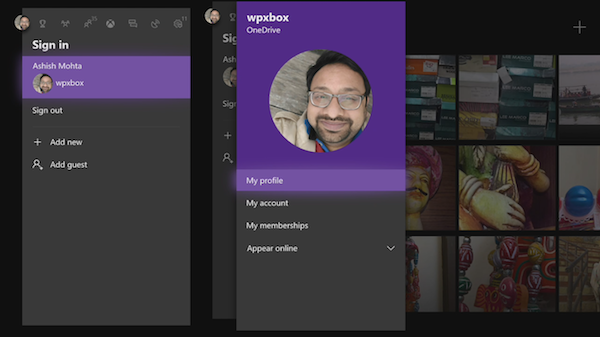
- In the next window, under the Welcome screen, select Customize Profile.
- Uncheck the option which says Show my avatar.
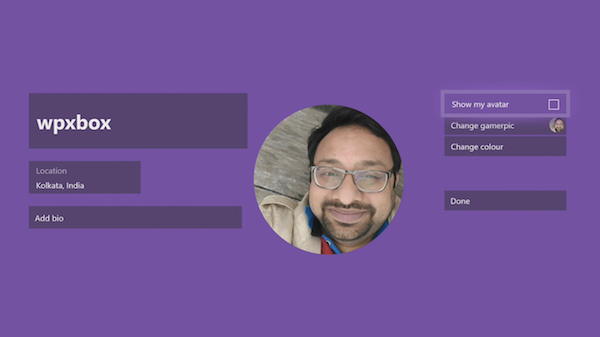
Change gamerpic
- Next select Change gamerpic, and press A. (Take a look at the image above)
- The next screen will give you the option to select from Xbox Live or look for an option on the top left marked as Upload a custom image.
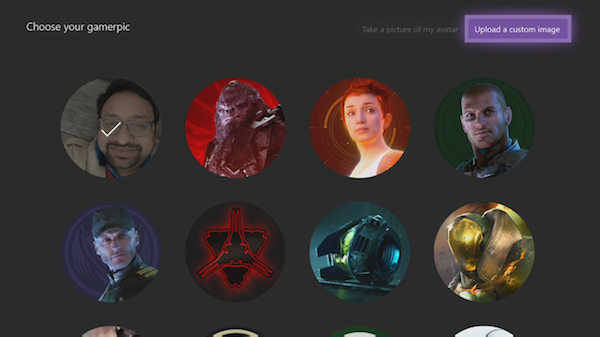
- This will open the File Explorer which is already installed on Xbox One.
- On the left-hand side of the explorer, you should see an image of your USB drive. Navigate, and Select it.
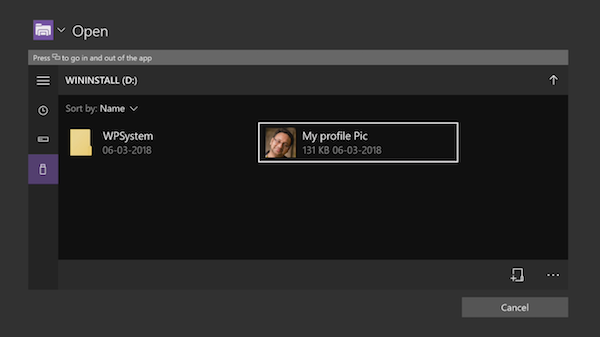
- Next, select the pic on your USB drive and press A on your controller.
If you are using an external drive for media, you can choose any image that is available there, including your game screenshots.
Adjust your Gamerpic
The next screen lets you adjust the pic you just selected. You can Zoom in, Zoom out and move the image left or right, which is useful when you have an image with a lot of people and want to select yours. If you don’t like this one, you can always reset the image.
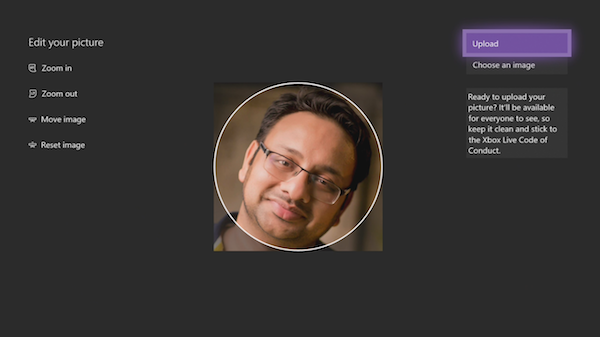
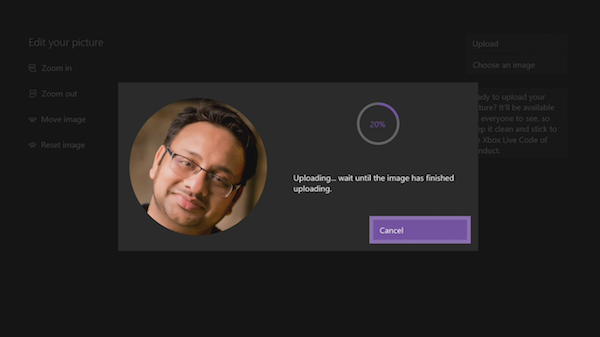
Once you are sure, hover over Upload and press A on your controller. You will see a preview and a progress bar. Press A when you see OK.
That’s how easy it is, but I am sure you’ve already figured out the drawbacks. This feature doesn’t allow you to pick up images from OneDrive, and Edge on Xbox One hasn’t had an option to download images from the internet until now.
Do you think Xbox One should allow one to directly upload images from OneDrive or download from anywhere, and let users upload it? Let us know in the comments.
Read next: How to manage Activity Feed and Notifications on Xbox One.
