
If you’re encountering Credential Manager Error 0x80070057 on your Windows 11 or Windows 10 computer when you try to manage web passwords with Credential Manager, then this post is intended for you. In this post, we will provide the best solutions you can try to fix this issue.
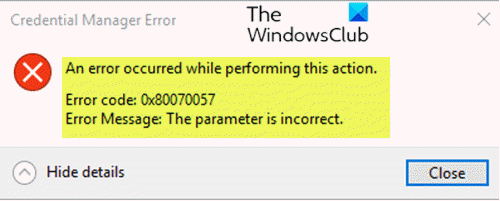
When you encounter this issue, you’ll receive the following full error message:
An error occurred while performing this action.
Error code: 0x80070057
Error Message: The parameter is incorrect.
The Credential Manager is the “digital locker” where Windows stores log-in credentials like usernames, passwords, and addresses. This information can be saved by Windows for use on your local computer, on other computers in the same network, servers or internet locations such as websites. Windows can use this data, as can apps and programs like File Explorer, Microsoft Office, virtualization software, and more.
Fix Credential Manager Error 0x80070057 in Windows 11
If you’re facing this issue, try one of the recommended solutions below.
- Ensure Credential Manager service is running
- Delete all your saved web and app passwords
Let’s review the steps for each listed solution.
1] Ensure Credential Manager service is running
Do the following:
- Press Windows key + R to invoke the Run dialog.
- In the Run dialog box, type services.msc and hit Enter to open Services.
- In the Services window, scroll and locate the Credential Manager service.
- Double-click on the entry to edit its properties.
- Choose Manual from the Startup type drop-down menu and hit the Start button.
You may receive the following error message when you click on Start:
Windows could not start the service on Local Computer. Error 1079: The account specified for this service differs from the account specified for other services running in the same process.
In which case, do the following to resolve the error:
- Press Windows key + R.
- In the Run dialog box type services.msc and hit Enter.
- Scroll and locate the Credential Mnager in the services list and right-click on it and select Properties from the context menu.
- Navigate to the Log On tab and click on the Browse… button.
- Under the Enter the object name to select field, type in Network Service, then click on Check Names and wait for the name to become recognized.
- Click OK when you are finished and type in the password in the Password box when you are prompted with it if you have set up a password.
- Click the Start button again. The service should now start without the error 1079.
You can check if the Credential Manager Error 0x80070057 issue is resolved or not.
2] Delete all your saved web and app passwords
Do the following:
- Press Windows key + R to invoke the Run dialog.
- In the Run dialog box, copy and paste in the directory path below and hit Enter. If you receive an error prompt, show hidden files, and try again.
C:\Users\%UserName%\AppData\Roaming\Microsoft\Protect
At that location, delete the folder’s contents.
The Credential Manager Error 0x80070057 issue should be resolved.
