
In this post, we will show you how to create real-time interactive flowcharts for your code using VS Code CodeVisualizer. CodeVisualizer is a free, open-source Visual Studio Code extension that transforms code into visual diagrams, making it easier to understand complex code logic, dependencies, and architecture at a glance. The diagrams update in real time, so you always see the latest logic as you edit your code.
In large projects, developers often struggle to understand how certain parts of the code work or explain the logic to others. Reading long functions or tracing dependencies can take a lot of time and effort. A simple visual tool can make this much easier by turning code into clear diagrams that anyone can follow. One such tool is CodeVisualizer.
Create real-time interactive flowcharts for your code using VS Code CodeVisualizer
To create real-time interactive flowcharts for your code using VS Code CodeVisualizer on a Windows 11/10 PC, you need to follow these steps:
- Install the CodeVisualizer extension
- Open a supported code file
- Generate a flowchart for a function
- Explore the interactive flowchart
- See real-time updates as you edit code
- Visualize project dependencies
- Enable AI labels for clearer diagrams
Before we go through the steps in detail, let’s take a quick look at the prerequisites.
Prerequisites for using the CodeVisualizer extension
- Visual Studio Code version 1.105.0 or higher
- Active workspace with supported programming languages (Python, TypeScript/JavaScript, Java, C++, C, Rust, or Go)
Now, let us see how to use CodeVisualizer to generate flowcharts from code.
Open Visual Studio Code. Press Ctrl+Shift+X to open the Extensions panel. Search for CodeVisualizer. Click Install, then reload VS Code if prompted.
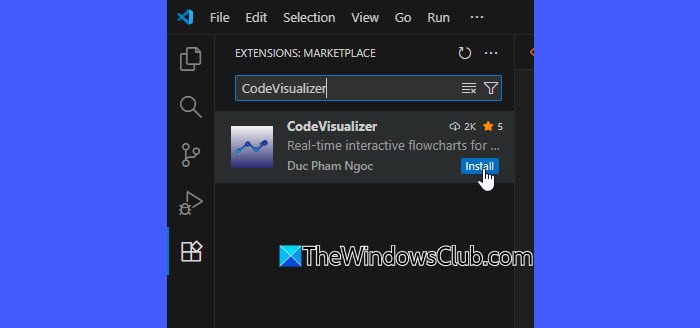
After installation, you should see CodeVisualizer items in the Command Palette and context menus.
Next, open a source file. If the file does not appear to be recognized, check the language mode in the bottom-right corner of VS Code and set it to the correct language.
Generate Function Flowcharts
Place the cursor inside the function whose logic you want to visualize. Right-click and choose CodeVisualizer: Open flowchart in new window, or open the Command Palette (Ctrl+Shift+P) and run the same command.
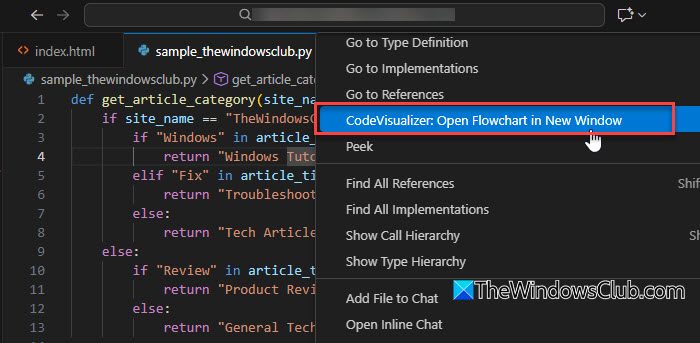
The extension parses the function and opens a new window with a flowchart that reflects its logic and structure.
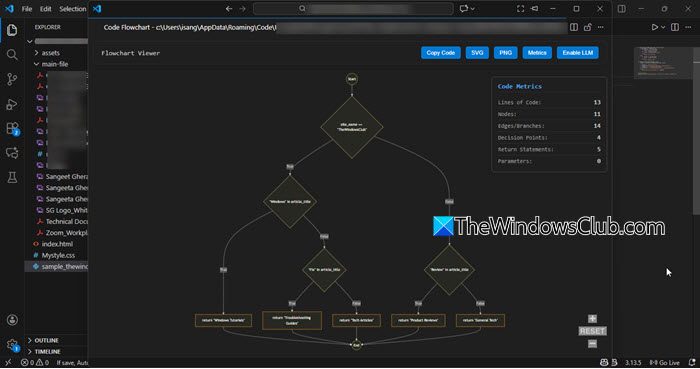
Once the flowchart appears, you can zoom, pan, and click on nodes to navigate through your code. This helps you understand the function’s logic at a glance. You can also expand the flowchart window or position it in the side pane for easier viewing alongside your code.
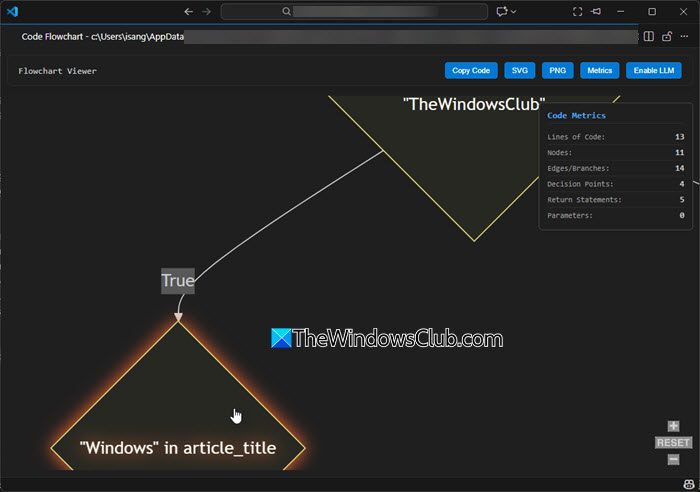
As you modify the source code, the flowchart updates automatically. This real-time behavior ensures your visual representation stays accurate and in sync with your code, making it easier to follow changes and understand evolving logic.
Visualizing Codebase Dependencies
If you want an overview of how modules or files in your project connect, right-click on your project folder and choose Visualize Codebase Flow.
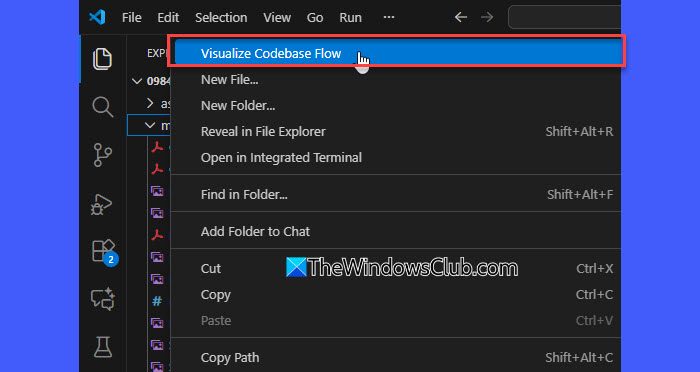
CodeVisualizer will create a dependency graph that shows import relationships and file-level interactions within your workspace.
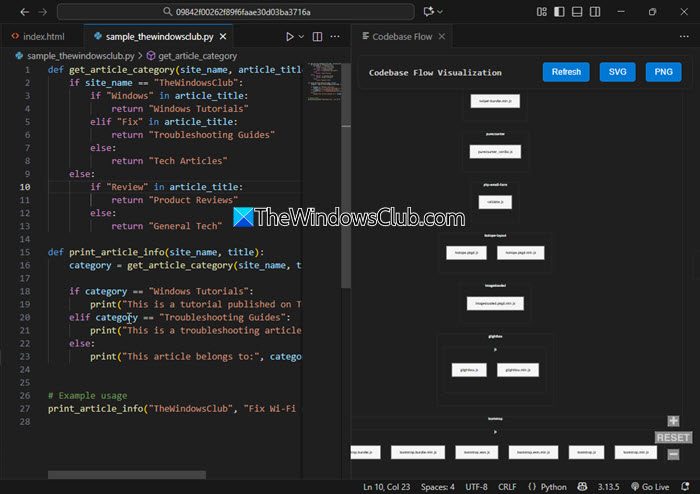
Note: Dependency graphs currently work best for Python and JavaScript/TypeScript.
If you prefer more readable labels in your diagrams, you can enable AI labels in CodeVisualizer.
Press Ctrl + Shift + P, type CodeVisualizer: Enable AI Labels in the Command Palette, then configure your preferred LLM provider and API key. You can also enable AI labels from Settings by searching for CodeVisualizer and turning on the AI Labels option.
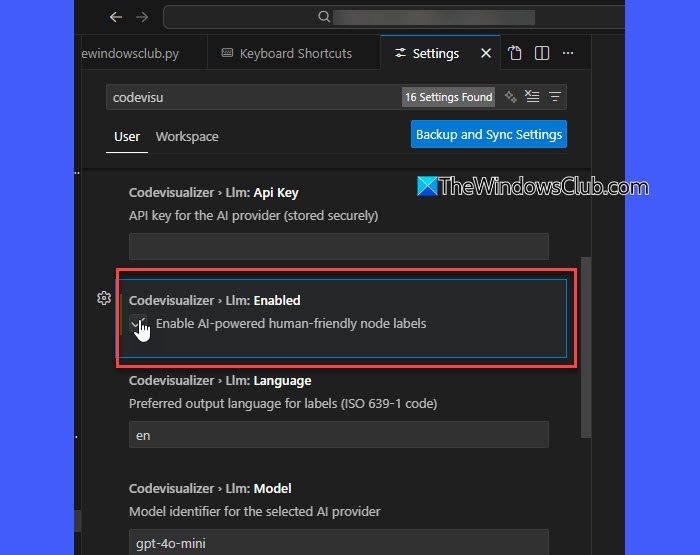
Once enabled, CodeVisualizer will replace raw technical labels with clearer, more descriptive text generated using your chosen AI provider or a local model.
Note: CodeVisualizer processes all code locally for privacy. No data is sent online unless you choose to enable an external AI provider.
Key Features of CodeVisualizer
- Generates interactive function-level flowcharts to visualize control flow, loops, and decision points
- Downloadable flowcharts for easy documentation and sharing.
- Supports multiple languages: Python, JavaScript, TypeScript, Java, C, C++, Rust, and Go
- Provides real-time updates as you edit your code
- Offers 9 beautiful themes, including Monokai, GitHub, Dracula, and Solarized
- Creates codebase dependency graphs for Python and TypeScript/JavaScript projects
- Displays color-coded module categories and folder-based hierarchy
- Allows interactive navigation with clickable nodes, zooming, and panning
- Includes AI-powered smart labels for clearer, human-friendly flowcharts
- Works with multiple AI providers, including OpenAI, Gemini, Groq, Anthropic, and Ollama
- Features Intelligent Caching to reduce repeated API calls and improve performance.
I hope you find this useful.
Read: How to install Python Libraries in Visual Studio Code.
How to visualize code in Visual Studio?
You can visualize code in Visual Studio using extensions like CodeVisualizer. Simply install the extension from the VS Code Marketplace, open a supported file, and generate a flowchart or dependency graph. The extension analyzes your code locally and converts it into visual diagrams, making it easier to understand or navigate the code structure.
How to create a flowchart in VS Code?
You can create flowcharts in VS Code by using extensions available in the Marketplace. These extensions can convert your code into visual diagrams that make its logic and structure easier to understand. Plus, they work directly inside the editor, making code visualization quick and convenient.
Read Next: Best free online Data Visualization tools.
