
In this guide, we will look at some of the best tools to detect stolen photos that you can use on your Windows 11/10 PC. When you publish images online, there’s always a risk that someone might reuse them without your permission. Copyright image search is the process of using specialized tools to track where your images appear on the internet and to identify edits, manipulations, or unauthorized use.
Can you trace a copyrighted image?
Yes, you can trace a copyrighted image using reverse image search tools. These tools help you find where the image appears online and identify its earliest known source. By comparing the results, you can determine the original creator or website associated with the image.
Copyright Image Search: Best Tools to detect stolen photos
Here are some of the best copyright image search tools to detect stolen photos on a Windows 11/10 PC:
- Google Lens
- Lenso AI
- TinEye
- Bing Visual Search
- FaceCheck.ID
- Reversely.ai
- FotoForensics
- Pixsy
Let us have a look at these in detail.
1] Google Lens
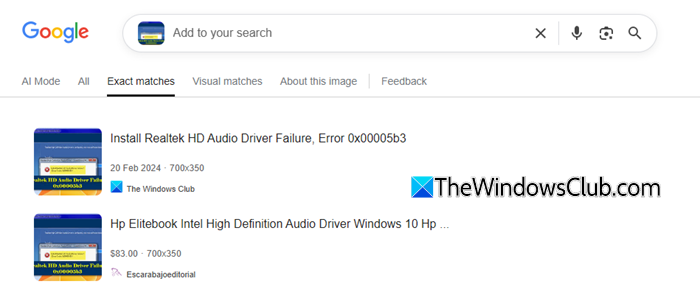
Google Lens is one of the most reliable and widely used reverse image search tools available today. It uses AI to analyze images and show visually similar results, along with links to the websites where the image is used.
Google Lens has access to Google’s massive image index, which increases the chances of finding where an image appears online. To use Google Lens to detect stolen images, follow these steps:
- Open Google Chrome on your Windows 11/10 PC.
- Go to images.google.com using this link.
- Click the camera icon (Search by image).
- Upload your image or paste the image URL.
- Click Search.
- Review the results shown by Google Lens.
You can also right-click any image in Chrome and select Search image with Google Lens to quickly check where it is used online.
2] Lenso.ai

Lenso.ai is a perfect example of a copyright image search tool, as it can find where exact copies of your images have been published online. You will be able to simply check this under the “Duplicates” category. Within the image results, you will see where it was originally published.
Besides that, if there are currently no results, you can create an Alert on lenso and receive email notifications when new results appear. This makes it even easier to detect any potential misuse of your images.
To use Lenso.ai to detect stolen images, follow these steps:
- Go to lenso.ai
- Upload an image
- Check the “Duplicates” category if you are searching for an exact copy, or the “People” category if you’d like to check where images of your face appear online in general
- Filter by domain if you are aware of some (or by newest/oldest), etc.
- Create an Alert if there are no results currently
3] TinEye
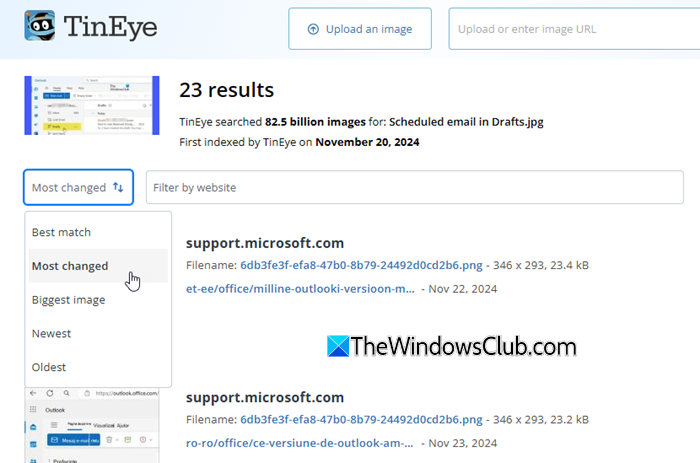
TinEye is a dedicated reverse image search engine that helps you identify duplicates and track where an image has been used. It is known for its ability to find exact matches, even if the image has been resized or slightly modified. It also shows the oldest indexed result, which can help you identify the original upload.
TinEye also respects your privacy. The images you upload are not saved or stored, so your searches remain private. To use TinEye to detect stolen images, follow these steps:
- Go to the TinEye website using this link.
- Paste, drag, or upload the image. You can also search using the image URL.
- Wait for the results to load.
- View the list of websites where the image appears.
- Use filters like Oldest or Most Changed to analyze results.
4] Bing Visual Search
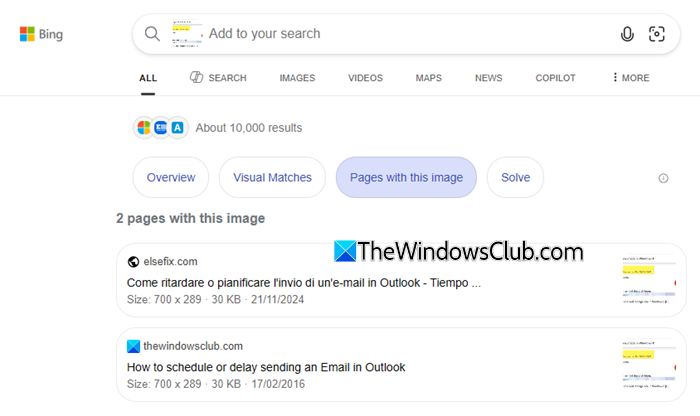
Bing Visual Search is a free reverse image search tool from Microsoft. While it works similarly to Google Lens, it indexes different websites and image sources, offering a different coverage to help you uncover additional matches and detect image misuse across a wider range of platforms.
Bing Visual Search uses AI to recognize objects, text, and patterns in an image, and then shows matching results along with related web pages. To use it to detect stolen images, follow these steps:
- Open your web browser and go to the Bing Images website using this link.
- Click the Visual Search (camera) icon.
- Upload your image or paste the image URL.
- View visually similar images and related results.
5] FaceCheck.ID
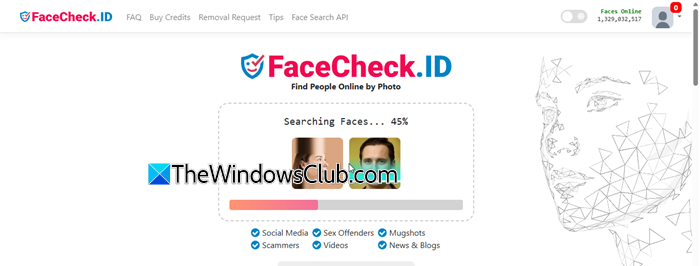
FaceCheck.ID is an advanced reverse image search tool that uses facial recognition technology to find images of a person across the internet. It is especially useful if you are trying to find out whether a specific person’s image (or even your own photo) has been used without permission. It can help you detect fake profiles, identity misuse, or unauthorized use of personal images online.
Note: While these tools can help detect image misuse, they should not be used to identify or track individuals without their knowledge, as this may lead to privacy violations.
To use FaceCheck.ID on Windows 11/10, follow these steps:
- Go to the FaceCheck.ID website using this link.
- Upload a clear image of the face.
- Accept the terms of use.
- Start the search.
- Review the results showing similar faces.
6] Reversely.ai

When other tools do not give enough results, try Reversely.ai. It’s an AI-powered reverse image search tool that focuses on delivering quick, broad-match results from multiple sources.
Reversely.ai’s advanced algorithms help you verify image authenticity by tracing their origins. It can determine whether an image comes from a reliable source or if it has been altered. To use it to detect stolen photos, follow these steps:
- Go to the Reversely.ai website using this link.
- Scroll down a bit and click the Start Free button next to the Free plan.
- Upload your image or paste the image URL.
- Click Search AI Image.
- Review the results.
Note: In the free plan, Reversely.ai may blur website links, limiting access to full source details.
7] FotoForensics
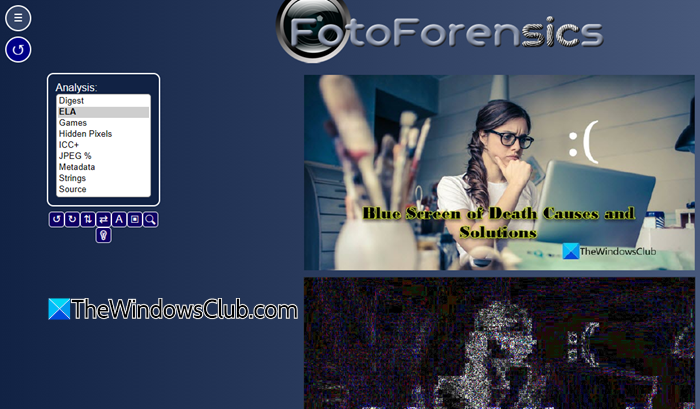
If you want to verify if an image is genuine, especially after you have found it being reused or shared online, a forensic tool such as FotoForensics can help.
FotoForensics focuses on analyzing the image itself. It offers various analysis options such as Error Level Analysis (ELA), metadata, and hidden pixels. You can switch between these options to examine different aspects of the image and check for possible edits or manipulations. It is especially helpful for detecting edited or photoshopped images, identifying manipulated regions, and verifying image authenticity.
To use FotoForensics on Windows 11/10, follow these steps:
- Go to the FotoForensics website using this link.
- Click Choose File to upload an image, or paste the image URL.
- Click Upload File.
- Select an analysis option such as ELA.
- Review the results.
Read: Google Reverse Image Search vs Copyright Detection Tools compared
8] Pixsy
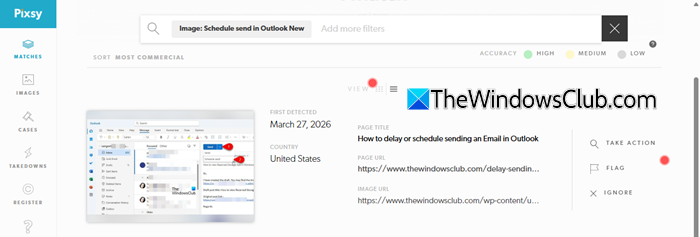
Pixsy is ideal if you are serious about protecting your images. It’s a copyright monitoring tool that not only tracks your images and shows where and how they are being used, but also helps you send a takedown notice when they are used without permission.
Unlike standard reverse image search tools, Pixsy continuously scans the web to find matches for the images you upload. It offers a free plan that allows you to monitor up to 500 images, while advanced features require a paid subscription.
- Go to the official Pixsy website using this link.
- Click the Sign Up button in the top-right corner.
- Enter the required details and click Continue.
- Select a Profile Type.
- Go to the Images tab and select Import Images.
- Browse and upload your image.
- Verify your email account to start scanning.
- Review detected matches in your dashboard.
That’s all! I hope you find this useful.
Read: Best people search engines to find people easily.
Can I check if an image is copyrighted?
There’s no direct tool that can tell whether an image is copyrighted, but you can use reverse image search to find its source and see who originally published it. Most images online are protected by copyright by default, so it’s important to check usage rights or licenses before using them.
Read Next: How to do reverse video search the right way.
