
Are you irritated by the appearance of Confirm Form Resubmission on Refresh or Back button? If yes, then this article is for you. We will discuss this issue in detail, including why you see it, and how you can resolve the issue if its frequency of appearance is too high.
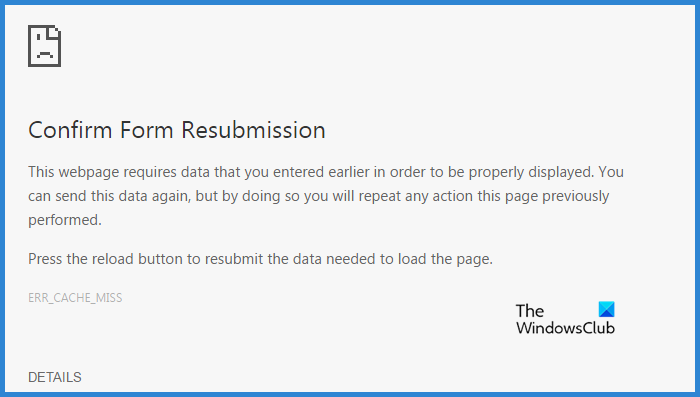
Why do I get Confirm Form Resubmission?
You may get Confirm Form Resubmission for various reasons. Sometimes, it’s not even an error and is great for your security. When you take too much time to complete a transaction, you may encounter an error message, especially when submitting a confidential form. However, it sometimes appears much more frequently, which is exasperating. It appears when filling out a Google form, logging in, refreshing a page, or going back. There are multiple reasons why this can occur, such as a poor Internet connection, a Firewall issue, a glitch in your browser’s cache, or something else.
We will review all possible solutions to resolve the issue in detail.
Confirm Form Resubmission on Refresh or Back button
If you want to fix Confirm Form Resubmission on Refresh or Back button, then use the solutions mentioned below.
- Check your Internet
- Restart your Network Devices
- Clear Browing Data and Cache
- Disable Corrupted Extension
- Check your antivirus
- Use VPN
Let us talk about them in detail.
1] Check your Internet
Let us start by checking your Internet connection. The best way to check how quick your Internet is to use an Internet Speed tester. It is a free tool that will tell you your bandwidth. Also, check the Internet speed of all the connected networks. If they have good bandwidth, then there is likely an issue with your Internet connection. So, fix your Internet connection. If all the devices connected to your network are experiencing issues, contact your ISP.
2] Restart your Network Devices
Sometimes, simply restarting devices can resolve the issue. So, follow the given steps to power cycle your Network Devices.
- Unplug your Router and Modem
- Wait for a minute or two.
- Plug them back in.
- Turn on the switch.
Check if the issue persists.
3] Clear Browsing Data and Cache
The issue can be because of a glitch in the Browsing Data or Cache. The best way to resolve the issue is by removing them; this won’t have any adverse effect on your browser, it will just resolve the issue.
Therefore, clear Browsing Data and Cache and see if the issue persists.
4] Disable Corrupted Extensions
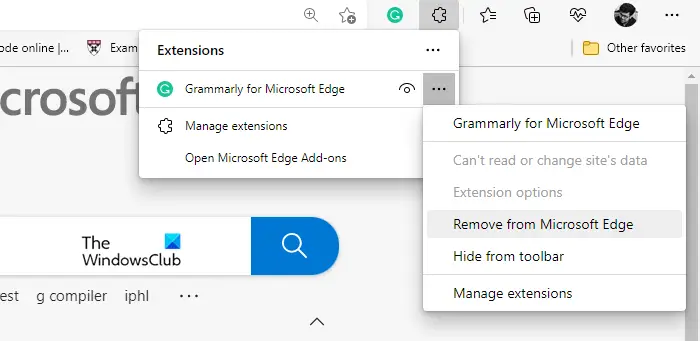
Corrupted extensions getting corrupted is not new; it has been a problem for ages and probably will continue to be so. Therefore, the best course of action is to uninstall and reinstall the extension. This way, if a corrupted extension causes the issue, it will be resolved.
You can easily uninstall extensions from the browser settings. So, do that, restart your computer and see if the issue persists.
5] Check your antivirus
Sometimes, a third-party antivirus can cause this sort of errors. It can, by mistake, classify the website as malicious and forbid the user from accessing it. Obviously, you are probably not sure, if that’s the case here or not. Therefore, you need to disable the app, and then retry submitting the form, or refresh it, if it works well then you know what’s the culprit, if not, then you can use the other solutions mentioned in this article.
6] Use VPN
Sometimes, due to a glitch in the server you are connecting to or the website not being available in your region, you may encounter this error. Using a VPN, you can connect to different servers and access any website that you want. So, get yourself a free VPN to see if that helps.
Hopefully, you will be able to resolve the issue using the solutions mentioned in this article.
