
Configuring an SMTP (Simple Mail Transfer Protocol) server on Windows Server is a common task for system administrators who need to enable applications or websites to send email messages. Unlike a full-featured mail server such as Microsoft Exchange, the built-in SMTP Server is a lightweight component designed solely for message relaying. In this step-by-step guide, we are going to see how to configure the SMTP server in Windows Server.
What is an SMTP Server?
An SMTP server is a network service that uses the Simple Mail Transfer Protocol to send, receive, and forward email messages between users. It works like a digital post office, so when you send an email, your email app (like Outlook) connects to your SMTP server, which then finds the recipient’s mail server using DNS and delivers the message. Windows Server includes a built-in SMTP service that reliably handles this core email relay process.
How to configure SMTP server in Windows Server
If you want to configure the SMTP server on Windows Server, follow the steps below.
- Match the prerequisites
- Install SMTP Server Feature
- Configure SMTP Server
- Test your SMTP Server using Command Line
Let us talk about them in detail.
1] Match the prerequisites
We need to make sure to have a Windows Server with a static IP address. You also need administrator access to the server. Along with that, you need IIS 6 Management Compatibility, as it includes the SMTP management features.
2] Install SMTP Server Feature
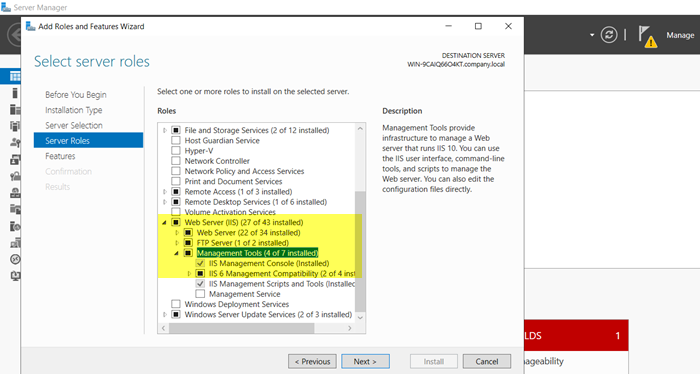
First, make sure to install the SMTP Server Feature in Server Manager. To do so, you can follow the steps mentioned below.
- Open Server Manager.
- Then, go to Manage > Add Roles and Features.
- Once the Add Roles and Features Wizard opens, click on Next, and keep clicking on it until you reach the Server Roles section.
- In the list of roles, expand Web Server (IIS) > Management Tools, and then check the box for IIS 6 Management Compatibility. (This is crucial for the SMTP management console.) On some older versions of Windows Server, you might find “SMTP Server” directly under a different path. If so, select that instead.
- Click on Add Features when prompted, and then on Next.
- Continue clicking Next through the Features and Web Server Role (IIS) sections, accepting the default settings.
- Once you are on the Confirmation page, click on Install.
- Wait for the installation to complete and then click Close.
You may need to restart the server.
3] Configure SMTP Server
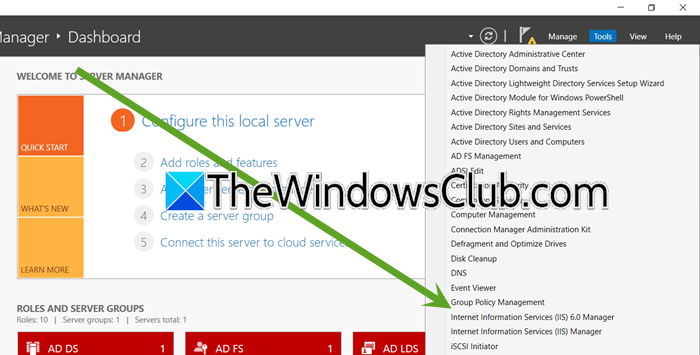
Once we have the feature installed on our system, let us go ahead and configure the SMTP Server. Follow the steps mentioned below to do the same.
- In the Server Manager, go to Tools > Internet Information Services (IIS) 6.0 Manager.
- In the IIS 6.0 Manager, expand your server’s name on the left. You will see [SMTP Virtual Server #1].
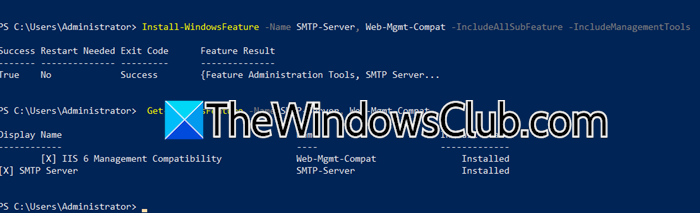
- If you can not see anything under Internet Information Service, open PowerShell as an administrator, and run the following command.
Install-WindowsFeature -Name SMTP-Server, Web-Mgmt-Compat -IncludeAllSubFeature -IncludeManagementTools
- Right-click it and choose Properties.
- Now, go to the Access tab and click on Relay.
- Click on Add…. > Single computer.
- Enter the IP address 127.0.0.1. This ensures only applications running on the server itself can use it, which is secure for most web applications.
- Click on OK.
- Now, in the Access tab, click on Authentication…
- For a simple test or internal use, you can select Anonymous access. This means no password is needed.
- For a more secure setup, uncheck Anonymous access and use Integrated Windows Authentication.
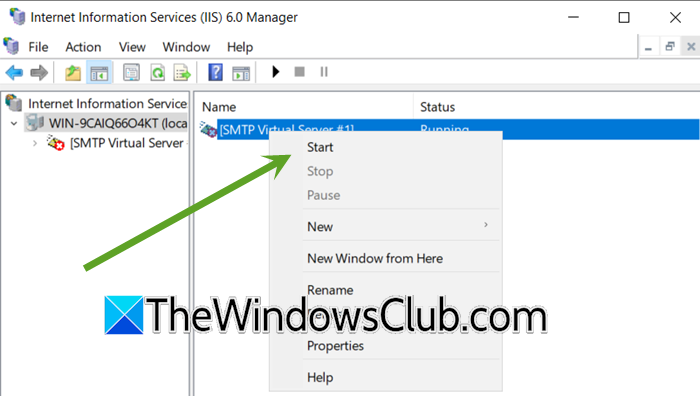
- Back in the main IIS 6.0 window, right-click [SMTP Virtual Server #1].
- Select Stop, then right-click it again and select Start.
This is the correct way to get your SMTP Server started.
4] Test Your SMTP Server Using Command Line
Once you’ve configured your SMTP server, it’s important to verify that it’s working correctly. Here’s a simple method using the Command Prompt.
telnet localhost 25
Type these commands in order, pressing Enter after each one.
EHLO yourdomain.com
MAIL FROM: [email protected]
RCPT TO: [email protected]
DATA
Subject: SMTP Server Test

Hello! This is a test message from my new SMTP server.

QUIT
If the command works, your SMTP Server is working fine.
Read: Best Free Mail Servers for Windows 11
How to configure SMTP on Windows server?
To configure SMTP on Windows Server, you first need to install the SMTP Server feature and IIS 6 Management Console using Server Manager or PowerShell, then open the IIS 6.0 Manager to create and configure your SMTP Virtual Server by setting the IP address, configuring relay restrictions to control which computers can send email, and adjusting authentication and delivery settings to meet your security and routing needs.
Read: How to set up an FTP Server on Windows 11
Is SMTP a POP or IMAP account?
No, SMTP is not a POP or IMAP account. SMTP (Simple Mail Transfer Protocol) is used for sending emails, while POP (Post Office Protocol) and IMAP (Internet Message Access Protocol) are used for receiving and storing emails. They are complementary protocols that work together: SMTP handles outgoing mail, and POP/IMAP handles incoming mail.
Also Read: Install and configure File Server on Windows Server.
