
When using a USB drive, if you receive an error that says— Code 39, Windows cannot load the device driver, this post will help you resolve the problem. The error can show for any USB device, including a standard USB drive, HDD/SSD, or even a webcam. The error is usually seen in the General tab (Properties window) of the device in the Device Manager.
Windows cannot load the device driver for this hardware. The driver may be corrupted or missing. (Code 39)
Error Code 39, Windows cannot load the device driver as it may be may be corrupted or missing
This Device Driver error occurs when there is a driver issue or when the device is misconfigured on the software level during setup. Follow these suggestions to fix the problem.
- Reinstall the Device
- Update the USB device drive
- System Restore
- Disable Memory integrity
You will need admin permission to execute the suggestion. Also, ensure to create a system restore if something goes wrong and you cannot access the PC.
1] Reinstall the Device
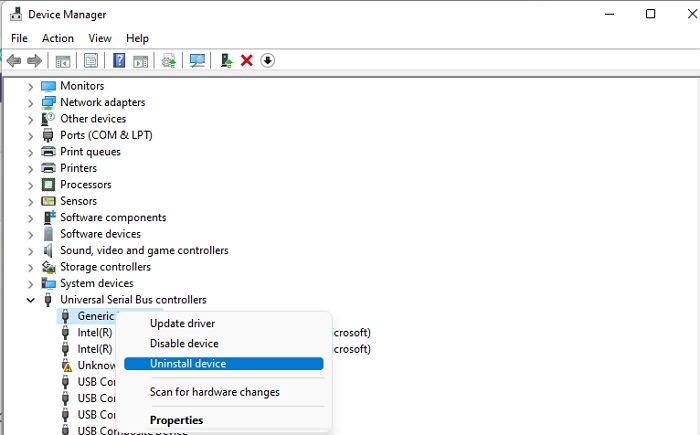
When you connect a device to Windows PC, it automatically detects and installs the most compatible driver. It ensures when the device is reconnected again, it is ready to use. To reinstall, you will need to remove the device from the system and make Windows detect it again.
- Open Power Menu (Win + X) and then press M to open Device Manager
- Locate the USB device, and right-click on it.
- Click on the Uninstall option from the context menu
- Restart the PC and then replug the hardware
- Windows will detect the device again and install the required driver.
Check if the issue has been resolved.
2] Update the USB device driver
Even if it’s a standard USB driver, a driver is associated with it. If you have a storage drive, a camera, or any device with a USB interface, it is recommended to update the drivers. The correct path to updating the drivers is to download them directly from the OEM website, rather than using Windows Update. The former method ensures you get the latest version and the compatible one. Most OEMs offer software that can help you keep the device updated.
3] Replace the Hardware
If none of these options work, it would be best to try the same device on another computer and check if it functions properly. If not, then it’s a hardware issue. If your device is still under warranty, you can contact customer support to obtain a replacement. If it’s not, customer support may be able to help you get it fixed for a fee.
Read: A driver can’t load on this device in Windows 11
4] Disable Memory integrity
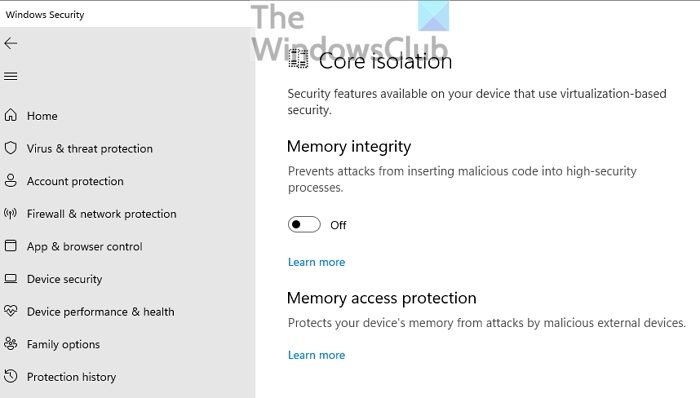
Open Windows Security and navigate to Device Security > Core isolation and turn off Memory Integrity. Now try accessing the USB device, and if it loads, then the problem is with the driver, and you need to find a driver and install it.
Memory integrity prevents malicious code from being inserted into high-security processes. If Windows Security detects a driver with an incorrect signature, it’s a problem. It doesn’t indicate that the driver is malicious, but it could be that the driver is outdated and needs an update.
Related: CD or DVD drive not working or not reading.
How to fix Error 39 if I can’t find the device?
If you are unable to determine which device is causing this error, you need to uninstall all devices under the Universal Serial Bus controllers hardware category in Device Manager. Then, use the Scan for hardware changes feature to redetect the device, allowing Windows to reinstall it.
What does Error Code 38, Previous instance is in memory mean?
If you receive this error Windows cannot load the device driver (Code 38) in the Device Manager, it means that a previous instance of the device driver is still in memory. Every time a device is used, the driver is loaded into memory and then unloaded. This error may occur if the OS loads the unwanted driver or fails to unload the driver. mean?
