
It goes without a doubt that Cloudflare DNS service is one of the fastest services right now, and it goes one step beyond resolving the website to IP. It is also about encryption and privacy. Cloudflare offers Family-specific features that automatically filter out bad sites. In this post, we will show you how to set up and use Cloudflare 1.1.1.1 for Families.
Before you begin, you should know that Cloudflare’s 1.1.1.1 DNS is a fast, privacy‑focused public resolver, while 1.1.1.1 for Families adds built‑in filtering to block malware and adult content.
How to set up Cloudflare 1.1.1.1 for Families
Since many are working from home, Cloudflare’s service for Families will be especially helpful. It will make sure to safeguard privacy, optimize efficiency, but compared to Cloudflare 1.1.1.1; it can block or filter content. The priority here is to protect against security threats and prevent their kids from accessing adult content. So it might not be the fastest service to resolve, but it’s going to make sure bad things stay out of the way. In this post, we take a look at the following topics:
- IPv4 and IPv6 addresses of Cloudflare for Families
- Router Setup Instructions
- Windows Setup Instructions
- Mac Setup Instructions
- Linux Setup Instructions
1] IPv4 and IPv6 addresses of Cloudflare for Families
For IPv4 use:
- Malware Blocking Only
- Primary DNS: 1.1.1.2
- Secondary DNS: 1.0.0.2
- Malware and Adult Content
- Primary DNS: 1.1.1.3
- Secondary DNS: 1.0.0.3
For IPv6 use:
- Malware Blocking Only
- Primary DNS: 2606:4700:4700::1112
- Secondary DNS: 2606:4700:4700::1002
- Malware and Adult Content
- Primary DNS: 2606:4700:4700::1113
- Secondary DNS: 2606:4700:4700::1003
3] Cloudflare Router Setup Instructions
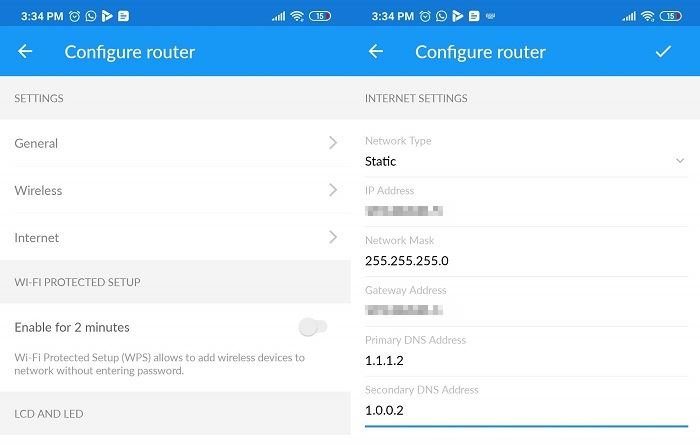
Every router offers you to configure DNS, and it applies for Static, Dynamic, PPPoE, and others. You need to figure out the Internet section on your router and replace the DNS with Cloudflare Families DNS.
Your ISP might have offered you a different one, and changing it to any other DNS resolved doesn’t create a problem. Instead, it speeds up the process of resolving and accessing websites.
3] Windows Cloudflare Setup Instructions
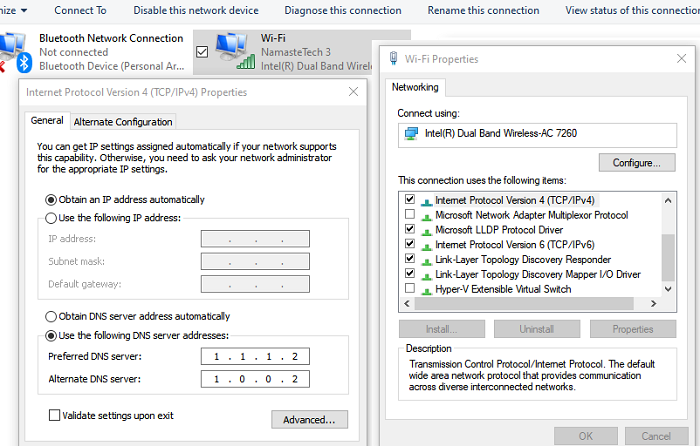
- Right-click on the network icon, and click on Open Network and Internet settings
- Click on Change Adapter Settings to open the Network connection window
- Right-click on it, and select Properties
- Select Internet Protocol Version 4 or Internet Protocol Version 4
- Click Properties.
- Add or replace it with the respective IP address.
4] Mac Cloudflare Setup Instructions
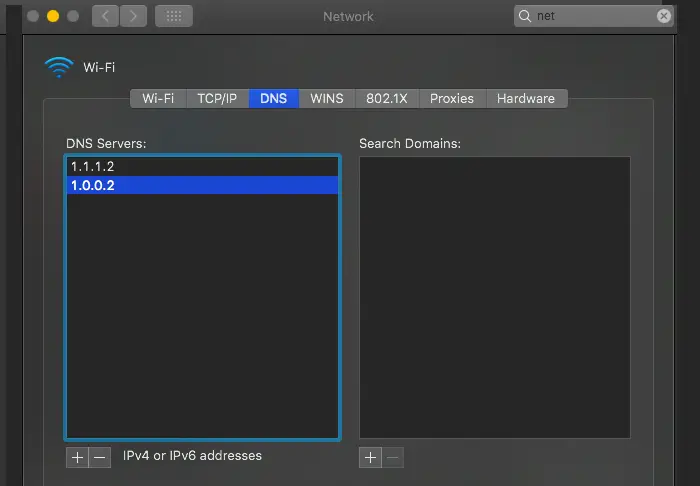
- Open System Spotlight by using Command + spacebar on your Macbook.
- Type System Preferences, and open the Network > Advanced > DNS Tab
- If you have a DNS configure, note it, and delete it.
- Add the IPv4 or IPv6 DNS
- Click ok, and apply.
5] Linux Cloudflare Setup Instructions
- Navigate to System > Preferences > Network Connections > Wireless tab
- Select the Wi-Fi network > Edit > IPv4 or IPv6
- Add Cloudflare DNS IP and Apply
6] Cloudflare Mobile Setup Instructions
If you want to use it on your mobile, you will have to configure the VPN section, where you can enter the IP address.
Read: How to use Cloudflare WARP for Windows Desktop

Other Features
Cloudflare is also working on two more features to make it easy for admins to manage websites for the home environment. They are:
- Options to create specific whitelists and blacklists of individual sites.
- Set the times of the day when the category of websites are blocked
That said, the feature is now and might have some false positives. For example, a couple of users have reported that the family/adult filter needs some tweaks, as it filters out YouTube videos and even breaks them. In that case, it is suggested to use 1.1.1.3 or 1.0.0.3, which enables the SafeSearch feature from YouTube.
If you are experiencing an issue with the website, you can report it to Cloudflare Support. Also, they are yet to roll out the DOT URLs, which can tell if the implementation of the Family DNS is accurate. So we will have for that as well.
We hope Cloudflare rolls out the option to whitelist and blacklist to manage websites soon.
Other DNS services you can check out: Comodo Secure DNS | Angel DNS | OpenDNS.
