
While one can always use our Ultimate Windows Tweaker to set Windows to delete the Page File (pagefile.sys) on every shutdown easily, you can also configure the Registry setting manually. Cleaning the page file on every shutdown involves overwriting the data with zeros, which takes time. This will increase the shutdown time.
Should I clear a page file at shutdown?
Clearing the page file at shutdown is generally not necessary for most users. However, it can enhance security, particularly if you handle sensitive data, by ensuring no residual data remains. Windows utilizes the page file as virtual memory, so clearing it ensures your confidential information isn’t inadvertently stored.
If you work on confidential documents, then you may want to have this setting ‘on’. When you load such documents, they are loaded into RAM. To save RAM, Windows places certain items in the page file. Hence, you may want to delete the page file at every shutdown in such cases.
Some third-party programs can temporarily store unencrypted (plain-text) passwords or other sensitive information in memory. Because of the Windows virtual memory architecture, this information can be present in the paging file named pagefile.sys.
Although clearing the paging file is not a substitute for a computer’s physical security, you might want to do this to increase data security while Windows is not running.
Read: How to Back up or Move PageFile.sys.
How to delete PageFile.sys at shutdown in Windows 11
There are easy ways you may clear or delete the Page File or Paging file at shutdown in Windows 11/10:
- Ultimate Windows Tweaker
- Change Registry setting
- Use Group Policy Editor
- Use Microsoft Fix It.
Let us see the details:
1] Ultimate Windows Tweaker
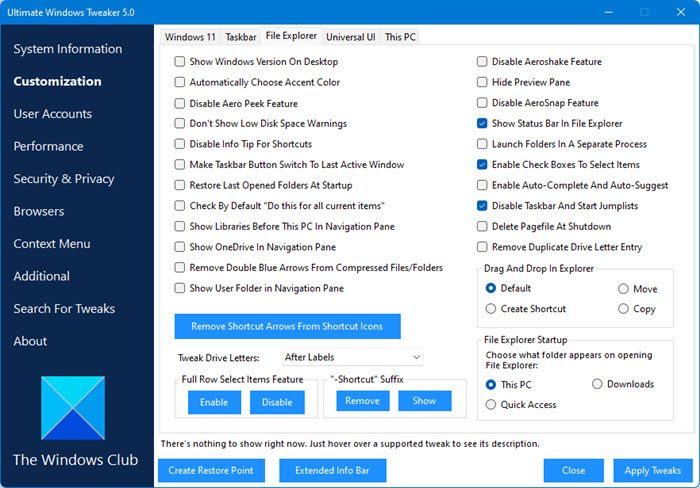
Download and use our freeware Ultimate Windows Tweaker to do so with a click. You will see the setting under Customization > File Explorer.
2] Change Registry setting
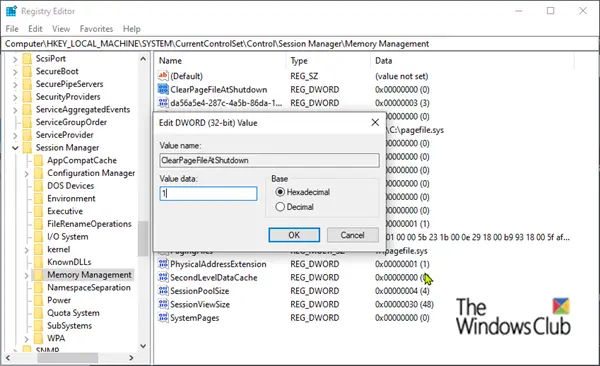
If you want you can also clear the paging file manually! To do so open regedit and navigate to the following key:
HKEY_LOCAL_MACHINE\SYSTEM\CurrentControlSet\Control\Session Manager\
- Right-click on Memory Management and select New > DWORD (32-bit) Value.
- Name the DWORD value ClearPageFileAtShutdown.
- Double-click on the DWORD value and type 1, in the Value data box.
That’s it! To reverse the process, type 0 (zero) in the value box instead.
When the Clear virtual memory pagefile setting is turned on, when the system shuts down, the computer may take longer to shut down than it usually takes. This behavior occurs because when this policy setting is turned on, the computer must physically write to each page in the pagefile to clear each page. The period of time that it takes for the system to clear the pagefile varies according to the pagefile size, and the disk hardware that is involved.
3] Use Group Policy Editor
Open the Run dialog box by pressing the Windows key + R combination.
Input gpedit.msc in the Run dialog box and hit ENTER.
In the Group Policy Editor, expand Computer Configuration on the left-hand pane.
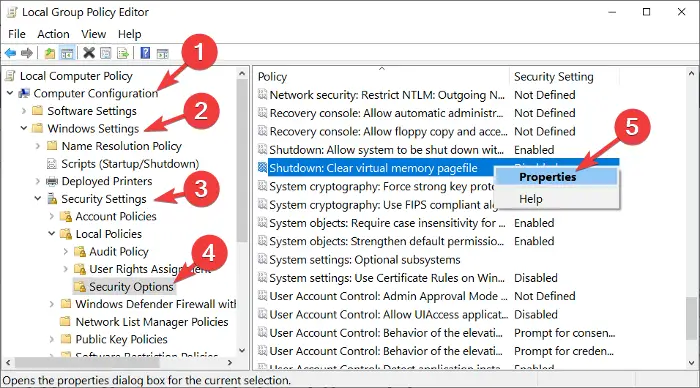
Under Computer Configuration, go to Windows Settings > Security Settings > Local Policies > Security Options.
From the right-hand pane, right-click on Shutdown: Clear virtual memory pagefile and select Properties.
Choose Enabled from the new window and finally hit the Apply and OK buttons to save the configuration.
4] Use Microsoft Fix It

Running Microsoft Fix It, available at KB314834, clears the Windows paging file (Pagefile.sys) during shutdown, ensuring no unsecured data remains in the paging file when the shutdown process is complete.
Hope this helps.
Where is Pagefile sys located in Windows 11?
In Windows 11/10, the pagefile.sys is located in the root directory of the system drive, usually the C: drive. This file acts as virtual memory, supporting RAM by storing data temporarily to improve system performance. You can view it by enabling hidden files in File Explorer.
Read next: How to increase Page File size or Virtual Memory in Windows.
